Xero
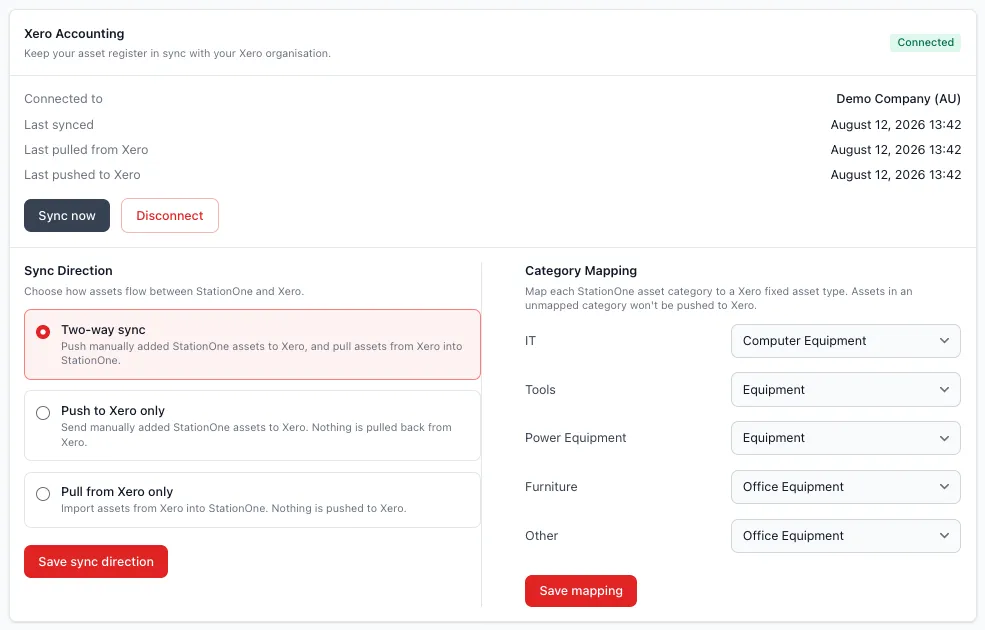
StationOne can connect to Xero to sync your brigade’s asset register with Xero’s Fixed Assets Register. Once connected, assets you create in StationOne can be pushed to Xero as draft fixed assets, and assets recorded in Xero can be pulled into StationOne.
Prerequisites
Section titled “Prerequisites”- The Asset Manager module must be enabled for your brigade
- Brigade admin role, organisation admin, or a member granted the Xero Sync feature permission for Asset Manager (see Permissions Reference)
- A Xero account with access to the organisation you want to connect
Connect to Xero
Section titled “Connect to Xero”- Navigate to Brigade Settings
- Click the Integrations tab
- Click Connect to Xero
- Log in to Xero and authorise StationOne when prompted
- If your Xero login has access to more than one Xero organisation, you’ll be asked to choose which one to connect — select the correct organisation and confirm
Once connected, the Integrations tab shows your connection status, the connected Xero organisation name, and the last time data was synced, pulled, and pushed.
Map asset categories to Xero asset types
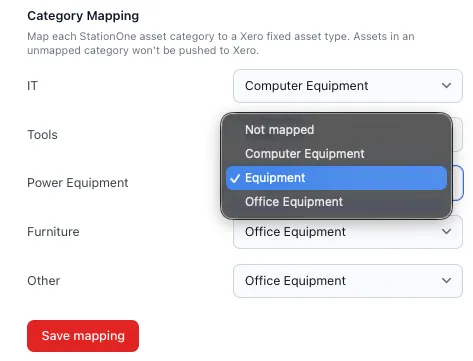
Section titled “Map asset categories to Xero asset types”Xero requires every fixed asset to have an asset type. Before pushing assets, map each StationOne asset category (IT, Tools, Power Equipment, Furniture, Other) to the corresponding Xero asset type:
- On the Integrations tab, find the Category Mapping section
- For each StationOne category, select the matching Xero asset type from the dropdown
- Save your changes
Any StationOne category left unmapped will be skipped when pushing assets to Xero.
Choose a sync direction
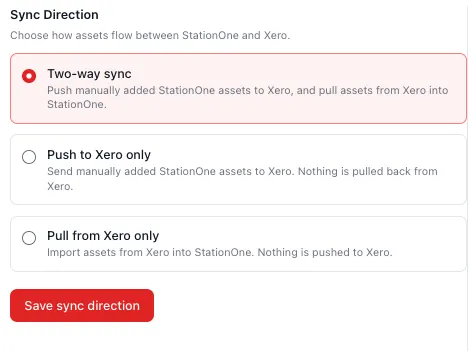
Section titled “Choose a sync direction”The Sync Direction setting controls how data flows between StationOne and Xero:
- Bidirectional (default) — assets are pushed to Xero and pulled from Xero
- Push only — StationOne assets are sent to Xero, but Xero assets are not imported
- Pull only — Xero assets are imported into StationOne, but StationOne assets are not sent to Xero
Select the option that matches your brigade’s workflow and save.
Sync now
Section titled “Sync now”Syncing happens automatically once a day. To sync immediately:
- Go to Brigade Settings → Integrations
- Click Sync now
See Xero Asset Sync for details on exactly what data syncs and in which direction.
Reconnecting
Section titled “Reconnecting”Xero access can expire or be revoked from the Xero side (for example, if a user’s Xero login is deactivated). When this happens, the connection status shows Needs Reconnect along with the error returned by Xero.
To restore the connection:
- Go to Brigade Settings → Integrations
- Click Reconnect
- Complete the Xero login and authorisation steps again
Your category mapping and sync direction settings are preserved when you reconnect.
Disconnect
Section titled “Disconnect”- Go to Brigade Settings → Integrations
- Click Disconnect
Disconnecting revokes StationOne’s access in Xero and stops all syncing. Your category mapping is kept, and any assets already pushed or pulled remain in your StationOne asset register — disconnecting does not delete or unlink existing assets.
Related guides
Section titled “Related guides”- Xero Asset Sync — What data syncs, in which direction, and what happens to assets once they’re synced
- Manage Assets — Creating and maintaining your brigade’s asset register
- Permissions Reference — Feature permissions, including Xero Sync