Duty Crews
Duty Crews allows brigades to organise members into named rotating shifts, assign tasks aligned to the rotation schedule, and track attendance and task completions — including via a public QR code link that requires no login.
Overview
Section titled “Overview”The Duty Crews module provides:
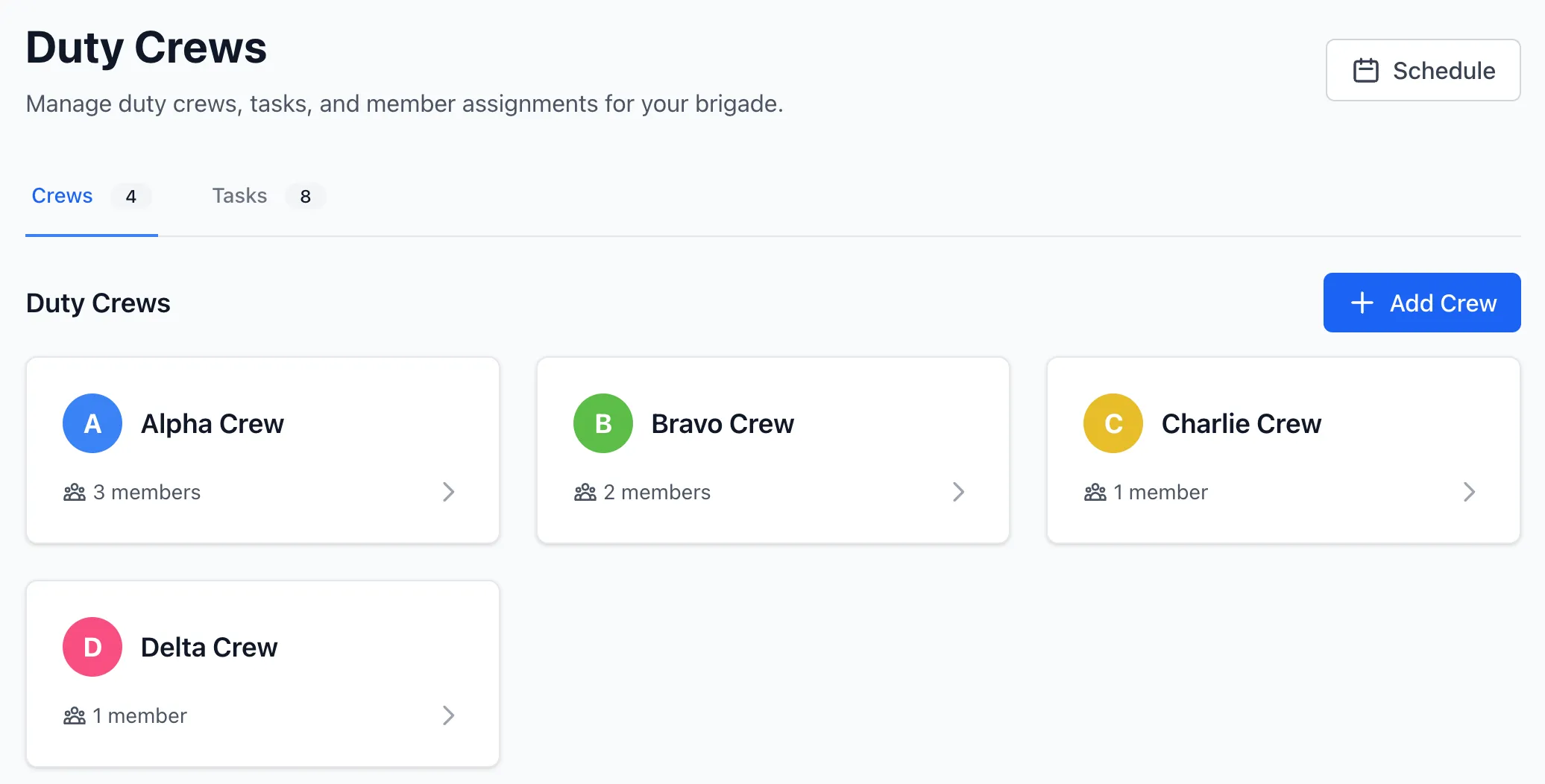
- Named crews with colour coding and member assignments
- A rotation schedule (daily, weekly, monthly, or custom intervals)
- Tasks that automatically surface for the correct crew based on the rotation
- One-off tasks that disappear after a single completion
- Optional links to inspection templates so duty tasks trigger a full checklist
- Public access so members can check off tasks and register attendance without logging in
Key Features
Section titled “Key Features”Each duty crew includes:
- Name — Unique identifier within your brigade (e.g. Alpha, Red Crew, A-Shift)
- Colour — HEX colour for visual identification in calendars and task lists
- Description — Optional notes about the crew’s role or composition
- Members — Brigade users assigned to the crew, with optional leader designation
- Active status — Crews can be deactivated without losing history
Each member can belong to only one crew at a time within a brigade. Assigning a member to a new crew automatically removes them from their previous crew.
Rotation Schedule
Section titled “Rotation Schedule”A brigade has one rotation schedule that drives which crew is currently on duty. Configuration options:
- Daily — Crew rotates every day
- Weekly — Crew rotates each week
- Monthly — Crew rotates each month
- Custom — Crew rotates every N days of your choosing
The schedule uses an anchor point (start date + starting crew) to calculate which crew is on duty for any given date. A 14-day preview shows the upcoming rotation so you can verify the configuration is correct.
You can also manually rotate to the next crew at any time — useful for covering absences or adjusting the schedule mid-rotation.
Tasks are the work items associated with each rotation. A task can be:
- Always visible — No frequency set; appears every time the duty board is viewed
- Recurring — Set a frequency (daily, weekly, monthly) and a start date; the task is only shown to the crew responsible for the current period
- One-shot — Appears once and disappears after the first completion (useful for ad-hoc jobs)
Tasks can be assigned to:
- All crews — Appears for whichever crew is currently on duty
- Specific crews — Only appears for the nominated crews regardless of rotation
Linking to Inspection Templates
Section titled “Linking to Inspection Templates”Any task can be linked to an inspection template. When a linked task appears on the duty board, members see an Inspect Now button that launches the full inspection checklist. The resulting inspection record is linked to the task completion, creating a complete audit trail.
Task Completion & Attendance
Section titled “Task Completion & Attendance”When completing duties, the following is recorded:
- Which crew completed the task
- Who logged the completion
- Date and time of completion
- Members present (named list)
- Optional notes
- Link to the associated inspection (if applicable)
Completion history is visible on each task’s detail page, showing a full timeline of who did what and when.
Public Access
Section titled “Public Access”Enable the Public Duty Crews feature in brigade settings to generate a shareable link (and QR code) for the duty board. Public access allows:
- Viewing the current crew and upcoming tasks — no login required
- Registering attendance: selecting conductor, crew, members present, and tasks completed
- Triggering linked inspections directly from the public board
This is designed for stations where not all members have StationOne accounts, or where quick tablet/phone access at the station is preferred.
Scheduling Logic
Section titled “Scheduling Logic”The system uses the rotation schedule as an anchor to determine task responsibility:
- A daily task starting on a given date belongs to whichever crew was on duty that day
- A weekly task belongs to the crew on duty at the start of the current week (aligned to the
recur fromdate) - A monthly task belongs to the crew on duty on the monthly anniversary of the
recur fromdate
This prevents tasks from appearing to the wrong crew when rotations and task periods don’t perfectly align.
Related Features
Section titled “Related Features”- Inspections — Link duty tasks to full inspection checklists
- Templates — Build the checklists used in duty task inspections
- Public Access — Overview of all public access features
- Actions — Actions created from failed inspections triggered during duty