Public Access
Public Access features allow you to share your brigade’s information and enable volunteers to conduct inspections using QR codes.
This makes it easier for members to access relevant information and inspections without needing to sign in or requiring to be a user of the platform.
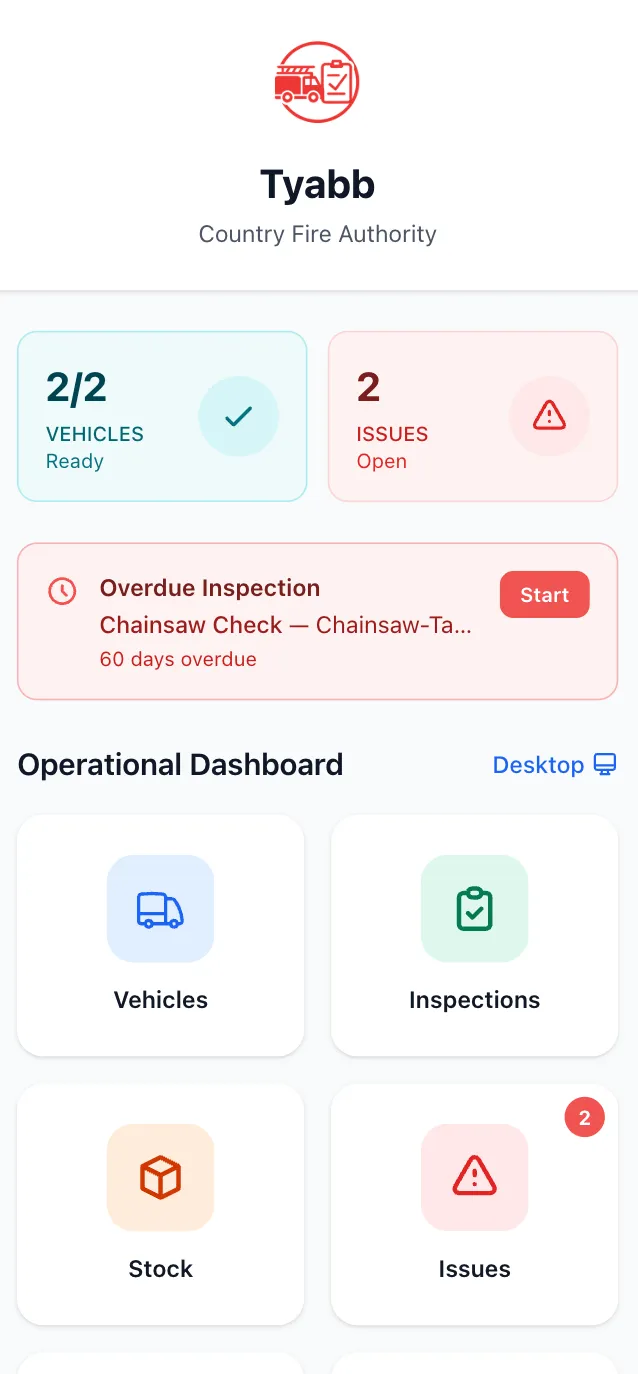
Overview
Section titled “Overview”StationOne provides three main public access features:
- Station Portal - Give unit members access to brigade information, events, hydrant maps, and more without requiring a login.
- Public Vehicle Access - QR codes on vehicles for public inspection of the vehicle and associated equipment.
- Public Inspections - QR codes on templates for volunteer inspections of vehicles, equipment or other items that may require routine inspection or checks.
All public features use secure, unique tokens that can be regenerated to invalidate old links. Public pages are not indexed by search engines, and due to the nature of the unique token it is not possible for a human to guess the address to your public page.
Station Portal (Public)
Section titled “Station Portal (Public)”What’s Included
Section titled “What’s Included”The Station Portal can display:
- Brigade information - Name, description, contact details
- Public vehicles - Fleet information (if enabled)
- Hydrant map - Interactive map of hydrants in your area (if enabled)
- Events - Upcoming events (if enabled)
- Trainings - Upcoming training sessions (if enabled)
- Custom links - Links to useful resources, documentation, websites, etc.
Public URL
Section titled “Public URL”When enabled, your brigade gets a unique public URL:
https://yourapp.com/public/brigades/[unique-token]This URL can be:
- Converted to a QR Code and placed around the station.
- Saved directly to the home screen of your members personal devices for quick access.
Visibility Controls
Section titled “Visibility Controls”Toggle visibility for each component:
- Public vehicles - Show/hide vehicle list
- Public hydrants - Show/hide hydrant map
- Public events - Show/hide upcoming events
- Public trainings - Show/hide training sessions
Custom Links
Section titled “Custom Links”Add custom links to your public page:
- Helpful information for your members.
- Documentation.
- Weather and other sites.
Public Vehicle Access
Section titled “Public Vehicle Access”Enable public access for individual vehicles via QR codes.
How It Works
Section titled “How It Works”- Enable public access on a vehicle
- Unique QR code generated automatically
- Print QR code and display on vehicle
- Public scans QR to access vehicle page
- Conduct inspection using vehicle’s default template
Public Vehicle Page
Section titled “Public Vehicle Page”When someone scans a vehicle’s QR code, they see:
- Vehicle information (registration, call sign, type)
- Option to start an inspection
- Equipment assigned to the vehicle
- Instructions for inspection
Public Inspections
Section titled “Public Inspections”Enable public inspections via templates, allowing anyone to conduct inspections without logging in.
Template-Based Public Access
Section titled “Template-Based Public Access”- Enable public access on an inspection template
- Unique QR code generated for template
- Print QR code for distribution
- Public scans QR to access inspection form
- Select vehicle/equipment from template’s unit
- Conduct inspection following template checklist
Public Inspection Workflow
Section titled “Public Inspection Workflow”When someone uses a public inspection link:
- Scan QR code - Access inspection form
- Select asset - Choose vehicle or equipment to inspect
- Enter name - Provide inspector name or select from user list
- Conduct inspection - Follow same checklist as internal inspections
- Submit - Complete inspection and notify brigade admins
Inspector Identification
Section titled “Inspector Identification”Public inspections track inspectors by:
- Name entry - Inspector enters their name
- User selection - Choose from unit’s user list (autocomplete)
- Members present - Optional additional inspectors
Results stored with conducted_by_name field instead of user_id.
Email Notifications
Section titled “Email Notifications”When public inspection is completed:
- All brigade admins receive email notification
- Includes inspection summary
- Links to inspection details
- Allows for review and action assignment
Integration
Section titled “Integration”Public inspections fully integrate with internal system:
- Same inspection record structure
- Same scoring and action generation
- Same photo and signature capture
- Appears in inspection history
- Marked as “(public)” in dashboards
Public Hydrant Runs
Section titled “Public Hydrant Runs”How It Works
Section titled “How It Works”- Create hydrant run with ordered route
- Enable public access on the run
- Generate QR code
- Distribute to volunteers
- Member scans QR and inspects hydrants in order
Public Hydrant Run Workflow
Section titled “Public Hydrant Run Workflow”- Scan QR code - Access hydrant run
- Enter inspector name - Identify inspector
- Add members present - Optional additional inspectors
- Inspect each hydrant - Work through route in order
- Complete checks - 6 checks per hydrant
- Submit - Results stored and integrated
Hydrant Checks
Section titled “Hydrant Checks”Each hydrant inspection verifies:
- Clear of debris
- Post present
- Reflector present
- Road reflector
- Accessible
- Functional
Security & Privacy
Section titled “Security & Privacy”Secure Tokens
Section titled “Secure Tokens”All public access uses secure tokens:
- Unique - Each resource gets unique token
- Random - SecureRandom.urlsafe_base64 generation
- Regenerable - Can regenerate to invalidate old links
- No authentication - Public access doesn’t require login
Token Regeneration
Section titled “Token Regeneration”Invalidate old QR codes and links:
- Click “Regenerate Token”
- New token generated
- Old token no longer works
- Generate new QR code
- Replace printed materials
Scope & Permissions
Section titled “Scope & Permissions”Public access is scoped and limited:
- Read-only - Cannot modify brigade data
- Scoped to unit - Only see resources from specific unit/org
- Inspection only - Can only create inspections, not edit
- No system access - Cannot access admin features
- Immutable submissions - Cannot edit after completion
Data Privacy
Section titled “Data Privacy”Public pages respect privacy:
- Only show enabled components
- No sensitive user information
- No internal notes or comments
- No financial data
- No private events or trainings
Best Practices
Section titled “Best Practices”Brigade Pages
Section titled “Brigade Pages”Keep Updated
- Regularly review displayed information
- Update contact details
- Remove outdated events
- Refresh custom links
Community Engagement
- Share URL on social media
- Add to brigade website
- Include in newsletters
- Promote at community events
Visibility Management
- Only enable what you want public
- Review quarterly
- Consider community interest
- Balance transparency with security
Vehicle QR Codes
Section titled “Vehicle QR Codes”Physical QR Codes
- Print high-quality, weather-resistant codes
- Place in visible, accessible location
- Include instructions (“Scan to inspect”)
- Protect from damage
Maintenance
- Check QR codes during inspections
- Replace damaged codes
- Update after token regeneration
- Test scanning periodically
Public Inspections
Section titled “Public Inspections”Clear Instructions
- Include instructions with QR code
- Explain inspection purpose
- Provide contact for questions
- Set expectations
Monitor Submissions
- Check email notifications promptly
- Review public submissions
- Assign actions as needed
- Follow up on issues
Volunteer Training
- Train volunteers on inspection process
- Explain what to look for
- Demonstrate photo capture
- Answer questions
Hydrant Runs
Section titled “Hydrant Runs”Route Planning
- Create manageable route lengths
- Order hydrants logically
- Include instructions
- Provide contact for issues
Community Events
- Organise hydrant awareness events
- Invite community participation
- Provide refreshments and recognition
- Collect feedback
Data Quality
- Review public submissions
- Verify flagged issues
- Thank contributors
- Use data for maintenance planning
Limitations
Section titled “Limitations”Public access has intentional limitations:
No Account Access
- Cannot log in to full system
- Limited to public features
- No admin capabilities
- No access to private data
Read-Only Brigade Info
- Cannot modify brigade details
- Cannot change settings
- Cannot access member information
- Cannot view financial data
Inspection Only
- Can create inspections
- Cannot edit inspections
- Cannot delete inspections
- Cannot assign actions
No Reporting
- Cannot generate reports
- Cannot view analytics
- Cannot export data
- Cannot access dashboards
Related Features
Section titled “Related Features”- Vehicles - Enable public vehicle access
- Inspections - Public inspection workflow
- Templates - Enable public template access
- Hydrants - Public hydrant runs