Toggling Features on the Station Portal
Once the Station Portal is enabled, you can choose exactly what visitors see. Each feature section can be toggled on or off independently.
Prerequisites
Section titled “Prerequisites”- Station Portal enabled (see Enabling the Station Portal)
- Brigade admin or organisation admin role
Configuring Visibility
Section titled “Configuring Visibility”1. Open the Public Page Settings
Section titled “1. Open the Public Page Settings”- Log in to StationOne
- Go to Settings → Brigade Settings → Public Page tab
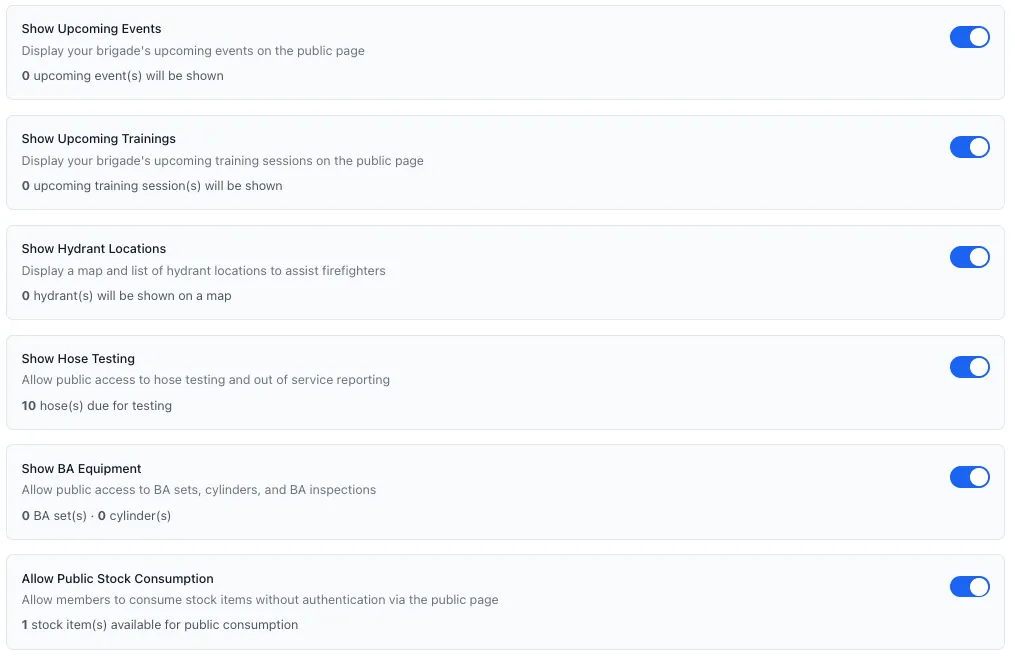
2. Toggle Features
Section titled “2. Toggle Features”Enable or disable each section using its toggle:
Vehicles
Section titled “Vehicles”- Shows your brigade’s vehicle fleet
- Only vehicles individually marked as public are displayed
- Displays registration, call sign, and appliance type
- Links to the vehicle’s public detail page (if public vehicle access is also enabled)
To make a specific vehicle visible, navigate to Vehicles → select the vehicle → enable Public Access on that vehicle.
Hydrants
Section titled “Hydrants”- Displays an interactive map of hydrants in your response area
- Shows hydrant locations and basic details
- Useful for members attending incidents or pre-planning
Note: Your unit must have a response area polygon configured for hydrants to appear. Only hydrants within that area are shown.
Events
Section titled “Events”- Lists upcoming public events
- Shows date, time, and event name
- Only events individually marked as Public Event appear
To make an event visible, open the event and check the Public Event option before saving.
Allow members to validate own attendance
A sub-toggle nested under Upcoming Events:
- When enabled, members can mark themselves Attended or Not Attended from 1 hour before an event starts until 1 hour after it ends — instead of an admin having to mark attendance manually afterwards
- Outside that window, members still see the normal RSVP options (Attending, Maybe, Apology, Not Attending)
- Also applies to the Check-In Kiosk and the native app — a check-in during the window records actual attendance rather than an RSVP
Trainings
Section titled “Trainings”- Lists upcoming public training sessions
- Only trainings marked as Public Training appear
To make a training visible, open the training record and check the Public Training option before saving.
Allow members to validate own attendance
A sub-toggle nested under Upcoming Trainings, working the same way as the Events version above: members can self-mark Attended / Not Attended from 1 hour before a training session starts until 1 hour after it ends.
Custom Links
Section titled “Custom Links”Add links to external resources your members might find useful:
- Click Add Public Link
- Enter a Label (e.g. “Join Us”, “Facebook”, “Donate”)
- Enter the full URL
- Click Add Link
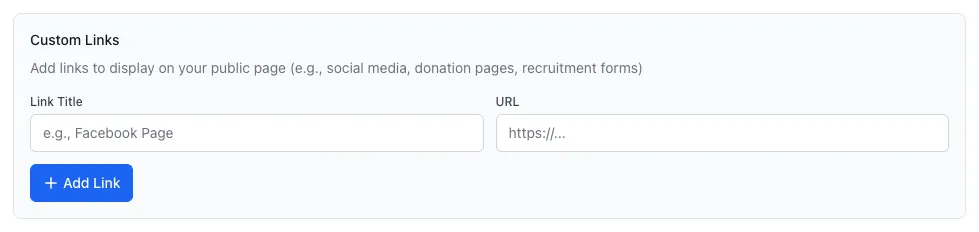
Repeat for any additional links. These appear as buttons or links on the Station Portal.
3. Save Settings
Section titled “3. Save Settings”Click Save or Update Settings. Changes take effect immediately.
What’s Always Private
Section titled “What’s Always Private”Regardless of settings, the Station Portal never exposes:
- Member names, contact details, or profiles
- Internal (non-public) events or trainings
- Inspection reports or results
- Financial or subscription information
- Admin controls or dashboards