Link Stock Items to Vehicle Inspections
Overview
Section titled “Overview”The stock linking feature allows you to associate stock items (like masks, gloves, medical supplies, or other consumables) with questions in your vehicle inspection templates. When conducting a vehicle inspection, inspectors can see current stock levels and record restocking activities directly within the inspection workflow.
Benefits
Section titled “Benefits”- Real-time inventory visibility: See current stock levels during vehicle inspections
- Simplified restocking: Record stock additions without leaving the inspection
- Automatic inventory updates: Stock on hand decreases when restocking is recorded
- Audit trail: Track when and how much stock was added to vehicles
- Proactive stock management: Identify low stock levels before items run out
- Integrated workflow: Combine vehicle checks with inventory management
How It Works
Section titled “How It Works”Template Setup
Section titled “Template Setup”When creating or editing a vehicle inspection template:
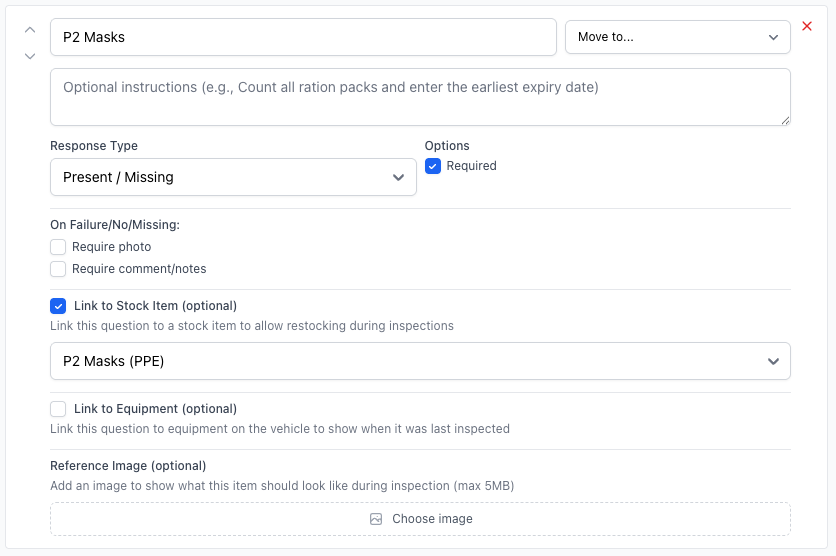
- Navigate to Templates from the main menu
- Create a new template or edit an existing vehicle inspection template
- Add or edit an inspection item where you want to link stock
- Check the “Link to Stock Item” checkbox
- Select the specific stock item from the dropdown (filtered to stock in your unit)
- Save the template
During Vehicle Inspections
Section titled “During Vehicle Inspections”When conducting a vehicle inspection with linked stock items:
Stock Restock Display
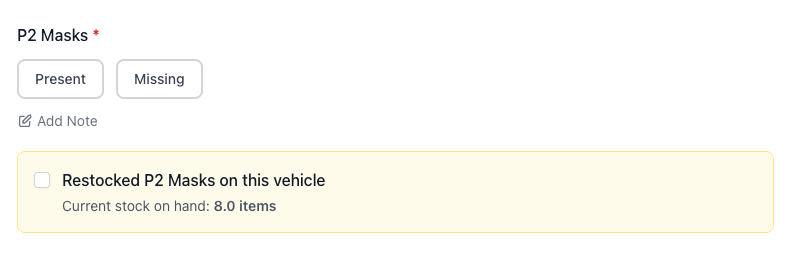
Section titled “Stock Restock Display”For each question with linked stock, inspectors will see:
- Stock item name in an amber/yellow highlighted section
- Current stock on hand: The total quantity available in your unit’s inventory
- Restock checkbox: “Restocked [Item Name] on this vehicle”
- Quantity input field: Appears when checkbox is selected
Recording Restocks
Section titled “Recording Restocks”Step-by-step process:
- Answer the inspection question (Present/Missing, Pass/Fail, etc.)
- Check the restock checkbox if you added stock to the vehicle
- Enter the quantity added to the vehicle
- Continue with inspection - changes are auto-saved
Example:
- Inspector checks P2 Masks on Truck 24
- Sees “Current stock on hand: 8.0 items”
- Marks as “Present”
- Checks “Restocked P2 Masks on this vehicle”
- Enters “2” in quantity field
- Upon inspection completion, stock on hand reduces to 6.0 items
Stock Deduction Process
Section titled “Stock Deduction Process”When an inspection is completed:
- System reviews all stock restock responses
- For each restocked item:
- Finds the linked stock item
- Deducts the entered quantity from
quantity_on_hand - Creates an audit record of the transaction
- Stock levels update immediately
- Stock managers can see the deduction in stock history
Configuration Requirements
Section titled “Configuration Requirements”Stock Item Setup
Section titled “Stock Item Setup”For stock to be linkable to vehicle inspections:
- Stock item must exist in the system (Stock > Add Stock Item)
- Stock must have quantity on hand greater than zero
- Stock must be active in the system
- Stock must belong to the same unit as the template
Required Stock Item Fields
Section titled “Required Stock Item Fields”- Name: Clear identifier (e.g., “P2 Masks”, “Disposable Gloves”)
- Quantity on hand: Current inventory count
- Unit of measure: How the item is counted (items, pairs, boxes, etc.)
- Unit: The organizational unit that owns the stock
- Active status: Must be set to active
Best Practices
Section titled “Best Practices”Which Stock to Link
Section titled “Which Stock to Link”Link stock items that:
- Are regularly restocked on vehicles
- Are consumable or have expiration dates
- Require inventory tracking
- Are critical for operations
- Need regular checks during inspections
Examples:
- Medical supplies (masks, gloves, bandages)
- Personal protective equipment (PPE)
- Disposable items (wipes, bags)
- Consumables (batteries, chemical sticks)
- Safety equipment (road flares, warning triangles)
Template Organization
Section titled “Template Organization”-
Group related checks: Place stock links near related vehicle inspection items
- Example: Link P2 Masks stock near “Check medical supplies compartment”
-
Clear question text: Make it obvious what’s being checked and why
- Good: “Verify P2 Masks are present and restock if needed”
- Avoid: “Check masks”
-
One stock item per question: Don’t try to link multiple stock items to a single question
-
Use descriptive stock names: Make it easy for inspectors to identify items
- Good: “P2 Masks (Disposable)”
- Avoid: “Masks” or “Item #123”
Inventory Management
Section titled “Inventory Management”-
Maintain adequate stock levels: Ensure stock on hand is sufficient for restocking needs
-
Regular stock checks: Review stock levels regularly to avoid running out
-
Set reorder thresholds: Establish minimum levels and reorder before reaching zero
-
Track usage patterns: Use inspection data to understand restocking frequency
-
Coordinate with stock managers: Ensure vehicle inspectors and stock managers communicate about inventory
Troubleshooting
Section titled “Troubleshooting”Stock item not appearing in template dropdown
Section titled “Stock item not appearing in template dropdown”- Confirm stock item is active
- Check stock belongs to same unit as template
- Verify stock has quantity on hand > 0
- Ensure you’ve saved the stock item
Restock quantity field not appearing
Section titled “Restock quantity field not appearing”- Make sure you’ve checked the restock checkbox
- Verify the checkbox change saved (auto-save should happen)
- Check browser console for JavaScript errors
- Try refreshing the page
Stock not deducting after inspection completed
Section titled “Stock not deducting after inspection completed”- Ensure inspection status is “completed” (not just saved as draft)
- Verify you entered a quantity in the restock field
- Check that quantity field was not left blank
- Confirm stock item still exists and is active
- Review stock item history to see if deduction was recorded
Negative stock levels
Section titled “Negative stock levels”If stock on hand becomes negative:
- This indicates more stock was allocated than was available
- Review recent inspection restocks
- Adjust stock on hand manually in stock management
- Investigate if stock counts were inaccurate
Restock checkbox already checked when resuming inspection
Section titled “Restock checkbox already checked when resuming inspection”- This is expected behavior if you previously selected it
- The system saves draft responses including checkbox states
- If incorrect, simply uncheck it before completing inspection
Stock vs Equipment: When to Use Each
Section titled “Stock vs Equipment: When to Use Each”Use Stock Linking When:
Section titled “Use Stock Linking When:”- Item is consumable (gets used up)
- Item is regularly replenished
- You need to track quantity usage
- Item is not permanently assigned to vehicle
- Examples: masks, gloves, bandages, batteries
Use Equipment Linking When:
Section titled “Use Equipment Linking When:”- Item is durable (not consumed)
- Item requires inspection (not restocking)
- Item is permanently mounted or assigned
- You need to track inspection dates
- Examples: chainsaws, defibrillators, ladders, SCBA
Related Features
Section titled “Related Features”- Link Equipment to Inspections
- Manage Stock Items
- Stock Actions
- Create Inspection Templates
- Conduct an Inspection
Technical Details
Section titled “Technical Details”Data Structure
Section titled “Data Structure”Stock links are stored in the template JSON structure:
{ "text": "Check P2 Masks", "response_type": "present_missing", "stock_item_id": 456, "equipment_id": null}Restock responses are stored separately:
{ "section_0_item_0": "present", "section_0_item_0_restock_checked": "true", "section_0_item_0_restock_quantity": "2"}Stock Deduction Process
Section titled “Stock Deduction Process”When an inspection is completed, the system:
- Parses all inspection responses
- Identifies restock responses (keys ending with
_restock_checked) - For each restocked item:
- Extracts the quantity from corresponding
_restock_quantitykey - Finds the linked stock item from template structure
- Reduces
quantity_on_handby the entered quantity - Validates quantity is not greater than available stock
- Updates stock item record
- Extracts the quantity from corresponding
- Creates audit trail in inspection responses
Validation
Section titled “Validation”The system validates:
- Quantity must be a positive number
- Quantity must be greater than 0 if restock is checked
- Stock item must exist and be active
- Restock checkbox must be checked for quantity to be processed
Auto-save Behavior
Section titled “Auto-save Behavior”- Checkbox changes trigger auto-save
- Quantity changes trigger auto-save after typing stops
- Draft inspections preserve all restock selections
- Resuming a draft inspection shows previous restock entries