How to Enable the Station Portal
This guide walks you through enabling and configuring your brigade’s Station Portal.
Prerequisites
Section titled “Prerequisites”- Brigade admin or organisation admin role
- Brigade/unit created in StationOne
- Content you want to make available to members via the portal
1. Navigate to Brigade Settings
Section titled “1. Navigate to Brigade Settings”- Log in to StationOne
- Select your unit/brigade
- Click Brigade Settings or Unit Settings
- Click the Public Page tab
2. Enable Public Access
Section titled “2. Enable Public Access”- Find the Public QR Code Access toggle
- Click Enable to turn on public access
- A unique token is automatically generated
- Your public URL is created
Your public URL will be:
https://yourapp.com/public/brigades/[unique-token]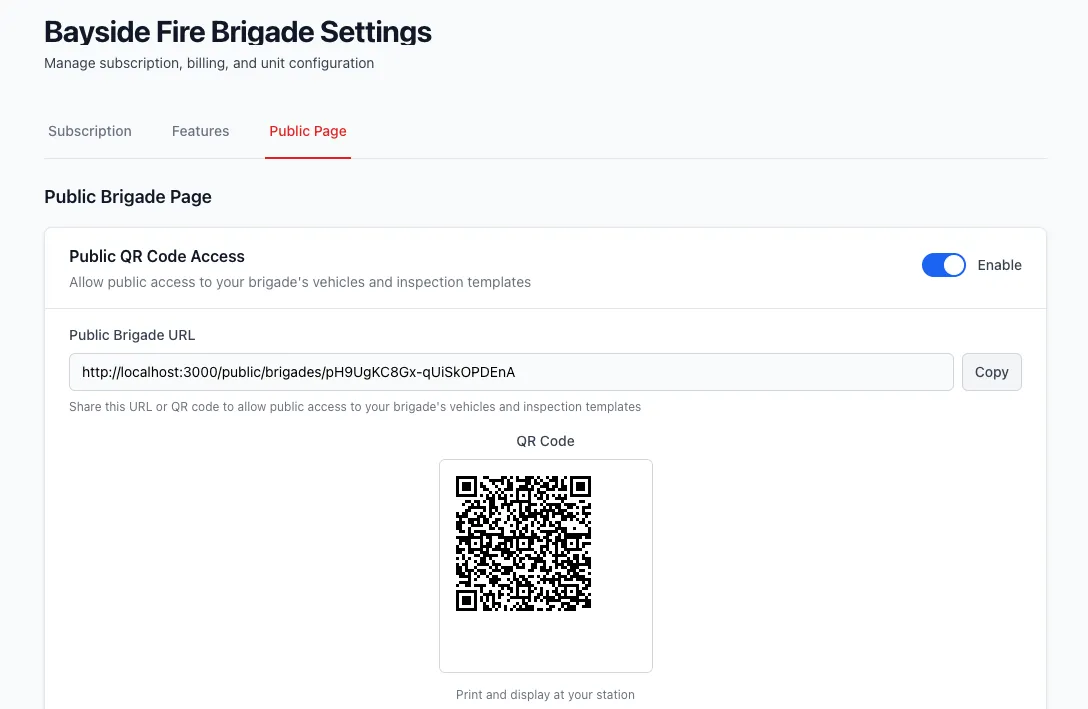
3. Configure Visibility Options
Section titled “3. Configure Visibility Options”Choose what to display on your public page:
Public Vehicles
Section titled “Public Vehicles”Toggle Public Vehicles
- Shows list of vehicles in your fleet
- Only shows vehicles marked as public
- Displays registration, call sign, type
- Links to vehicle details (if vehicle has public access)
To enable:
- Check Show Public Vehicles option
- Save settings
Public Hydrants
Section titled “Public Hydrants”Toggle Public Hydrants
- Displays interactive map of hydrants
- Shows hydrant locations in your response area
- Allows viewing of hydrant details
- Useful for members attending incidents or pre-planning
To enable:
- Check Show Public Hydrants option
- Save settings
Note: Only hydrants in your unit’s response area are shown.
Public Events
Section titled “Public Events”Toggle Public Events
- Shows upcoming events for members
- Displays date, time, location
- Events must be marked as public
To enable:
- Check Show Public Events option
- Save settings
Note: Only events specifically marked as public will appear.
Public Trainings
Section titled “Public Trainings”Toggle Public Trainings
- Shows upcoming training sessions
- Can attract volunteer interest
- Displays training topics and schedule
- Trainings must be marked as public
To enable:
- Check Show Public Trainings option
- Save settings
4. Add Custom Links (Optional)
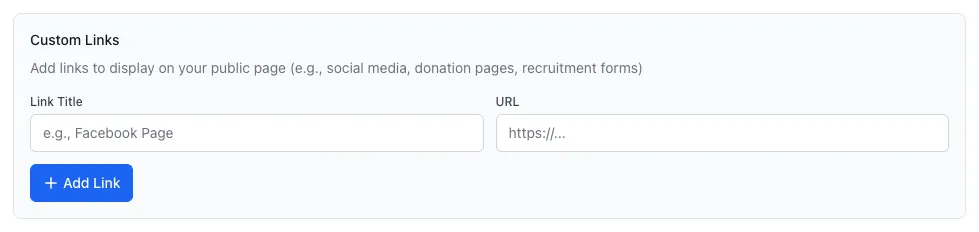
Section titled “4. Add Custom Links (Optional)”Add links to external resources:
- Click Add Public Link
- Enter link details:
- Label: Display text (e.g., “Donate”, “Facebook”, “Join Us”)
- URL: Full URL (e.g., “https://donate.example.com”)
- Click Add Link
- Repeat for additional links
5. Save Settings
Section titled “5. Save Settings”- Review all enabled options
- Click Save or Update Settings
- Public page is now live
6. Get Your Public URL
Section titled “6. Get Your Public URL”- After saving, your public URL displays
- Copy the URL for sharing
- Download the generated QR code for printing
Sharing Your Public Page
Section titled “Sharing Your Public Page”Direct Link
Section titled “Direct Link”Share the URL directly via email, social media, or your brigade website.
QR Code
Section titled “QR Code”Download the generated QR code and print for easy access at your station or events.
PIN Protection
Section titled “PIN Protection”You can require visitors to enter a PIN before the Station Portal loads. This is useful when you want to restrict portal access to known members rather than the general public.
Setting a PIN
Section titled “Setting a PIN”- Navigate to Brigade Settings → Public Page
- Scroll to the PIN Protection section
- Enter a 4–6 digit numeric PIN
- Click Save PIN
Removing a PIN
Section titled “Removing a PIN”- Navigate to Brigade Settings → Public Page → PIN Protection
- Click Remove PIN protection and confirm
Once removed, anyone with the portal URL can access it without a PIN.
See PIN-Protecting the Station Portal for full details.
Managing Your Public Page
Section titled “Managing Your Public Page”Update Information Regularly
Section titled “Update Information Regularly”Keep your page current:
- Add upcoming events
- Mark past events as complete
- Update custom links
- Review enabled options quarterly
Monitor What’s Public
Section titled “Monitor What’s Public”Regularly review:
- Which vehicles are public
- Which events are public
- Which trainings are public
- Custom links still valid
Regenerate Token
Section titled “Regenerate Token”If you need to invalidate the old URL:
- Navigate to Brigade Settings → Public Page
- Click Regenerate QR Code
- Confirm regeneration
- New URL created, old URL stops working
- Update any shared links or QR codes
When to regenerate:
- Security concerns
- Unwanted access
- Token leaked
- Fresh start needed
Making Content Public
Section titled “Making Content Public”Public Vehicles
Section titled “Public Vehicles”To show a vehicle on the public page:
- Navigate to Vehicles
- Click on vehicle
- Click Toggle Public Access
- Vehicle now appears on Station Portal (if vehicles enabled)
See How to Enable Public Vehicle Access
Public Events
Section titled “Public Events”To show an event on the public page:
- Navigate to Events
- Click on event or create new
- Check Public Event option
- Save event
- Event appears on public page (if events enabled)
Public Trainings
Section titled “Public Trainings”To show a training on the public page:
- Navigate to Trainings
- Click on training or create new
- Check Public Training option
- Save training
- Training appears on public page (if trainings enabled)
Disabling Public Access
Section titled “Disabling Public Access”To turn off your public page:
- Navigate to Brigade Settings → Public Page
- Click the Enable toggle to disable public access
- Confirm disablement
- Public URL stops working immediately
Note: You can re-enable anytime. The same token will be used unless regenerated.
Privacy & Security
Section titled “Privacy & Security”What’s Public
Section titled “What’s Public”When enabled, the public can see:
- Brigade name and description
- Enabled components (vehicles, hydrants, events, trainings)
- Custom links
- Public content only
What’s Private
Section titled “What’s Private”The public cannot see:
- Member information
- Internal events/trainings
- Financial data
- Admin features
- Private vehicles
- Inspection results (unless inspecting publicly)
- System dashboards
Token Security
Section titled “Token Security”- Unique token per brigade
- Regenerate if concerned about access
- No authentication required (by design)
- Public access is read-only
PIN Protection
Section titled “PIN Protection”- Optional 4–6 digit PIN adds a second layer of access control
- Verified once per browser session
- Useful when sharing with members only
- See PIN-Protecting the Station Portal