Action Voting
Action voting lets members indicate support for an action — most useful for suggestion or feedback type actions where you want to understand how much interest or agreement there is before committing to a response.
When voting is enabled on an action, members can cast one vote each. Votes are visible to everyone who can see the action, showing a count and a named list of supporters.
Enabling Voting on an Action
Section titled “Enabling Voting on an Action”Voting is enabled per action by a brigade or organisation administrator.
- Open the action detail page
- In the sidebar, find the Member Voting card
- Click Enable Voting
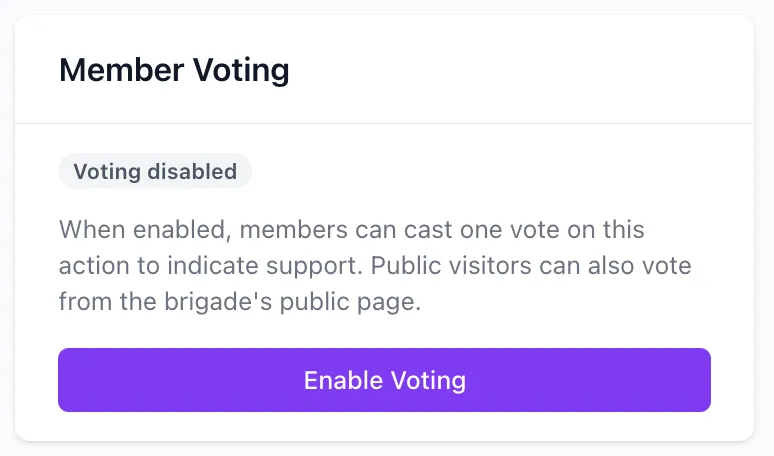
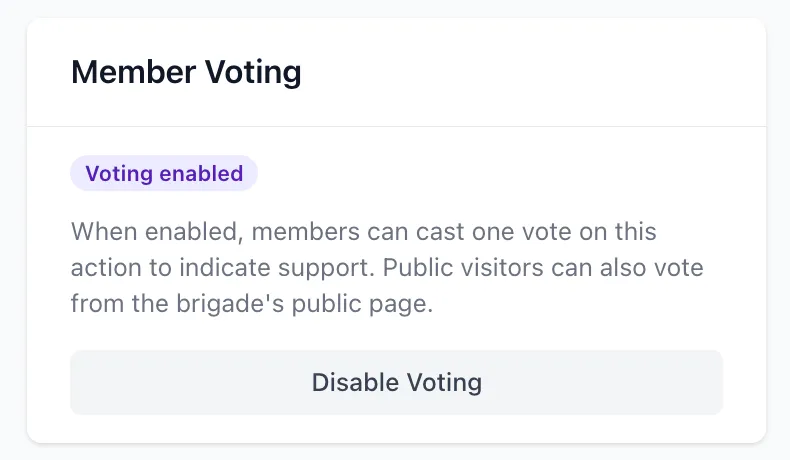
The card will show a Voting enabled badge and a Support section will appear, ready to receive votes.
To disable voting later, click Disable Voting from the same card. Existing votes are retained but the Support section is hidden.
How Members Vote
Section titled “How Members Vote”Once voting is enabled, any member who can view the action will see a Support card in the sidebar of the action detail page.
- Click + Support to cast your vote
- Your name is added to the supporter list immediately
- Click Remove vote to withdraw your vote at any time
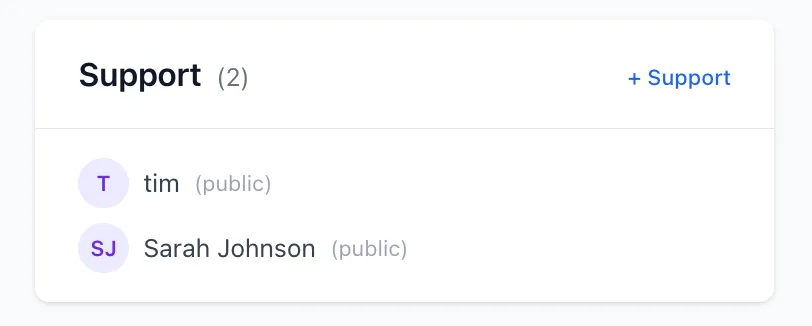
Each member can vote once. There is no limit on the number of members who can vote on an action.
Public Voting
Section titled “Public Voting”If an action has both public visibility and voting enabled, a Support this button appears on the brigade’s public issues page alongside that action.
Public visitors can vote by:
- Clicking Support this on the issue
- Entering their name in the field that appears — the field will autocomplete from the brigade’s member list, and pre-fills automatically if they have used a public form on this brigade’s page before
- Clicking Support
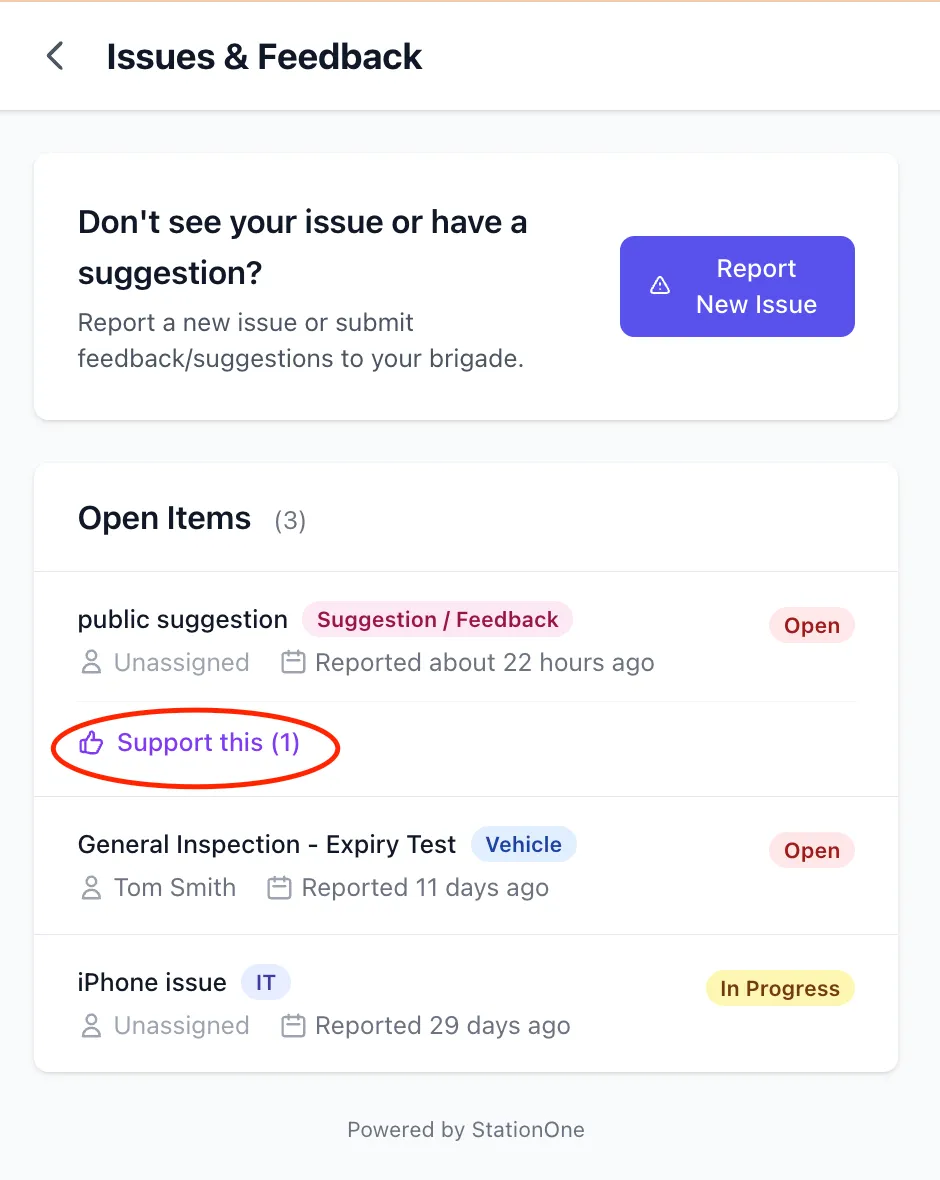
Public votes appear in the supporter list on the action detail page, labelled (public) to distinguish them from votes by logged-in members.
Public Visibility
Section titled “Public Visibility”An action must be visible on the public issues page before public voting applies. To enable this:
- Open the action detail page
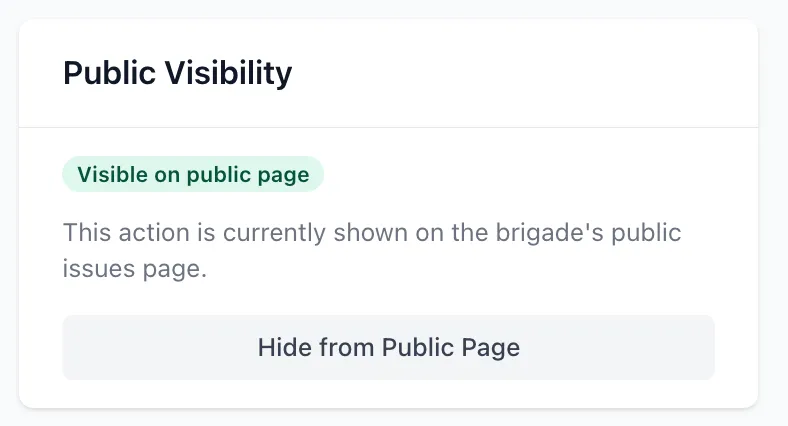
- In the sidebar, find the Public Visibility card
- Click Show on Public Page
Enable voting after (or before) making the action public — both settings are independent.
Who Can See Votes
Section titled “Who Can See Votes”- Brigade admins and organisation admins — can see the Support card and the voting toggle on any action they have access to
- Brigade members — can see and use the Support card on any action they can view, when voting is enabled
- Public visitors — can vote on the public issues page when an action is both publicly visible and has voting enabled. Votes are not otherwise visible to the public
Votes are not hidden when an action is resolved or closed, but the vote button is removed once voting is disabled by an admin.
Use voting for suggestions before taking action. Enable voting on a suggestion when it is first logged, then review the support count after a week or two before deciding whether to act on it. A high vote count is a clear signal the idea has broad support.
Combine with public visibility for community feedback. If your brigade collects public suggestions via the public issues page, enabling both public visibility and voting lets the community signal which ideas matter most to them without requiring any account or login.
Votes show names, not just counts. The supporter list shows who voted, which can help understand whether support is coming from a broad cross-section of the brigade or a small group.
Related
Section titled “Related”- Action Notifications — configure who is notified when actions are created or become overdue
- Manage Actions — general guidance on creating and working with actions