Purchase Orders
Purchase Orders let you raise, approve, and track supply orders directly within StationOne. When items are received, linked stock quantities are updated automatically.
Prerequisites
Section titled “Prerequisites”- Brigade admin role (or brigade user with the Purchase Orders
view/managepermission) - Purchase Orders module enabled for your unit
- At least one stock item created (optional but recommended)
Purchase Order Lifecycle
Section titled “Purchase Order Lifecycle”A purchase order moves through the following statuses:
| Status | Description |
|---|---|
| Draft | Being prepared — can be edited or deleted |
| Pending Approval | Submitted and waiting for an approver |
| Approved | Approved and ready to send to supplier |
| Partially Received | Some items have been received |
| Received | All items fully received |
| Cancelled | Cancelled at any stage before full receipt |
Creating a Purchase Order
Section titled “Creating a Purchase Order”1. Navigate to Purchase Orders
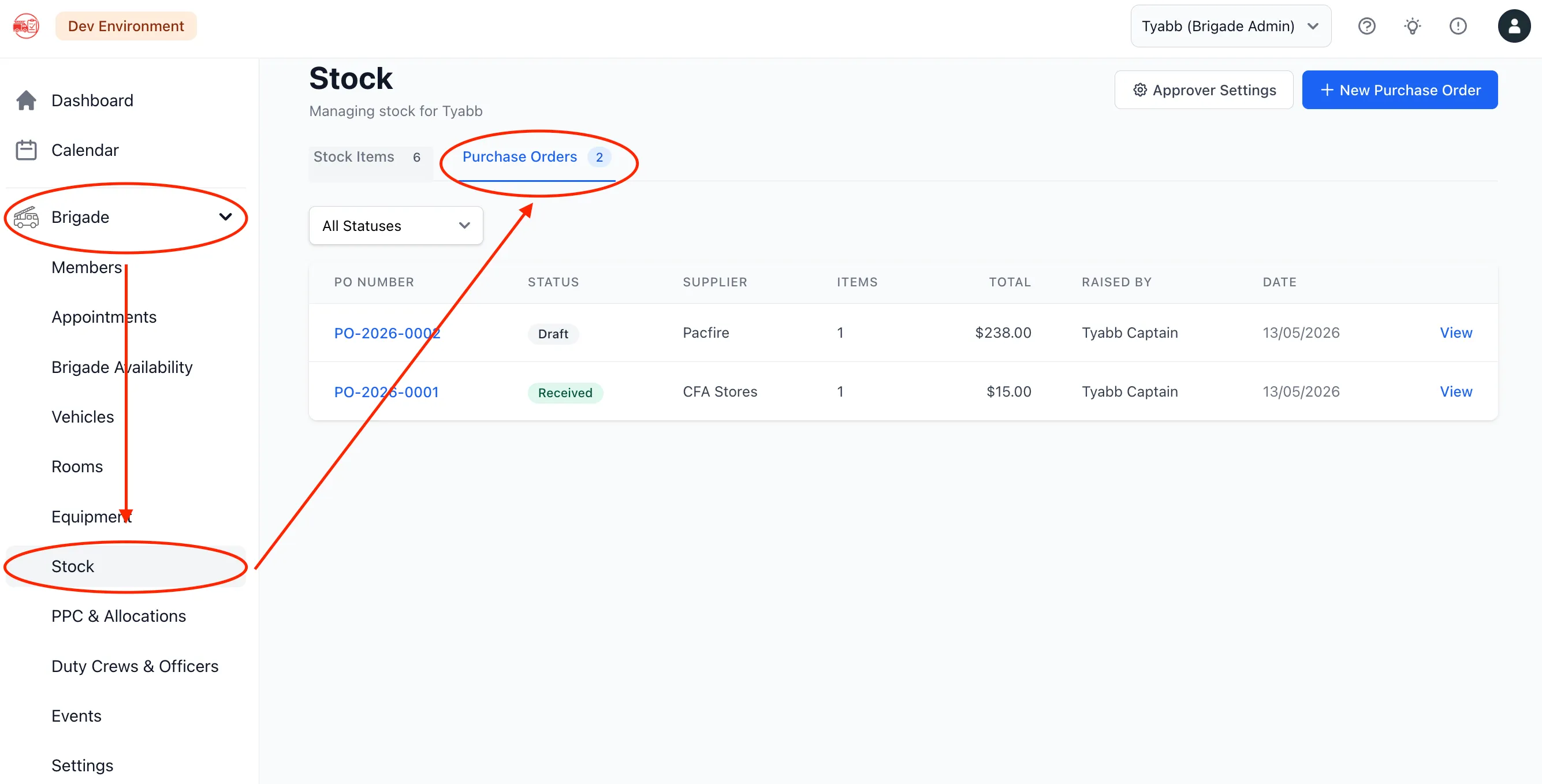
Section titled “1. Navigate to Purchase Orders”- Log in to StationOne
- Click Stock in the main navigation
- Select the Purchase Orders tab
- Click New Purchase Order
2. Enter Order Details
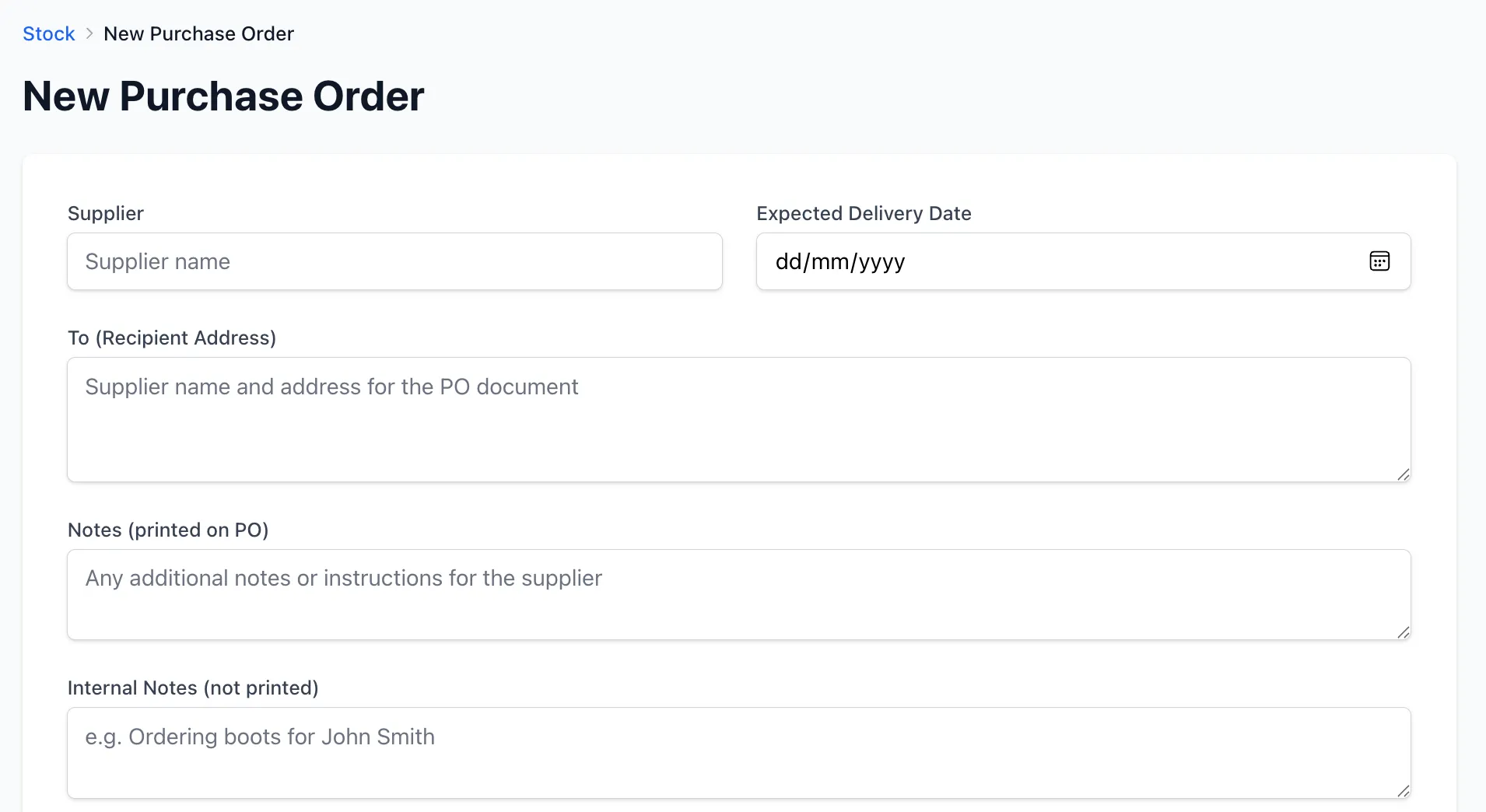
Section titled “2. Enter Order Details”Supplier (optional)
- Name of the supplier you’re ordering from
- Example: “ABC Safety Supplies”
To Address (optional)
- Supplier address — appears on the PDF version of the PO
Expected Delivery Date (optional)
- Estimated date stock will arrive
Notes (optional)
- Notes that will appear on the PO document sent to the supplier
Internal Notes (optional)
- Private notes visible only to your unit — not included on the PDF
3. Add Line Items
Section titled “3. Add Line Items”Each line item represents one product being ordered.
Description (required)
- What you’re ordering
- Example: “Nitrile Gloves — Large”
Link to Stock Item (optional)
- Select an existing stock item to link this line to
- When items are received, the stock item’s quantity will be updated automatically
SKU (optional)
- Supplier’s product code for ordering reference
Quantity (required)
- Number of units to order
Unit Price (optional)
- Cost per unit — used to calculate the order total
Click Add Item to add more lines. You can add as many items as needed.

4. Link Actions (optional)
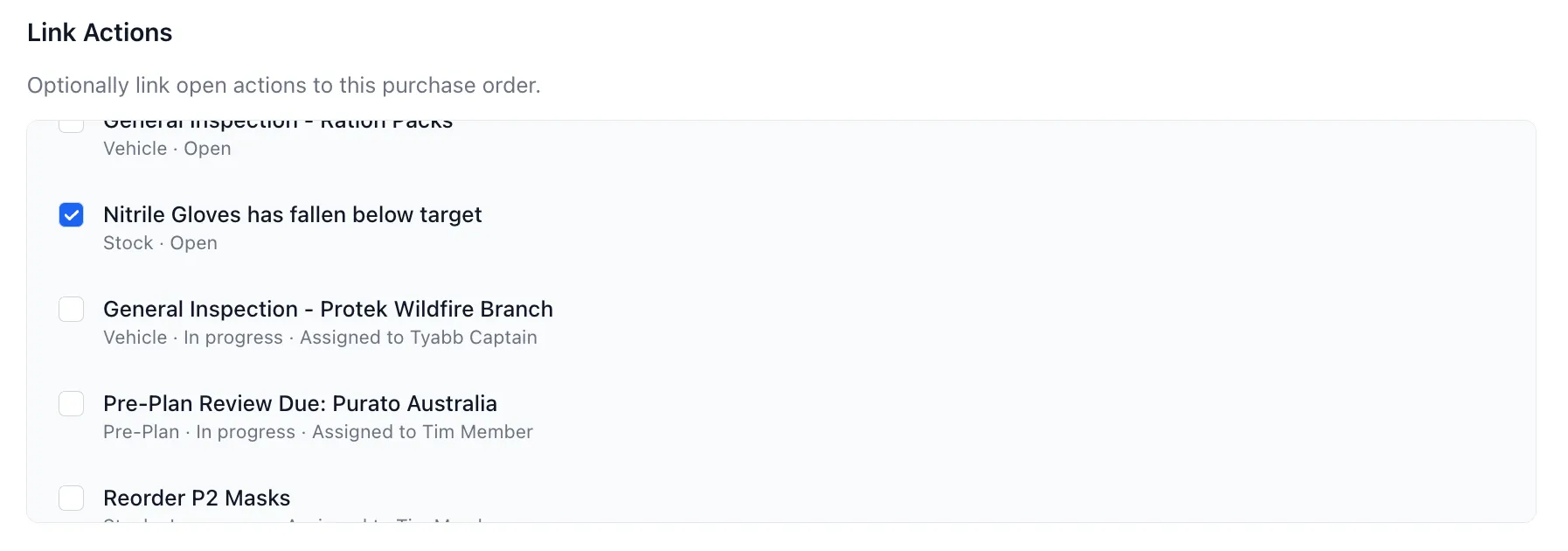
Section titled “4. Link Actions (optional)”If you have open stock-related actions (e.g. low stock alerts), you can link them to this PO. Linked actions can be resolved automatically when items are received.
Select one or more actions from the Linked Actions list at the bottom of the form.
5. Save the Draft
Section titled “5. Save the Draft”Click Create Purchase Order to save as a draft.
A PO number is generated automatically in the format PO-YYYY-NNNN.
Submitting for Approval
Section titled “Submitting for Approval”Once the order is ready:
- Open the purchase order
- Click Submit for Approval

The PO status changes to Pending Approval and an email notification is sent to the configured approvers (or brigade admins by default).
Approving or Rejecting a Purchase Order
Section titled “Approving or Rejecting a Purchase Order”Approvers (brigade admins, organisation admins, and super admins) see Approve and Reject buttons on a pending PO.
- Approve — moves the PO to Approved status, ready to be actioned
- Reject — returns the PO to Draft so it can be revised and resubmitted
Sending the PO to a Supplier
Section titled “Sending the PO to a Supplier”Once approved, you can share the PO with your supplier in two ways:
Download PDF
- Click Download PDF to generate a formatted document
- Print or attach to an email
Email PO
- Click Email PO
- Enter the supplier’s email address
- Click Send Email — StationOne sends the PDF directly
Receiving Items
Section titled “Receiving Items”When stock arrives, record what was received against the PO:
- Open the approved PO
- In the Receive Items section, enter the quantity received for each line
- Leave blank any items not yet received
- Click Record Receipt
If the PO has linked actions, a confirmation step will ask whether to resolve them now that items have arrived. Check the relevant actions and click Confirm Receipt.
What happens automatically:
- Stock item quantities are updated on receipt
- A restock history entry is recorded on each linked stock item
- Low stock actions are resolved if quantity reaches the target
- PO status changes to Partially Received or Received accordingly
Cancelling a Purchase Order
Section titled “Cancelling a Purchase Order”To cancel a PO that is no longer needed:
- Open the purchase order
- Click Cancel PO
- Confirm the cancellation
A PO can be cancelled at any status except Received or already Cancelled.
Configuring PO Approvers
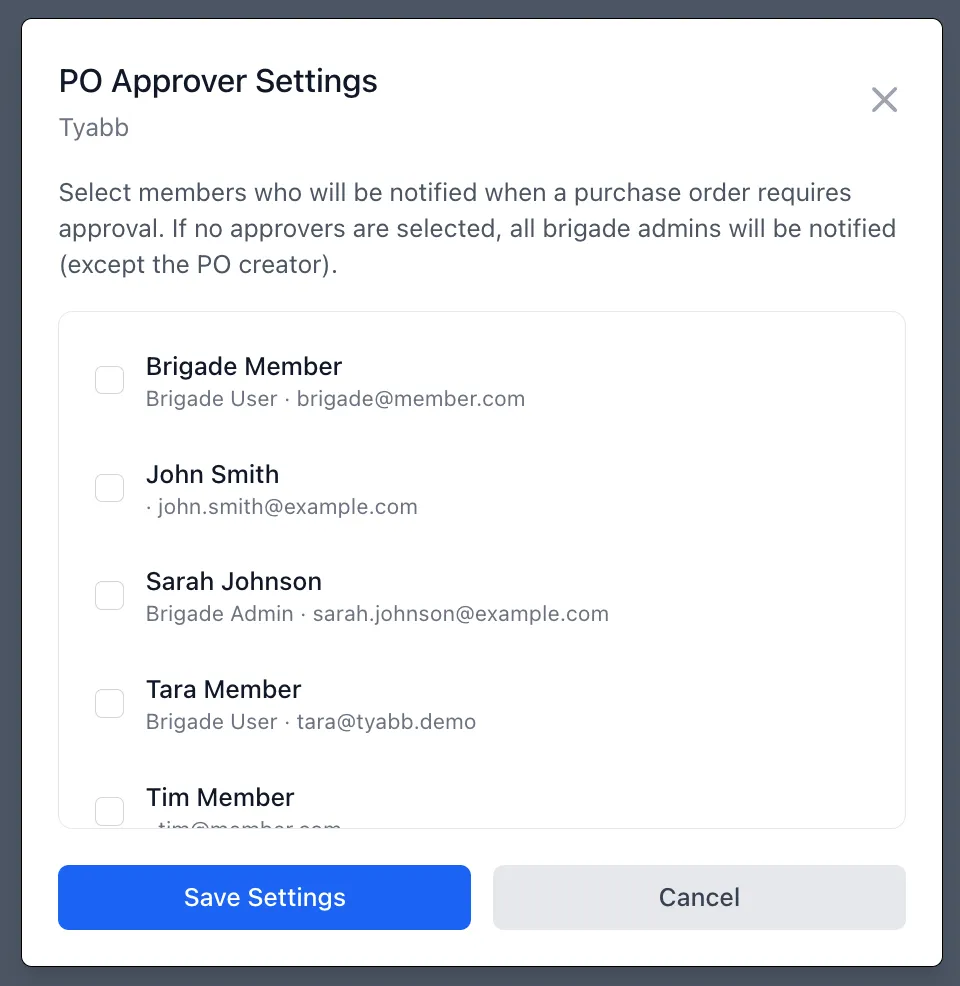
Section titled “Configuring PO Approvers”By default, any brigade admin (other than the creator) can approve a PO. To restrict approval to specific people:
- Go to the Purchase Orders tab in Stock
- Click PO Approver Settings
- Select the members who should receive approval requests
- Click Save
Only the selected members will receive approval notification emails and see the approve/reject buttons.
Allow Admins to Approve Their Own POs
Section titled “Allow Admins to Approve Their Own POs”By default, the person who created a PO can never approve it — a different admin or designated approver must, even if that means waiting on someone else. To relax this segregation-of-duties control, toggle Allow admins to approve their own POs on in the same PO Approver Settings panel.
When enabled:
- Super admins, organisation admins, and brigade admins can approve a PO they created themselves
- Designated approvers who aren’t admins are never allowed to self-approve, regardless of this setting
Link Stock Items to Line Items
Section titled “Link Stock Items to Line Items”Linking each line item to an existing stock item ensures quantities update automatically on receipt — you won’t need to manually restock each item.
Use Internal Notes for Context
Section titled “Use Internal Notes for Context”Internal notes are not included on the PDF sent to suppliers. Use them to record budget codes, decision rationale, or delivery instructions for your team.
Partial Deliveries
Section titled “Partial Deliveries”If a supplier delivers part of an order, record only what arrived. The PO moves to Partially Received and you can record further receipts when the remainder arrives.
Create POs from Actions
Section titled “Create POs from Actions”When a low stock action is triggered, you can create a PO directly from the action detail page. The action is automatically linked to the new PO.
Related Guides
Section titled “Related Guides”- Manage Stock Items — Creating and managing stock
- Stock Actions — Understanding low stock actions
- Actions — Managing and resolving actions