Enabling the Station Portal
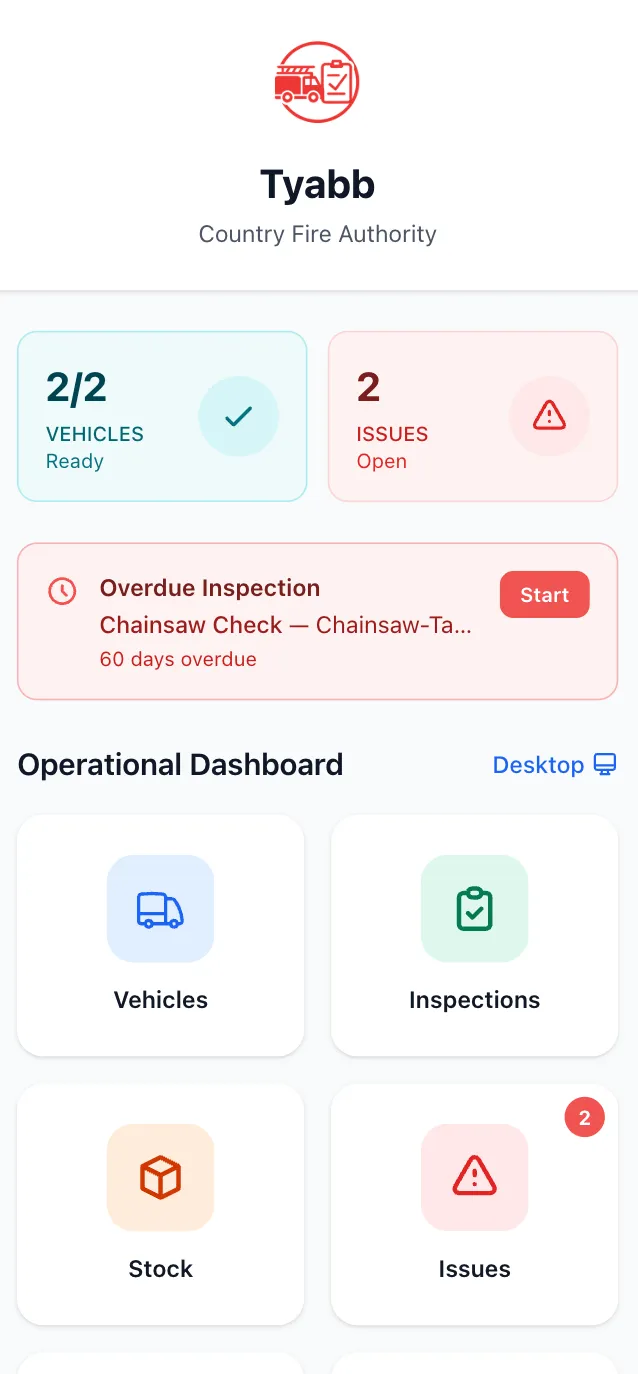
The Station Portal gives your unit members a convenient way to interact with the platform without needing to log in — viewing vehicles, upcoming events, hydrant locations, and more.
Prerequisites
Section titled “Prerequisites”- Brigade admin or organisation admin role
1. Open Brigade Settings
Section titled “1. Open Brigade Settings”- Log in to StationOne
- Navigate to your brigade/unit
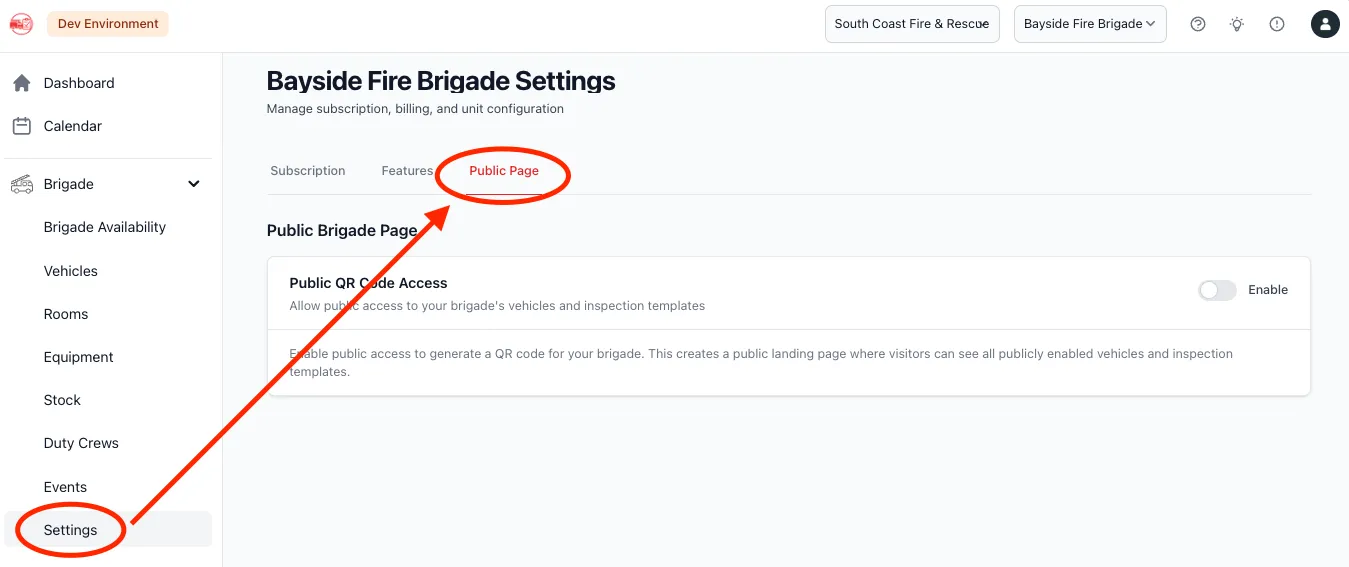
- Go to Settings → Brigade Settings (or Unit Settings)
- Select the Public Page tab
2. Enable Public Access
Section titled “2. Enable Public Access”- Find the Public QR Code Access toggle
- Click Enable
- A unique access token is generated automatically
- Your public URL is displayed on the page
Your public URL will look like:
https://app.stationone.com.au/public/brigades/[unique-token]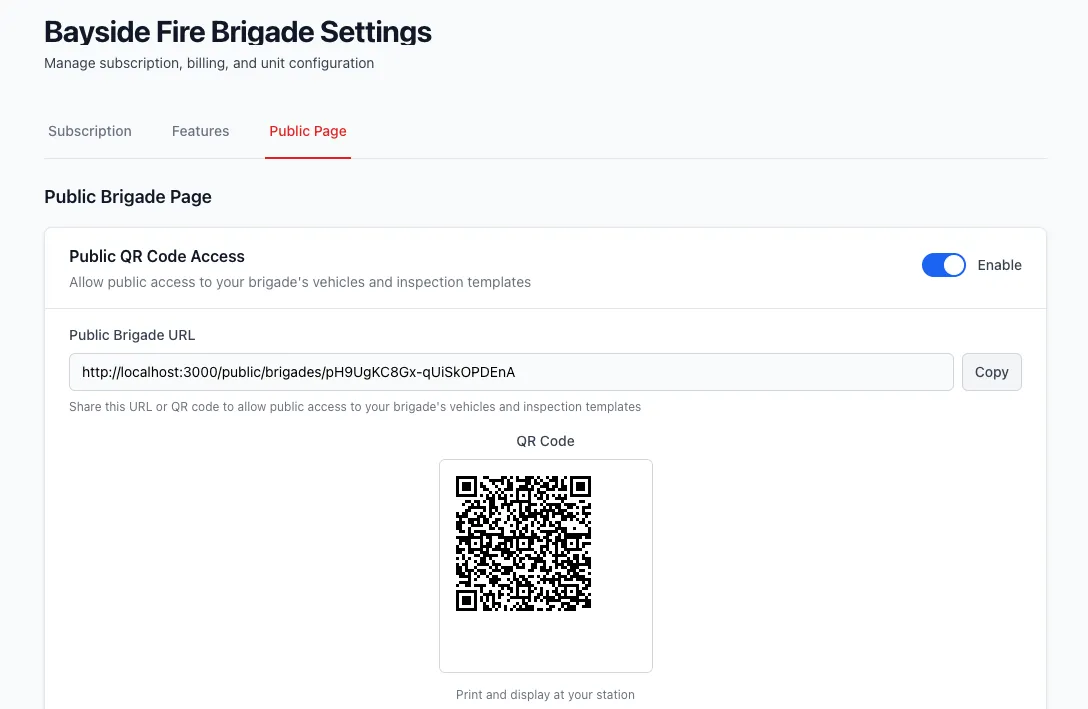
3. Save Settings
Section titled “3. Save Settings”Click Save or Update Settings to apply your changes. The Station Portal is live immediately.
Getting Your Public URL and QR Code
Section titled “Getting Your Public URL and QR Code”Once enabled, your settings page shows:
- Public URL — copy and share this link directly
- QR Code — download and print for display at the station or events
Disabling the Station Portal
Section titled “Disabling the Station Portal”To turn off public access:
- Go to Brigade Settings → Public Page
- Toggle off Public QR Code Access
- Save
The public URL stops working immediately. You can re-enable it at any time using the same token.
Regenerating the Token
Section titled “Regenerating the Token”If you need to invalidate the existing URL (e.g. due to a security concern):
- Go to Brigade Settings → Public Page
- Click Regenerate QR Code
- Confirm the action
The old URL stops working immediately. Update any printed QR codes or shared links with the new URL.
PIN Protection
Section titled “PIN Protection”You can optionally require visitors to enter a PIN before the Station Portal loads. This is useful when you want to share the portal with members only rather than the general public.
See PIN-Protecting the Station Portal for setup instructions.