Enabling and Disabling Feature Modules
StationOne features are organised into modules that can be individually enabled or disabled per brigade. This lets each brigade turn on only the features they use, keeping the interface focused and relevant.
Prerequisites
Section titled “Prerequisites”- Brigade admin role (or organisation admin acting as a brigade)
Accessing Feature Modules
Section titled “Accessing Feature Modules”- Log in to StationOne
- Navigate to Brigade Settings
- Click the Features tab
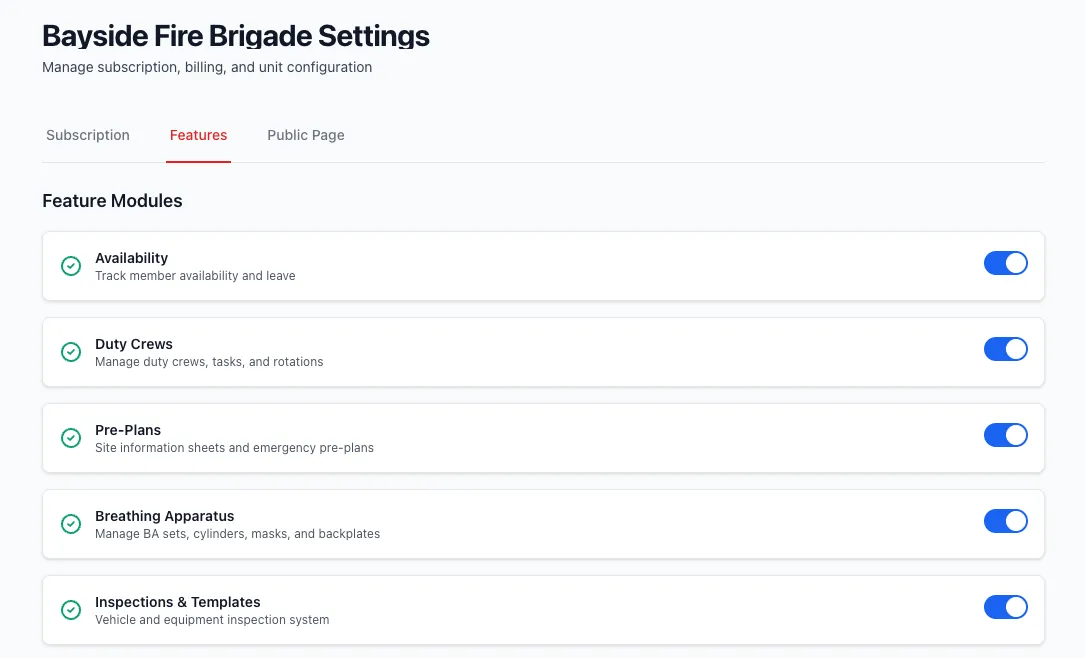
Each available module is listed with its name, description, and a toggle switch.
Available Modules
Section titled “Available Modules”| Module | Description |
|---|---|
| Availability | Track member availability and leave |
| Duty Crews | Manage duty crews, tasks, and rotations |
| Pre-Plans | Site information sheets and emergency pre-plans |
| Breathing Apparatus | Manage BA sets, cylinders, masks, and backplates |
| Inspections & Templates | Vehicle and equipment inspection system |
| Hydrants | Water supply infrastructure management |
| Hose Management | Hose testing, repairs, and tracking |
| Training & Skills | Member training, skills tracking, and competencies |
Enabling or Disabling a Module
Section titled “Enabling or Disabling a Module”- Find the module in the Features tab
- Click the toggle switch to enable or disable it
- The change is saved immediately — no separate Save button is required
When a module is enabled, its navigation item appears in the sidebar and users can access it. When disabled, the module and its data are hidden from all users in the brigade until it is re-enabled.
Note: Disabling a module does not delete its data. Re-enabling the module restores full access to all existing records.
Module Sub-Features
Section titled “Module Sub-Features”Some modules include sub-features that can be toggled independently. If a module has sub-features, they are listed below the main module toggle under a Features heading. Each sub-feature has its own toggle and can be enabled or disabled without affecting the parent module.
Availability: Crew Status Columns
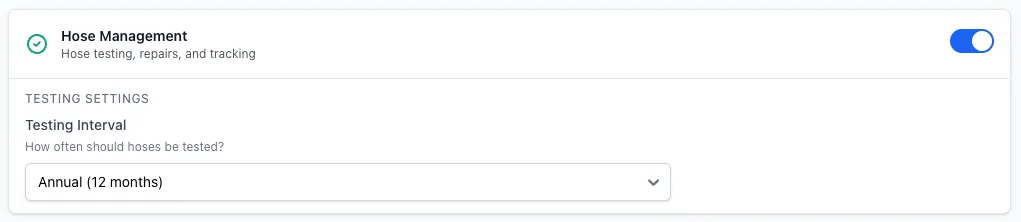
Section titled “Availability: Crew Status Columns”When the Availability module is enabled, a Crew Status Columns section appears below the toggle. This controls which qualifications and endorsements are displayed in the Crew Status tab for your brigade.
Vehicle Endorsements
Check Show vehicle endorsements to display which vehicles each member is endorsed to drive as a column in the Crew Status tab.
When enabled, you can further select which Endorsement categories to show:
- General
- Driving
- Incident Management
- Firefighting
Qualifications
Select individual qualifications to display as columns in the Crew Status tab. Only qualifications that have been added to your brigade’s members will appear in the list.
Click Save Column Settings to apply your changes.
Hydrants: Disabling Inspections
Section titled “Hydrants: Disabling Inspections”When the Hydrants module is enabled, hydrant inspections are also enabled by default. If your brigade wants to show hydrant locations and manage photos without using the inspection workflow, you can disable inspections independently using the sub-feature toggle.
To disable hydrant inspections:
- Open Brigade Settings → Features
- Expand the Hydrants module (it must be enabled)
- Under the Features heading, toggle off Hydrant Inspections
When hydrant inspections are disabled:
- Hydrants remain visible in the list, map, and show views
- Photos can still be added to hydrants via the edit form
- The Inspect button and Inspection History section are hidden on each hydrant
- The Manage Runs option is hidden from the hydrant index actions menu
- Public portal hydrant maps do not show an inspect link
- Public hydrant run pages hide the Inspect Now button, and direct inspection URLs redirect away
Re-enabling the sub-feature restores all inspection functionality. No data is lost while inspections are disabled.

Water Points: Annual Inspections
Section titled “Water Points: Annual Inspections”When the Water Points module is enabled, annual inspections are also enabled by default. If your brigade wants to track water point locations without using the inspection workflow, you can disable inspections independently using the sub-feature toggle.
To disable water point inspections:
- Open Brigade Settings → Features
- Expand the Water Points module (it must be enabled)
- Under the Features heading, toggle off Annual Inspections
When annual inspections are disabled, water point locations remain visible and manageable, but the inspection workflow is hidden. No inspection data is lost while the sub-feature is disabled.

Hose Management: Testing Interval
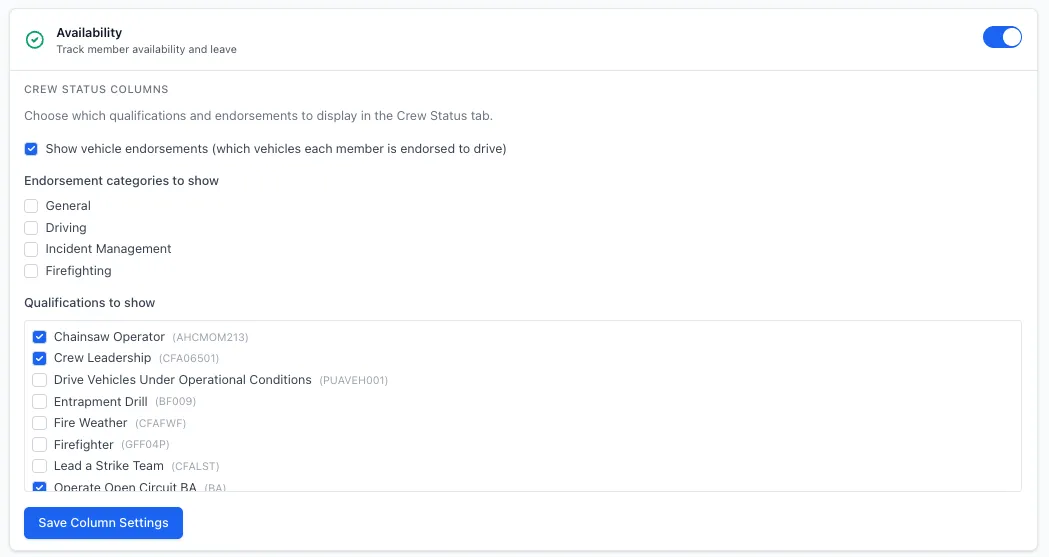
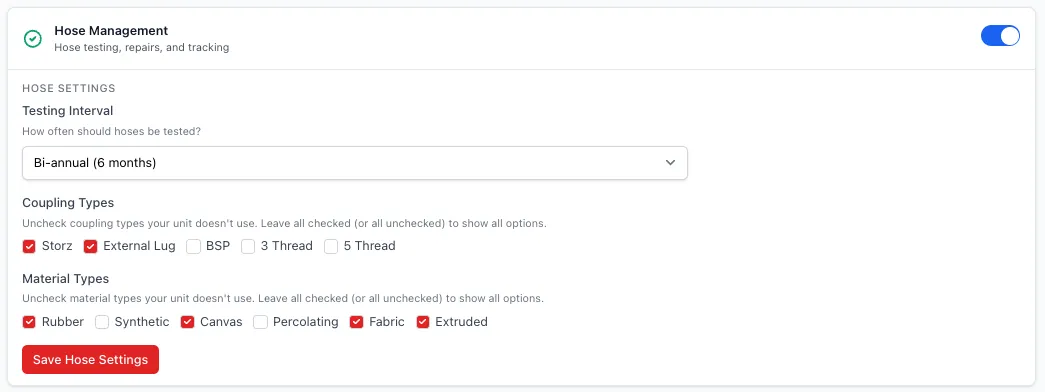
Section titled “Hose Management: Testing Interval”When the Hose Management module is enabled, an additional Testing Settings section appears below the toggle. This lets you configure how frequently hoses are due for testing:
| Interval | Description |
|---|---|
| Monthly (1 month) | High-frequency testing |
| Quarterly (3 months) | Every quarter |
| Bi-annual (6 months) | Twice per year |
| Annual (12 months) | Default — once per year |
Select the interval from the dropdown. The setting saves automatically.
Organisation-Controlled Modules
Section titled “Organisation-Controlled Modules”If your brigade’s modules are controlled by the organisation, a notice is displayed at the top of the Features tab:
“Module settings are controlled by [Organisation Name]. Contact your organisation administrator to make changes.”
In this case, all toggle switches are hidden and modules can only be changed by an organisation administrator.