Duty Officer
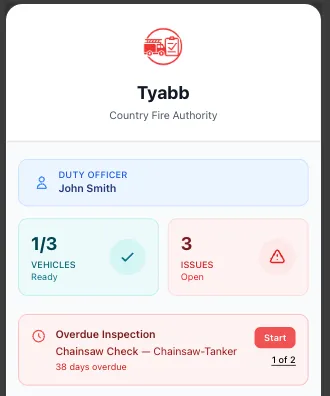
The duty officer feature tracks who the current point-of-contact officer is for your brigade. When enabled, the duty officer’s name and phone number appear on the internal dashboard, the kiosk, and optionally the public brigade portal.
Prerequisites
Section titled “Prerequisites”- Brigade admin or organisation admin role
- Duty Crews module enabled for your brigade
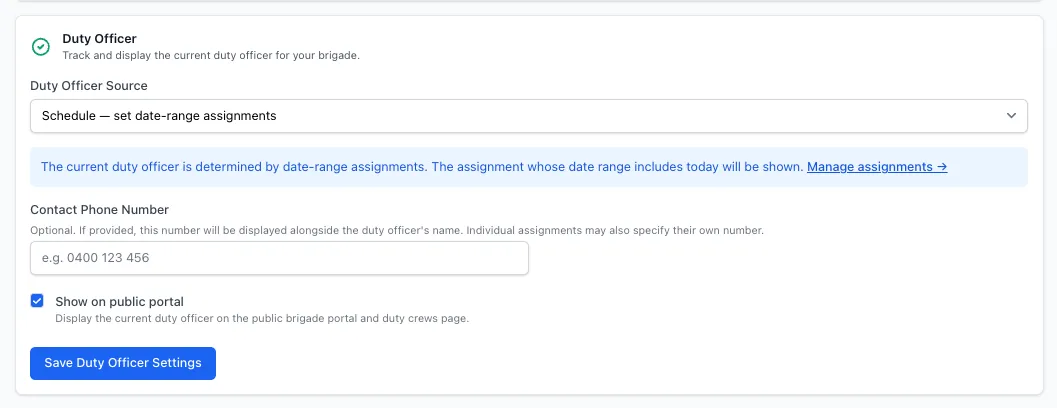
Enable Duty Officer
Section titled “Enable Duty Officer”- Go to Brigade Settings → Duty Officer
- Choose a Mode (see below)
- Click Save
Once enabled, the Duty Crews menu item updates to Duty Crews & Officers, and a Duty Officer tab appears on the Duty Crews page.
Current Crew Leader
Section titled “Current Crew Leader”The duty officer is automatically derived from the leader of whichever crew is currently on duty in the rotation schedule.
- No manual configuration required after initial setup
- Updates automatically as the rotation advances
- Requires each crew to have a designated leader
To designate a crew leader:
- Go to Duty Crews & Officers
- Open the crew
- Next to a member, click Make Leader
Each crew can have one leader. Clicking Make Leader on a new member automatically removes the previous leader designation.
Manual
Section titled “Manual”A specific person stays as duty officer until you change them.
- Select Manual as the mode
- Choose a Member from the dropdown
- Optionally enter a Phone number override
- Click Save
To change the duty officer, return to settings and select a different member.
Schedule
Section titled “Schedule”The schedule mode supports two layers, with manual date-range overrides always taking priority over the recurring rotation.
Manual overrides — for planned leave, special events, or one-off changes Recurring rotation — a repeating cycle through an ordered list of people
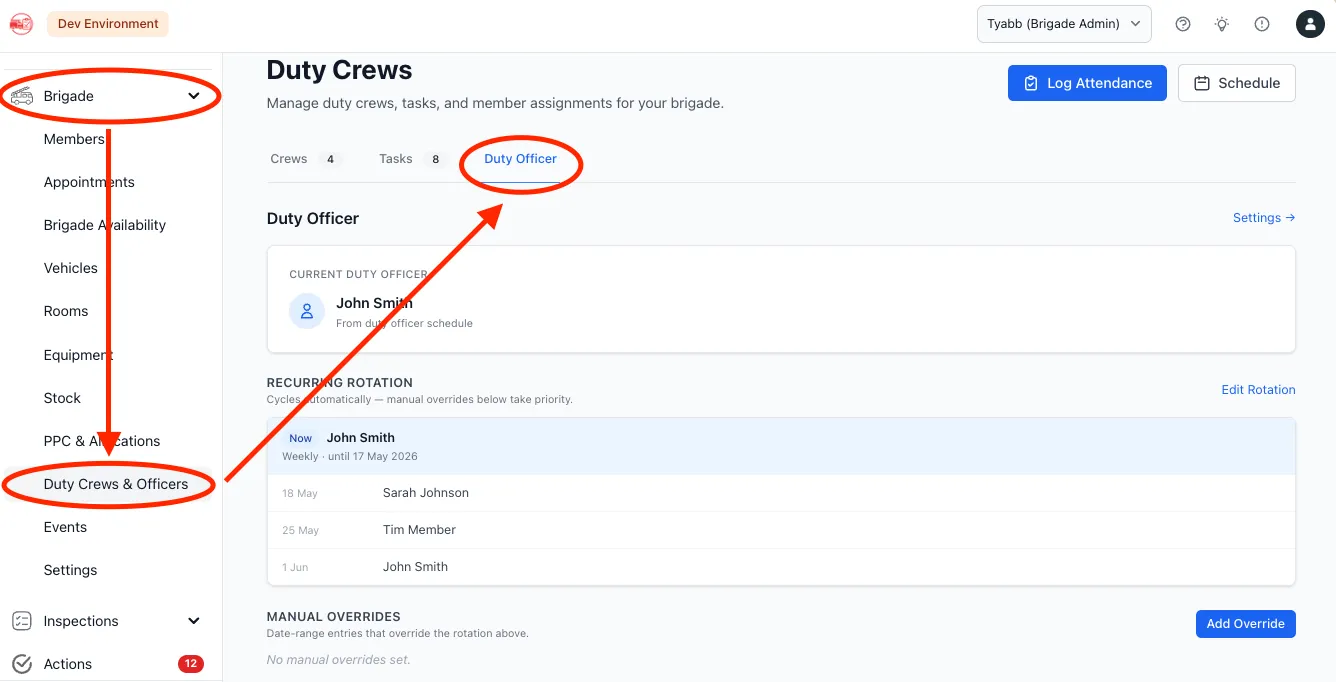
Both are managed from the Duty Officer tab under Duty Crews & Officers.
Set Up the Recurring Rotation
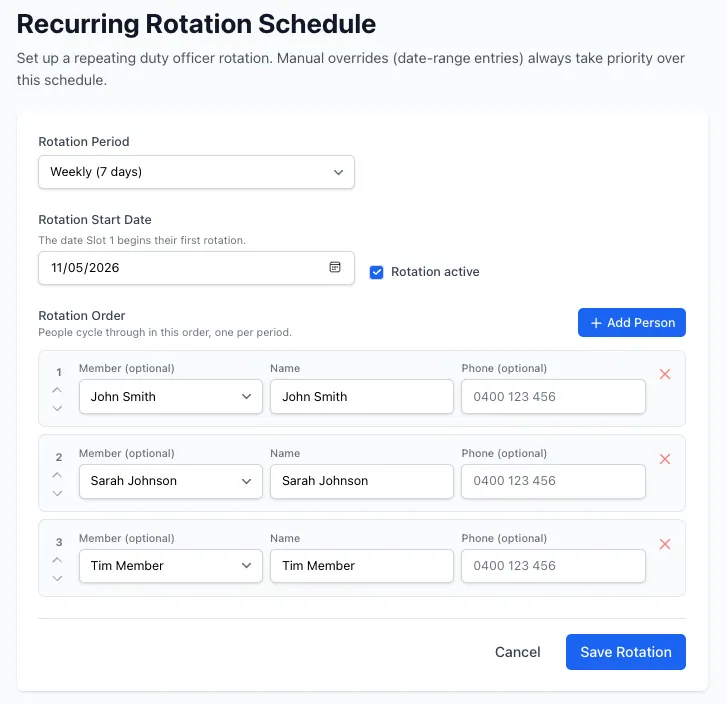
Section titled “Set Up the Recurring Rotation”- On the Duty Officer tab, click Edit Rotation
- Choose a Rotation Period:
- Weekly — rotates every 7 days
- Fortnightly — rotates every 14 days
- Monthly — rotates on the same date each month
- Custom — enter any number of days
- Set a Rotation Start Date — the date Slot 1 begins their first period
- Add people to the rotation using Add Person:
- Optionally link a Member account — the name field auto-fills from their profile
- Enter a Name manually if they don’t have a StationOne account
- Optionally add a Phone number for this slot
- Drag the up/down arrows to set the rotation order
- Check Rotation active to enable it
- Click Save Rotation
The current slot and the next upcoming slots are displayed on the Duty Officer tab, with dates showing when each person’s period starts and ends.
Add a Manual Override
Section titled “Add a Manual Override”Use an override when someone specific should be duty officer for a set date range, regardless of where the rotation falls.
- On the Duty Officer tab, click Add Override
- Fill in:
- Member (optional) — auto-fills name from their profile
- Name — the person’s name
- Phone (optional)
- Start Date and End Date
- Notes (optional)
- Click Save
Overrides appear in the Manual Overrides section of the tab. The current active override is highlighted. Overrides always take priority over the recurring rotation.
Phone Number
Section titled “Phone Number”A phone number can be set at multiple levels. The order of priority is:
- Phone override in Brigade Settings (applies to all modes)
- Override phone on a manual date-range assignment (schedule mode)
- Rotation slot phone (schedule mode)
- Mobile from the linked member’s profile
Set a phone override in Brigade Settings if you have a dedicated duty officer number that stays constant regardless of who is rostered.
Show on Public Portal
Section titled “Show on Public Portal”Enable Show on public portal in Brigade Settings to display the current duty officer name and phone on:
- The public brigade portal
- The public duty board
The duty officer is never shown publicly if this toggle is off, regardless of mode.