RSVPs and Attendance
This guide covers everything after an event is created — collecting RSVPs, recording who actually attended, sending reminders, and managing the member list.
How RSVPs and attendance work
Section titled “How RSVPs and attendance work”StationOne separates intent (RSVP) from actual attendance (post-event):
| Status | Who sets it | When | What it means |
|---|---|---|---|
| Attending | Member or admin | Before event | Plans to come |
| Maybe | Member or admin | Before event | Might come |
| Not Attending / Apology | Member or admin | Before event | Cannot attend |
| Not Responded | System default | — | No RSVP yet |
| Attended | Admin only | After event ends | Was present |
| Absent | Admin only | After event ends | Did not show |
Only Attended status counts in member activity reports. RSVPs are for planning — they do not count as confirmed attendance.
Viewing event details and RSVPs
Section titled “Viewing event details and RSVPs”- Click on an event title from the events list
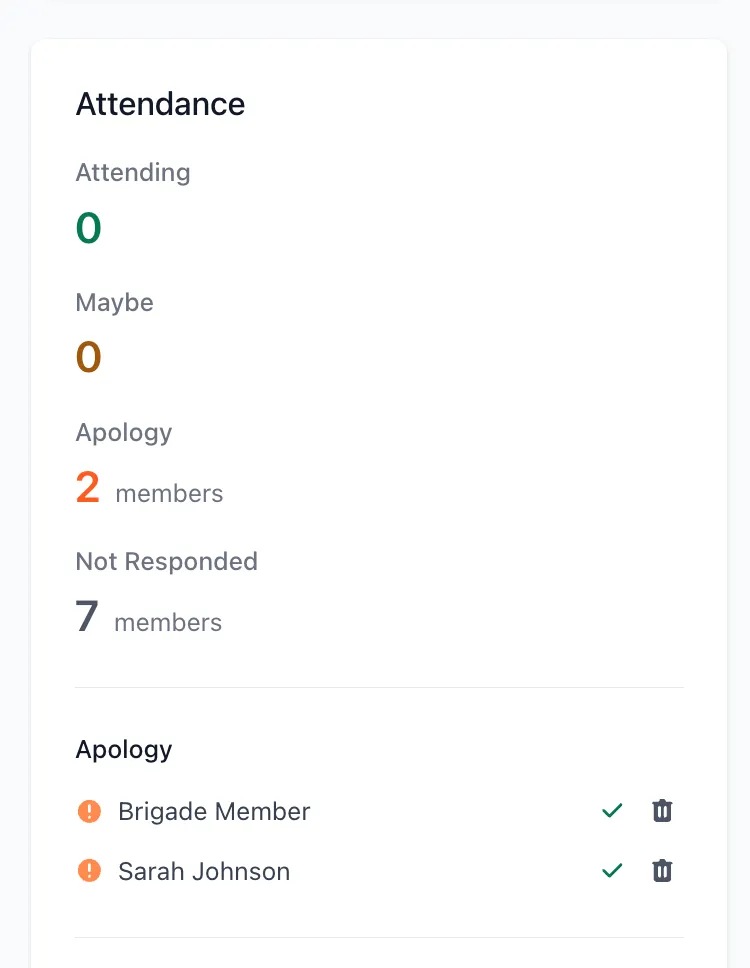
- The details page shows attendance counts broken down by status:
- Pre-event: Attending, Maybe, Not Attending (or Apology), Not Responded
- Post-event (after end time): Attended, Absent
- Each section lists the members in that status
- Assigned vehicles are shown in the event details
Member RSVPs
Section titled “Member RSVPs”Members use the RSVP buttons on the event details page (or links in invitation emails) to signal their intent.
Standard events:
- Attending — Planning to come
- Maybe — Uncertain
- Not Attending — Cannot come
Meeting events:
- Attending and Maybe work the same way
- Not Attending is replaced with Apology — the appropriate terminology for a formal meeting
Members can change their RSVP at any time before the event. The status updates immediately.

Meeting RSVPs
Section titled “Meeting RSVPs”When an event type is set to Meeting, the RSVP options are adjusted:
- Attending and Maybe remain unchanged
- Can’t Attend becomes Apology throughout the event — on the details page, attendance lists, and invitation emails
- RSVP email links also show the Apology option for meeting-type events
Record post-event attendance
Section titled “Record post-event attendance”After the event’s end time has passed, admins record who actually attended.
Marking individual members
Section titled “Marking individual members”- Open the event details
- Members who RSVPd Attending show ✓ Attended and ✗ Absent buttons
- Click ✓ Attended to confirm the member was present
- Click ✗ Absent to record a no-show
You can reverse a mistake at any time — an Attended member has an ✗ Absent button, and vice versa.
Bulk marking
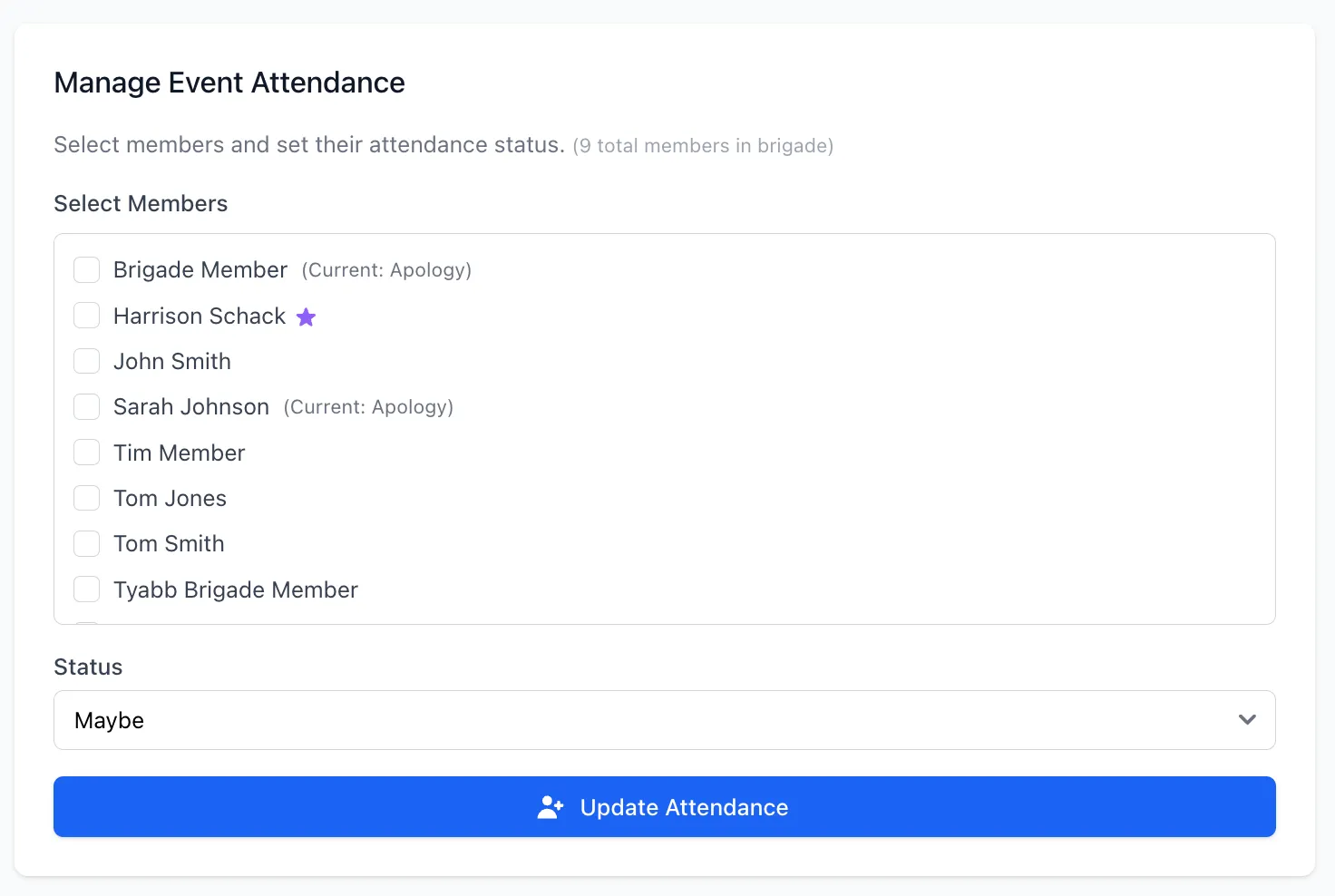
Section titled “Bulk marking”To update multiple members at once:
- Open the event details
- In the Bulk Update section, check the members you want to update
- Select Attended (confirmed) or Absent (no-show) from the dropdown
- Click Update Attendance
Why this matters
Section titled “Why this matters”Only Attended status counts in member activity reports. A member who RSVPd Attending weeks ago and didn’t show up does not count — unless an admin marks them Absent, they simply remain as “Attending (RSVP)” which is excluded from attendance reports.
Mark post-event attendance after every event to keep activity percentages accurate.
Send invitations later
Section titled “Send invitations later”If the event was created without sending notifications:
- Open the event details
- Click Send Invitations
- All unit members receive an invitation email with RSVP links
Send targeted reminders
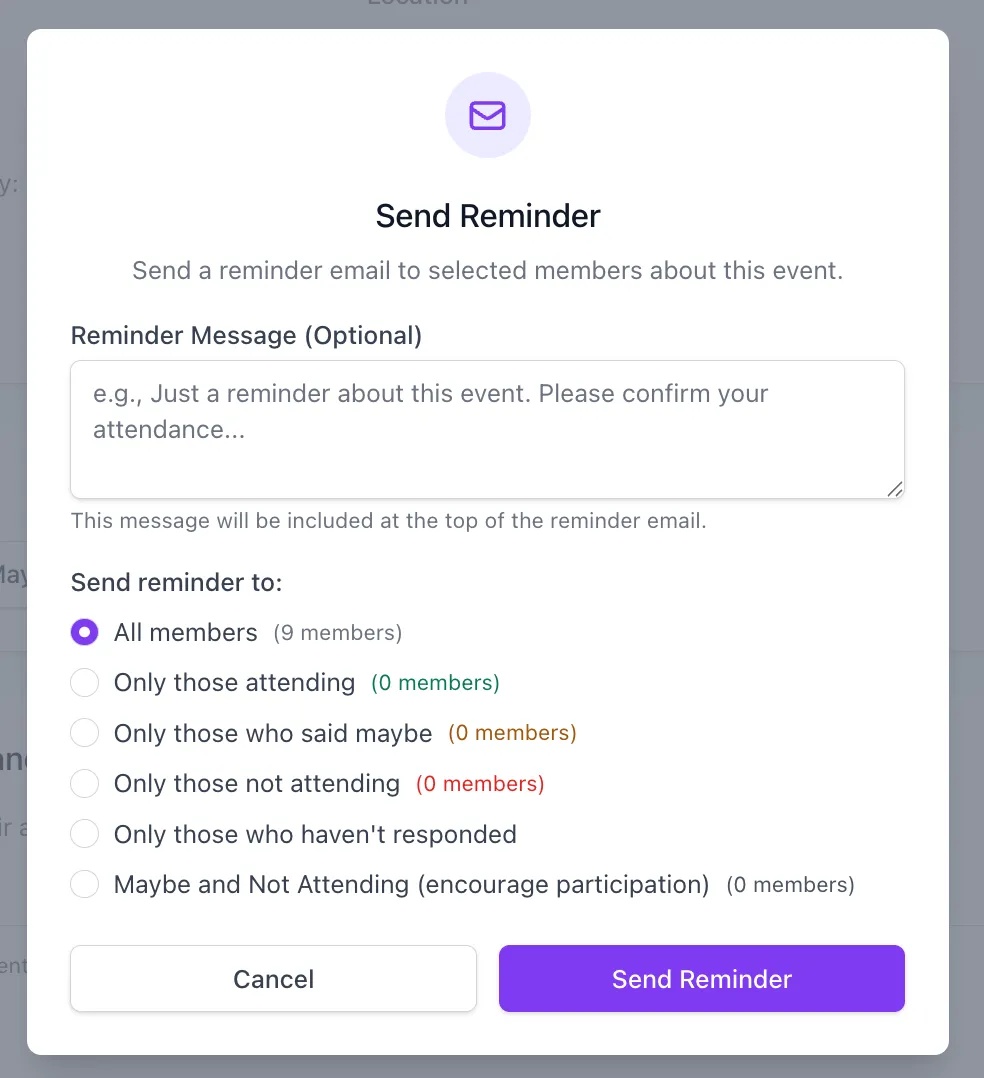
Section titled “Send targeted reminders”Send a manual reminder to a specific subset of members at any time:
- Open the event details
- Click Send Reminder
- Choose a recipient filter:
- All Members — Everyone in the unit
- Attending — Only confirmed attendees
- Maybe — Only those marked as maybe
- Not Attending — Only those who declined (standard events)
- Apology — Only those who sent an apology (meeting events)
- Not Responded — Only those who haven’t responded yet
- Add an optional custom message
- Click Send
Suggested sequences:
- 1 week before — Remind Not Responded to encourage RSVPs for planning
- 3–4 days before — Nudge Maybe members to commit
- 2–3 days before — Final details for Attending members (what to bring, parking, etc.)
Manually add a member
Section titled “Manually add a member”For members who missed the original invitation or joined after the event was created:
- Open the event details
- Scroll to Add Member
- Select the member from the dropdown
- Choose an initial status (Attending, Maybe, or Not Responded)
- Click Add Member
No email is sent when adding a member manually — this is for coordination only. If you want them notified, send them a targeted reminder after adding them.
Common issues
Section titled “Common issues”Attendance not showing in activity reports
Section titled “Attendance not showing in activity reports”- Confirm the event has already ended — only past events count
- Check the member’s status — they must be marked Attended, not just Attending (RSVP)
- Open the event and use ✓ Attended or bulk update to record actual attendance
This is by design: RSVP is intent, not confirmation.
RSVP links not working
Section titled “RSVP links not working”- Check the event hasn’t been cancelled
- Have the member log in and RSVP from the event details page directly
- Contact support if the issue persists
Reminders not sending
Section titled “Reminders not sending”- Check the Send reminder field on the event edit form isn’t set to Off — see Recurring Events if this is part of a series
- Verify the background job system is running
- Confirm the event has members with Attending (RSVP) status
- Check the event is not cancelled
- Check the “Sent day of reminder at” timestamp — reminders send once only, unless the start time or reminder setting was changed afterwards
Wrong members receiving reminders
Section titled “Wrong members receiving reminders”- Check the recipient filter you selected when sending
- Verify unit membership is correct
- Confirm you’re in the right unit context
Related guides
Section titled “Related guides”- Create and Manage Events — Creating, editing, cancelling events
- Recurring Events — Repeating series, editing occurrences, and managing notifications
- Events — Feature overview