Actions
Actions are maintenance tasks that can be automatically generated from inspection failures or manually created for general maintenance needs, providing a workflow to track, assign, and resolve issues.
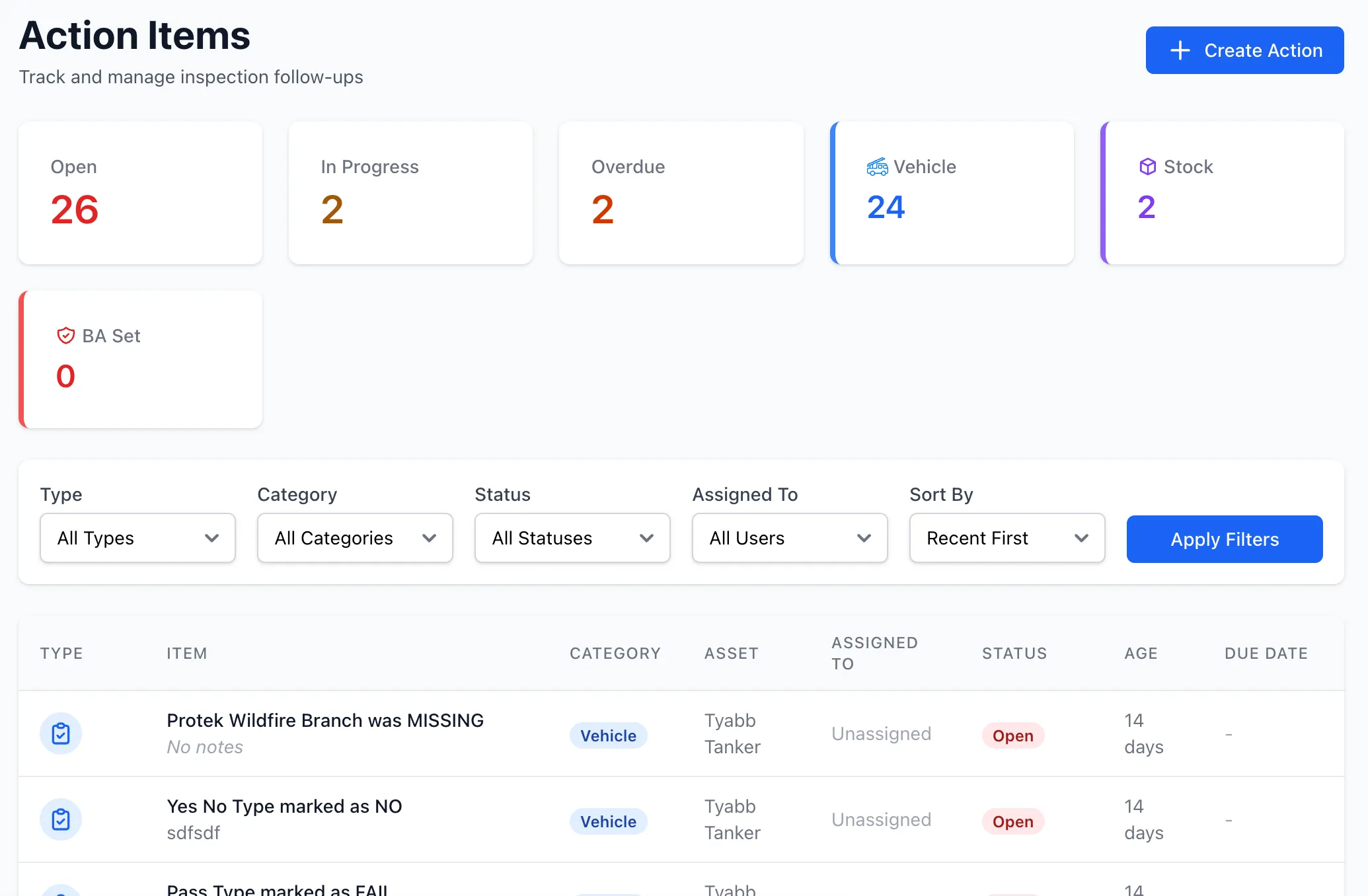
Overview
Section titled “Overview”Actions enable:
- Automatic creation from inspection failures and stock management
- Manual creation for any maintenance need
- Public issue reporting by community members
- Assignment to team members
- Status workflow tracking
- Due date management
- Categorisation for organisation
- Out of service item tracking
- Resolution documentation
- Closure and review process
Action Creation
Section titled “Action Creation”Automatic Generation
Section titled “Automatic Generation”Actions are automatically created when inspections identify:
- Failed items: pass_fail items that fail
- Missing items: present_missing items marked missing
- Expired items: expiry_date items past 30-day threshold
- Low quantity: quantity_with_expiry below expected quantity
Each auto-generated action includes:
- Reference to inspection and specific item
- Section and subsection labels
- Item label and type
- Flagged by user (inspector)
- Initial status: open
- Auto-assigned category based on source
Manual Creation
Section titled “Manual Creation”Brigade members can manually create actions for:
- General maintenance needs
- Building and facility issues
- PPE and uniform requirements
- IT system problems
- Any other maintenance tasks
Manual actions require:
- Brief description (item reference)
- Category selection
- Optional asset linking (vehicle/equipment)
- Optional template linking for out-of-service tracking
Public Issue Reporting
Section titled “Public Issue Reporting”When enabled, community members can report issues via the Station Portal:
- No login required
- Submit via web form
- Include name (optional) and description
- Select category
- Add notes with details
- Administrator notification on submission
Public-reported actions:
- Flagged as publicly reported
- Include reporter name (if provided)
- Marked with category selected by reporter
- Auto-assigned to “open” status
- Require administrator review and assignment
Action Workflow
Section titled “Action Workflow”Actions follow a defined status workflow:
- Newly created action
- Not yet assigned or started
- Awaiting assignment and planning
In Progress
Section titled “In Progress”- Work has begun
- Assigned to team member
- Actively being addressed
Resolved
Section titled “Resolved”- Work completed
- Awaiting verification
- Can create out_of_service items at this stage
Closed
Section titled “Closed”- Verified and approved
- Action complete
- Out of service items auto-reinstated
Action Categories
Section titled “Action Categories”Actions are organised into categories for better tracking and filtering:
Category Types
Section titled “Category Types”Vehicle
- Auto-assigned for vehicle inspection actions
- Vehicle maintenance and repair tasks
- Color: Blue
Equipment
- Auto-assigned for equipment inspection actions
- Equipment maintenance and repair tasks
- Color: Cyan
Stock
- Auto-assigned for stock management actions
- Reorder and restocking tasks
- Color: Purple
Building & Maintenance
- Facility repairs and maintenance
- Building infrastructure issues
- Available for manual and public actions
- Color: Amber
PPE & Uniform
- Personal protective equipment issues
- Uniform replacements and repairs
- Available for manual and public actions
- Color: Green
IT
- Technology and system issues
- Software and hardware problems
- Available for manual and public actions
- Color: Indigo
Other
- General maintenance tasks
- Uncategorised issues
- Default for manual actions
- Available for manual and public actions
- Color: Gray
Auto-Assignment
Section titled “Auto-Assignment”Categories are automatically assigned for inspection-based actions:
- Vehicle inspections → Vehicle category
- Equipment inspections → Equipment category
- Stock actions → Stock category
- Manual actions → Default to “Other” (user can change)
- Public actions → Selected by reporter
Manual Category Selection
Section titled “Manual Category Selection”When creating manual actions:
- Select from all available categories
- Change category after creation
- Categories help with filtering and reporting
Action Details
Section titled “Action Details”Each action tracks:
- Item Reference: Brief issue description
- Category: Organisational category
- Notes: Detailed notes and comments
- Inspection reference: Linked inspection and item (if applicable)
- Stock item reference: Linked stock item (if applicable)
- Flagged by: User who identified issue (or public reporter name)
- Assigned to: Responsible team member
- Due date: Target completion date
- Status: Current workflow status
- Created/updated timestamps: Audit trail
- Manually created flag: Indicates manual vs. auto-generated
- Template linking: Optional link to inspection template for out-of-service tracking
Assignment
Section titled “Assignment”Assigning Actions
Section titled “Assigning Actions”Actions can be assigned to:
- Specific team members
- Workshop technicians
- External contractors
- Brigade officers
Assignment Process
Section titled “Assignment Process”- Review action: Assess issue and requirements
- Determine responsible person: Who should address it
- Set due date: When it should be completed
- Assign: Update action with assignee
- Notify: Assignee receives notification
Due Dates
Section titled “Due Dates”Track action completion targets:
- Set on creation: Initial due date
- Modify as needed: Extend or advance
- Overdue tracking: Alerts for past due actions
- Due soon warnings: Upcoming due dates
- Dashboard visibility: Overdue actions highlighted
Out of Service Management
Section titled “Out of Service Management”When actions require marking items unusable:
Creating Out of Service Items
Section titled “Creating Out of Service Items”During action resolution:
- Mark action as resolved
- Create out_of_service_item
- Link to action
- Specify reason
- Item flagged in system
Out of Service Tracking
Section titled “Out of Service Tracking”Out of service items:
- Prevent item from being selected in inspections
- Display warning when viewing asset
- Track reason and created_by user
- Link to parent action
Reinstatement
Section titled “Reinstatement”When action is closed:
- Associated out_of_service_item automatically removed
- Item becomes available again
- Reinstatement recorded in audit trail
Public Issue Reporting
Section titled “Public Issue Reporting”When enabled at the unit level, the public can report issues:
Enabling Public Issues
Section titled “Enabling Public Issues”Brigade administrators can:
- Toggle public issue reporting in settings
- Appears on Station Portal
- Shows count of open public issues
- Provides “Report Issue” link
Reporting Process
Section titled “Reporting Process”Public reporters:
- Access Station Portal
- Click “Report Issue” or view issues page
- Optionally enter name (or select from member list)
- Enter issue description
- Select category
- Add optional detailed notes
- Submit report
Reporter Name Handling
Section titled “Reporter Name Handling”The system supports:
- Anonymous reporting (no name required)
- Manual name entry
- Autocomplete from unit member list
- Linking to existing user account if selected
Administrator Notification
Section titled “Administrator Notification”When issue is reported:
- Email sent to brigade administrators
- Includes reporter name (if provided)
- Shows issue description and category
- Links to action in system
- Marked as publicly reported
Public Issue Categories
Section titled “Public Issue Categories”Only certain categories available for public reporting:
- Building & Maintenance
- PPE & Uniform
- IT
- Other
Vehicle, Equipment, and Stock categories are excluded as they require inspection context.
Public Issue Display
Section titled “Public Issue Display”The public issues page shows:
- Count of open public issues
- List of active public issues
- Category badges
- Assignment status
- Time since reported
- Current status (open/in progress)
Managing Public Issues
Section titled “Managing Public Issues”Brigade administrators:
- Review and triage public reports
- Assign to appropriate team member
- Set due dates
- Add additional notes
- Resolve through normal action workflow
- Can link to template/asset if needed
Action Views
Section titled “Action Views”My Actions
Section titled “My Actions”- Actions assigned to current user
- Personal task list
- Sortable by due date, status
Unit Actions
Section titled “Unit Actions”- All actions for brigade/unit
- Management overview
- Filter by status, assignee, asset, category
By Category
Section titled “By Category”- Filter by specific category
- Vehicle, Equipment, Stock, etc.
- Helps organise work by type
By Source
Section titled “By Source”- Inspection actions
- Stock actions
- Manual actions
- Public issues
- Filter by creation source
Overdue Actions
Section titled “Overdue Actions”- Actions past due date
- Priority attention required
- Escalation candidates
Recent Actions
Section titled “Recent Actions”- Recently created or updated
- Activity monitoring
- Quick access to active work
Resolution Process
Section titled “Resolution Process”1. Start Work
Section titled “1. Start Work”- Update status to in_progress
- Begin addressing issue
- Document progress in notes
2. Complete Work
Section titled “2. Complete Work”- Perform required repairs or maintenance
- Test and verify fix
- Document work performed
- Capture photos if applicable
3. Mark Resolved
Section titled “3. Mark Resolved”- Update status to resolved
- Add resolution notes
- Set out_of_service if needed
- Notify relevant parties
4. Review and Close
Section titled “4. Review and Close”- Supervisor reviews resolution
- Verifies work completed
- Closes action
- Out of service items reinstated
Template Linking for Manual Actions
Section titled “Template Linking for Manual Actions”Manual actions can be linked to inspection templates and assets:
Purpose of Template Linking
Section titled “Purpose of Template Linking”Linking enables:
- Out-of-service functionality for manual actions
- Template item reference for consistency
- Asset tracking (vehicle or equipment)
- Better integration with inspection workflow
Linking Process
Section titled “Linking Process”After creating manual action:
- View action details
- Click “Link to Template” if not already linked
- Select inspection template
- Select specific template item (optional)
- Select asset (vehicle or equipment)
- Save linking
When to Link
Section titled “When to Link”Link manual actions when:
- Action relates to specific inspection item
- Need to mark item out of service
- Want consistent tracking with inspections
- Relates to specific asset
Unlinking
Section titled “Unlinking”Manual actions can be unlinked:
- Remove template association
- Clear asset reference
- Cannot mark out of service without link
Action Filtering
Section titled “Action Filtering”Filter actions by:
- Status: Open, in_progress, resolved, closed
- Assignee: Specific team member
- Asset: Vehicle or equipment
- Category: Vehicle, Equipment, Stock, Building, PPE, IT, Other
- Source: Inspection, Stock, Manual, Public
- Due date: Overdue, due soon, all
- Date range: Created or updated within period
Reporting
Section titled “Reporting”Generate action reports:
- Open actions: Current workload
- Completion rates: Actions closed vs created
- Response times: Time to resolution
- By asset: Actions per vehicle/equipment
- By assignee: Workload distribution
- Overdue analysis: Bottlenecks and delays
Integration with Inspections
Section titled “Integration with Inspections”Actions link back to inspections:
- Inspection reference: Which inspection flagged issue
- Item reference: Specific failed item
- Section context: Where in checklist
- Inspector: Who identified issue
- Response data: Original inspection response
View inspection from action:
- Click inspection link
- See full inspection context
- Review other items from same inspection
Best Practices
Section titled “Best Practices”Action Management
Section titled “Action Management”- Review new actions daily
- Assign actions promptly
- Set realistic due dates
- Update status regularly
- Document work thoroughly
Assignment Strategy
Section titled “Assignment Strategy”- Match skills to action type
- Balance workload across team
- Consider availability and capacity
- Set clear expectations
- Follow up on assignments
Priority Setting
Section titled “Priority Setting”- Safety issues: High priority, immediate due dates
- Operational impacts: Medium priority, near-term
- Preventive maintenance: Lower priority, flexible timing
- Compliance items: Priority based on deadline
Communication
Section titled “Communication”- Notify assignees of new actions
- Update stakeholders on progress
- Escalate overdue actions
- Document resolution clearly
- Close loop with inspectors
Out of Service Decisions
Section titled “Out of Service Decisions”- Mark out of service only when necessary
- Document reason clearly
- Update operational teams
- Track impact on availability
- Resolve quickly to reinstate
Related Features
Section titled “Related Features”- Inspections - Actions created from inspections
- Vehicles - Vehicle-related actions
- Equipment - Equipment-related actions
- Templates - Inspection items that generate actions