Multi-User Inspections
Overview
Section titled “Overview”The multi-user inspection feature allows multiple users to work on the same inspection simultaneously. This is particularly useful for large inspections where different crew members can complete different sections at the same time, improving efficiency and reducing inspection completion time.
Key Features
Section titled “Key Features”1. Section Navigation
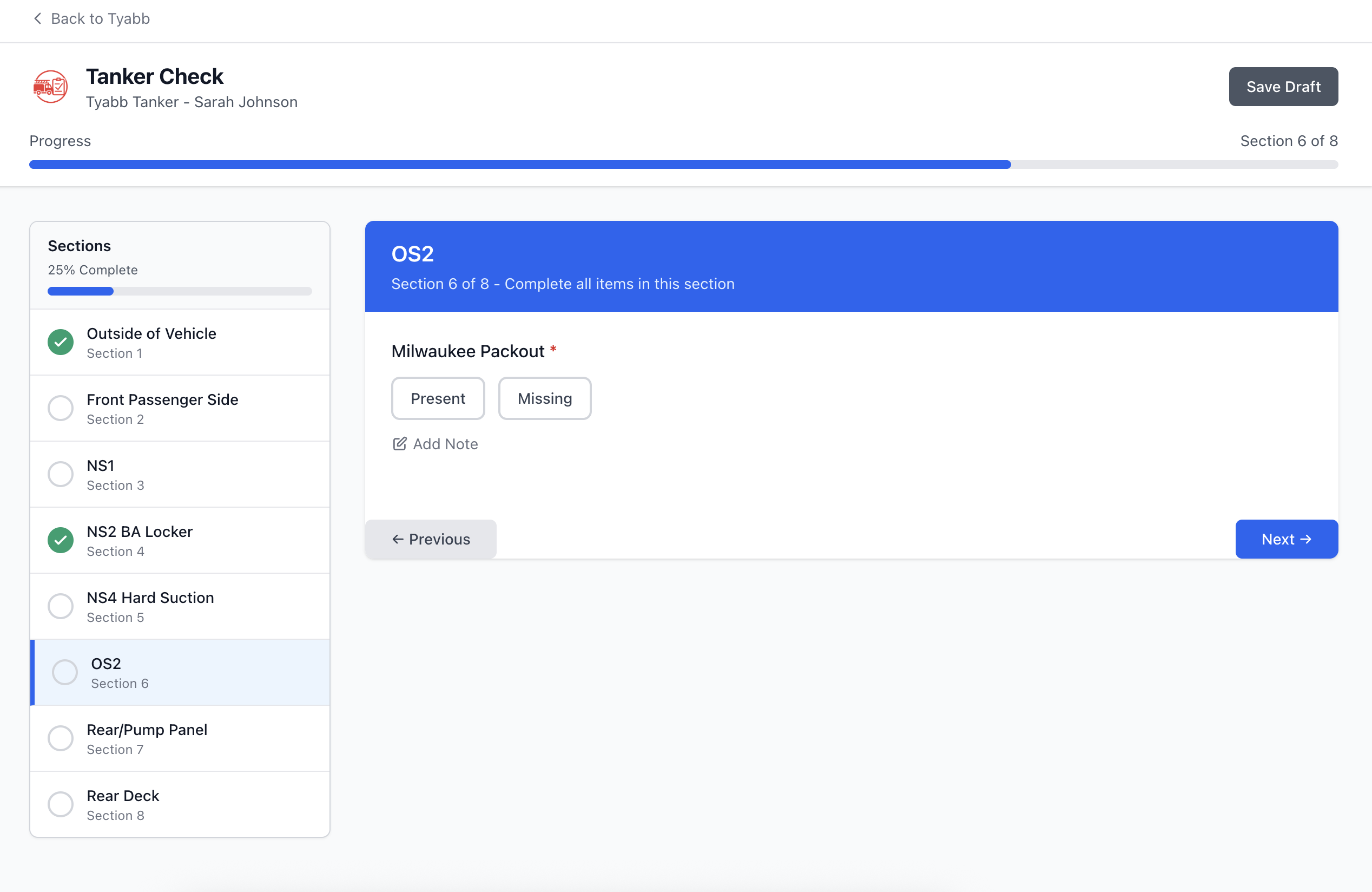
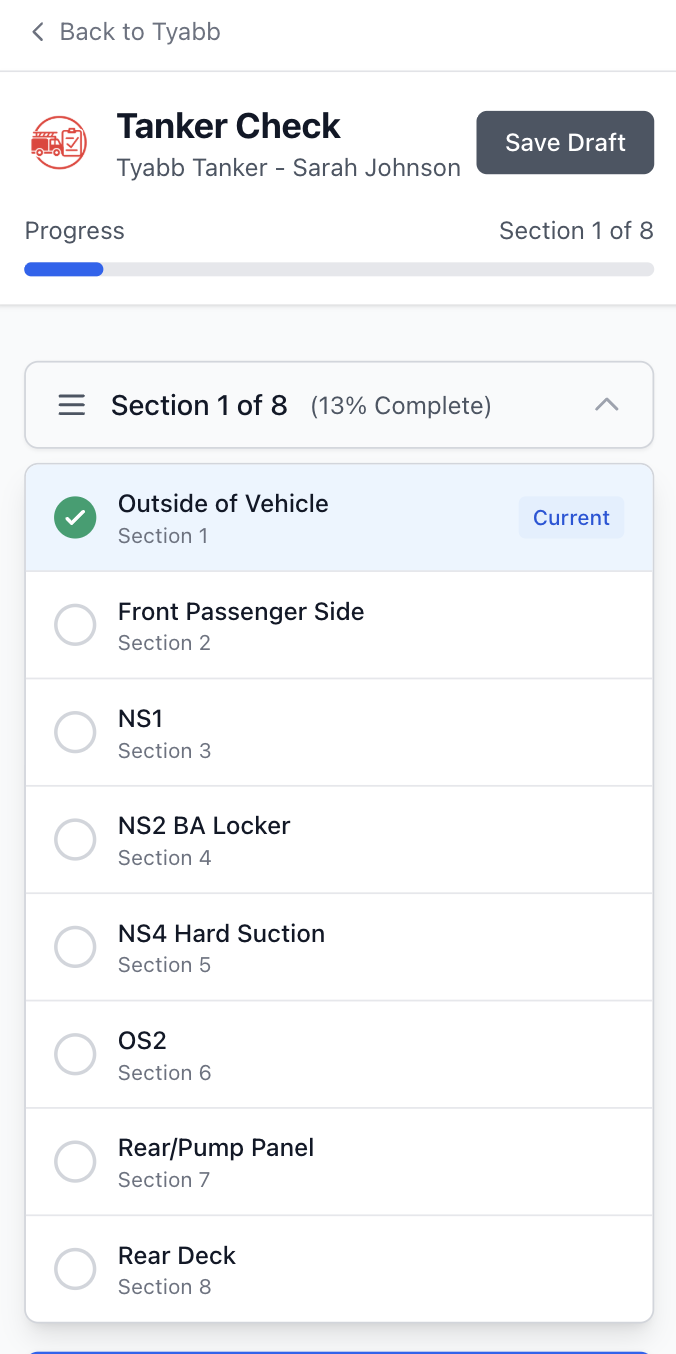
Section titled “1. Section Navigation”- Mobile: Collapsible dropdown menu showing all sections
- Desktop: Fixed sidebar with section list for easy navigation
- Jump to any section at any time without being forced to complete sections sequentially
2. Section Completion Tracking
Section titled “2. Section Completion Tracking”- Visual indicators show which sections are complete
- Green checkmark (✓) = Section complete
- Empty gray circle (○) = Section incomplete
- Completion status updates in real-time as you work
3. Progress Tracking
Section titled “3. Progress Tracking”- Overall completion percentage displayed prominently
- Progress bar shows visual representation of completion
- Updates automatically as sections are marked complete
4. Active User Indicator
Section titled “4. Active User Indicator”- See how many other users are currently working on the same inspection
- Displayed at the top of the inspection when multiple users are active
- User avatars show who else is collaborating
5. Validation Warnings (Not Blockers)
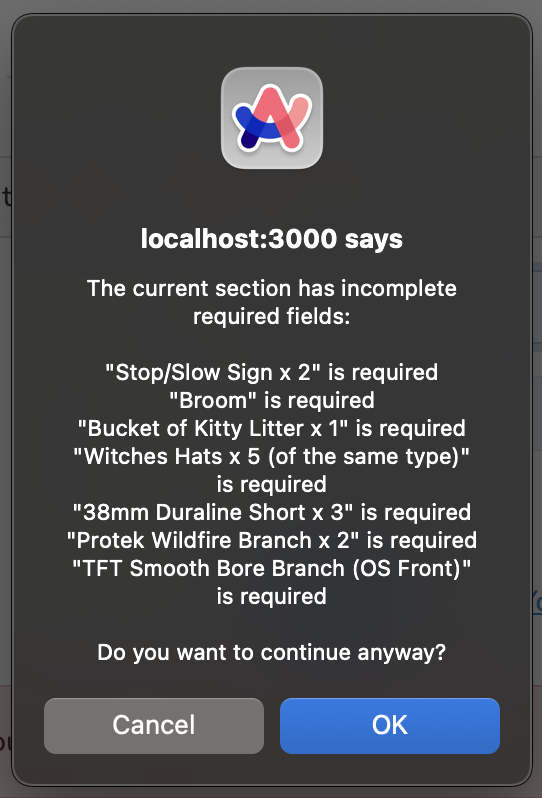
Section titled “5. Validation Warnings (Not Blockers)”- Navigate freely between sections
- Warnings appear if you try to leave a section with incomplete required fields
- You can choose to continue anyway or complete the fields first
6. Review & Complete Page
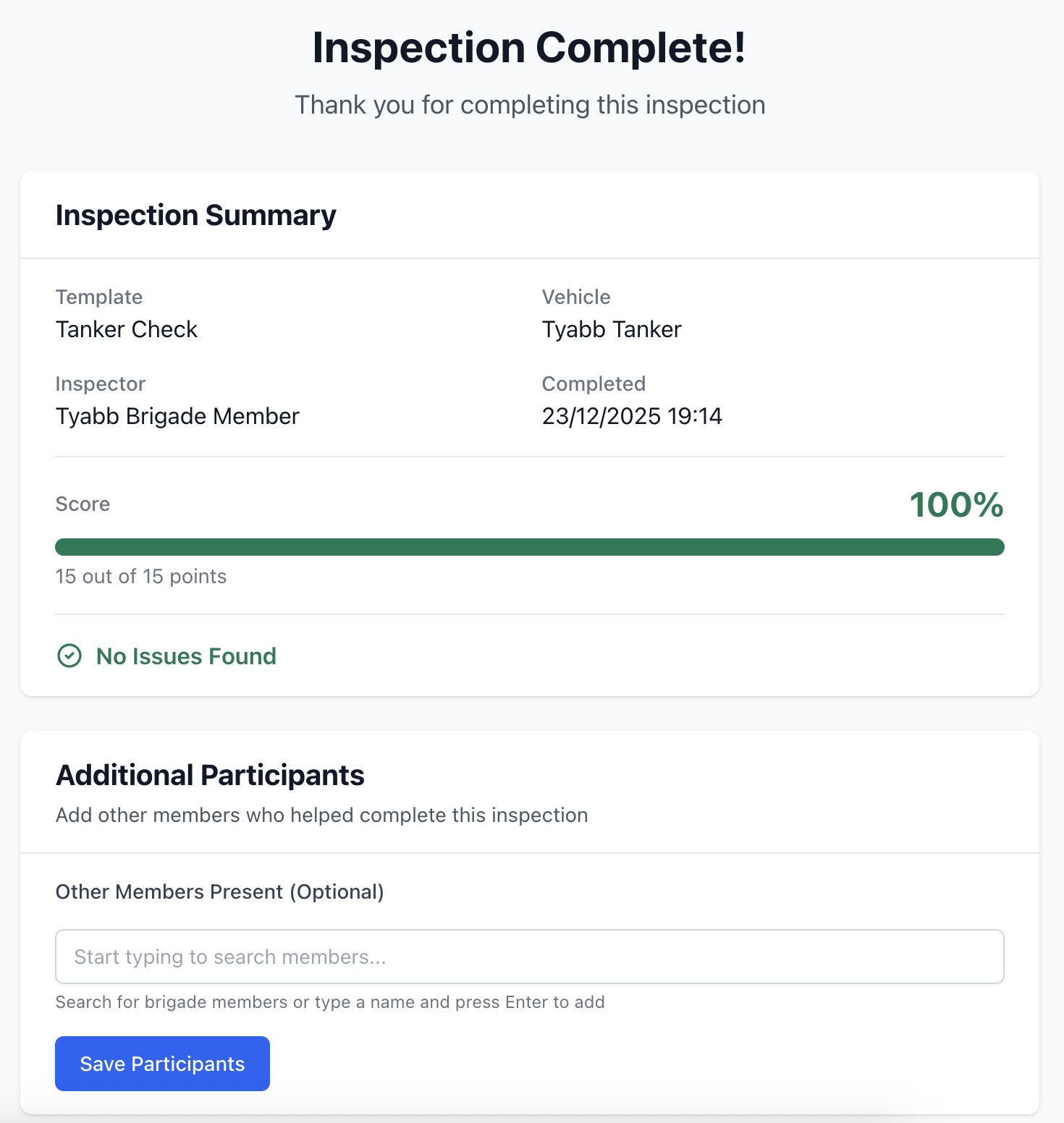
Section titled “6. Review & Complete Page”- Final review page shows status of all sections before submission
- Clearly indicates which sections need attention
- Jump directly to incomplete sections from the review page
- Only allows submission when all required fields are complete
- Record names of any other users that joined the inspection
How to Use
Section titled “How to Use”Starting an Inspection
Section titled “Starting an Inspection”-
Access the inspection via:
- Public brigade link
- Public vehicle link
- Direct public inspection link
-
Enter your name as the inspector and optional enter the names of any other members present
-
The inspection opens to Section 1 by default
Join an Inspection
Section titled “Join an Inspection”-
Access the relevant vehicle public page.
-
Look for the inspection draft and click “Continue”
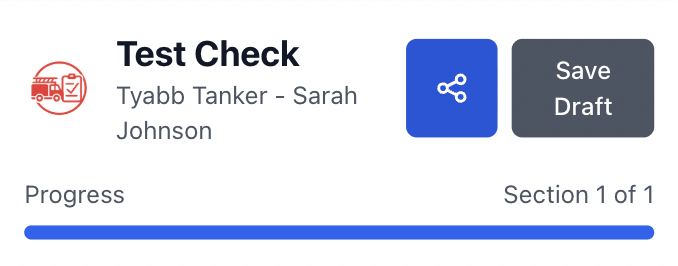
On mobile devices, you can also tap the Share button in the header to share via SMS, iMessage or any other chat platform to another user.
Navigating Between Sections
Section titled “Navigating Between Sections”On Mobile
Section titled “On Mobile”- Tap the section dropdown button at the top
- View the list of all sections with their completion status
- Tap any section to jump to it
- The current section is highlighted in blue
On Desktop
Section titled “On Desktop”- Use the sidebar on the left showing all sections
- Click any section name to jump to it
- The current section is highlighted with a blue left border
- Progress bar shows overall completion at the top of the sidebar
Completing a Section
Section titled “Completing a Section”-
Fill out all required fields in the section
- Required fields are marked with a red asterisk (*)
-
The section automatically validates when you:
- Click “Next” to go to the next section
- Jump to a different section
- Auto-save triggers (every 30 seconds)
-
When all required fields are complete:
- The section icon changes to a green checkmark
- The completion percentage updates
- The progress bar advances
Working with Multiple Users
Section titled “Working with Multiple Users”-
When other users are working on the same inspection:
- You’ll see “X other users currently working on this inspection” at the top
- User avatars (initials) are displayed
-
All users can:
- Work on different sections simultaneously
- Save their responses independently
- See updated completion status from other users
-
Important: Last save wins
- If two users edit the same field, the most recent save will be kept
- Coordinate with your team to avoid working on the same section
-
When another user updates a part of the inspection you will see a brief notification that an update was made by another user.
Reviewing and Completing
Section titled “Reviewing and Completing”-
Navigate through all sections and complete required fields
-
In the last section, click “Review & Complete” button
-
The review page shows:
- Overall completion status
- List of all sections with their status
- Specific validation errors for incomplete sections
- Green “Complete” badge for finished sections
- Red or yellow badges for incomplete sections
-
For incomplete sections:
- Click the “Complete” button next to the section
- Jump directly to that section
- Fill in the missing required fields
-
Once all sections are valid:
- The “Complete Inspection” button becomes enabled
- Click to submit the inspection
- Confirm the submission (this cannot be undone)
Best Practices
Section titled “Best Practices”For Single Users
Section titled “For Single Users”- Work through sections sequentially for a natural flow
- Use auto-save to preserve your work every 30 seconds
- Review the completion percentage to track your progress
- Use the review page before submitting to catch any missed fields
For Multiple Users
Section titled “For Multiple Users”-
Coordinate section assignments
- Assign specific sections to specific users
- Avoid multiple users working on the same section simultaneously
- Example: “John does Sections 1-3, Jane does Sections 4-6”
-
Communicate about shared sections
- If a section requires input from multiple people, coordinate who enters what
- Use verbal communication or notes to avoid conflicts
-
Designated completer
- Assign one person to do the final review and submission
- This person checks all sections are complete and submits
-
Check active users
- Look at the active user indicator before starting
- Know who else is working on the inspection
Validation Rules
Section titled “Validation Rules”Section Completion Criteria
Section titled “Section Completion Criteria”A section is marked complete when all required fields are filled out correctly:
Pass/Fail, Yes/No, Present/Missing Items
Section titled “Pass/Fail, Yes/No, Present/Missing Items”- Must select an option
- If “Fail”, “No”, or “Missing” is selected and:
- “Require comment on fail” is enabled → Comment required
- “Require photo on fail” is enabled → Photo required
Text/Number Fields
Section titled “Text/Number Fields”- Must have a value entered
Quantity with Expiry
Section titled “Quantity with Expiry”- Quantity must be entered
- Expiry date must be selected
Expiry Date
Section titled “Expiry Date”- Date must be selected
Validation Behavior
Section titled “Validation Behavior”- During navigation: Warnings shown, but you can continue
- At completion: Hard validation prevents submission until all sections valid
- Auto-save: Automatically checks current section completion every 30 seconds
Troubleshooting
Section titled “Troubleshooting”Section not marking as complete
Section titled “Section not marking as complete”Problem: You filled out all fields but the section still shows incomplete
Solutions:
- Wait for auto-save (30 seconds) or navigate to trigger validation
- Check for red asterisk (*) fields you may have missed
- Look for failure responses that require comments or photos
- Scroll through the entire section to find hidden required fields
Completion percentage not updating
Section titled “Completion percentage not updating”Problem: The percentage stays the same after completing a section
Solutions:
- Wait for auto-save to trigger (every 30 seconds)
- Navigate to another section to trigger validation
- Refresh the page to see the latest state
- Check that all required fields in the section are truly complete
Other user’s responses not showing
Section titled “Other user’s responses not showing”Problem: Another user says they filled out a section but you don’t see it
Solutions:
- Ask them to wait for auto-save or navigate away to trigger save
- Refresh your browser page to get the latest data
- Check you’re viewing the same inspection (verify inspection ID)
- Ensure they saved their responses (look for save indicator)
Can’t complete inspection
Section titled “Can’t complete inspection”Problem: “Complete Inspection” button is disabled on review page
Solutions:
- Look at the section list to see which sections have issues
- Red indicators show sections with validation errors
- Click “Complete” next to each incomplete section
- Fill in any missing required fields
- Return to review page once all sections are valid
Lost connection/session timeout
Section titled “Lost connection/session timeout”Problem: You’ve been inactive and lost your session
Solutions:
- Your responses are auto-saved every 30 seconds
- Navigate back to the public inspection link
- Enter your name again
- You’ll resume where you left off with your saved responses
Conflicting edits with another user
Section titled “Conflicting edits with another user”Problem: Your responses were overwritten by another user
Solutions:
- The last person to save wins
- Coordinate with team members about section assignments
- Have users work on different sections simultaneously
- Re-enter your responses if they were overwritten
- Consider using one device per section for critical inspections