Crew Builder
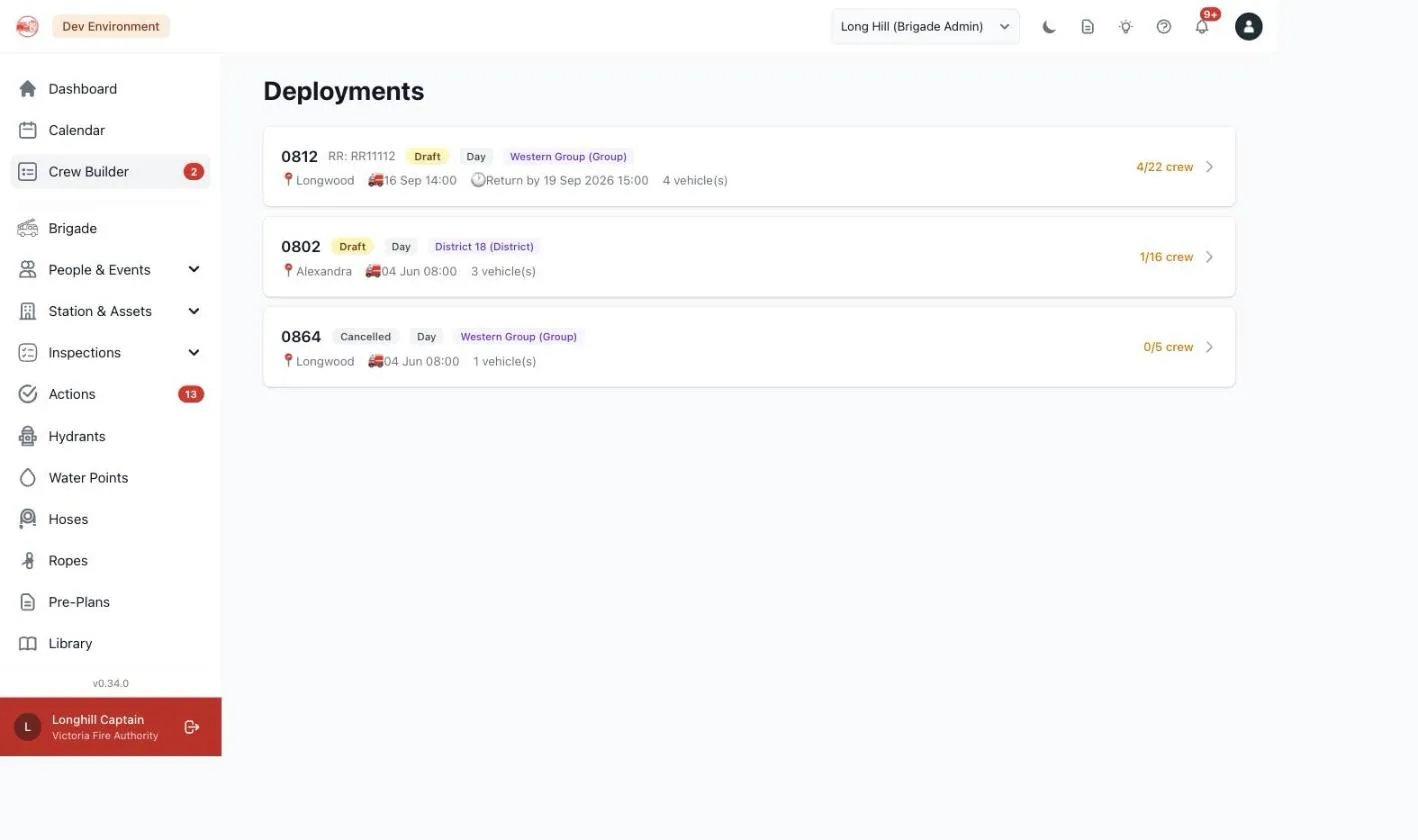
Crew Builder assembles vehicles and crew for a specific deployment — a strike team or resource request sent to an incident or staging ground — pulling vehicles and members from across an organisation’s unit hierarchy, with a built-in approval step for any unit whose vehicle or people are being used.
Overview
Section titled “Overview”The Crew Builder module provides:
- Deployments with a resource-request number, destination, shift, and dates, moving through Draft → Ready for Deployment → Active → Completed
- Requesting vehicles by type or adding specific in-service vehicles from anywhere in the unit hierarchy
- Auto-generated crew seats (Driver, Crew Leader, Crew) from each vehicle’s crew capacity, with per-seat qualification requirements and custom labels
- A cross-unit approval workflow — any member pulled from a unit other than the one organising the deployment needs that unit’s sign-off
- Standby crews — a unit can pre-crew its own vehicles for set periods, so a vehicle requested for a deployment is already crewed, and can keep a separate local response crew for its own emergency cover
- Dedicated Member Availability and Vehicle Availability grids for crew-picking across the whole hierarchy
- Deployment Templates for strike-team compositions your organisation stands up repeatedly
- Rotations for splitting a multi-shift deployment into successive crews on the same vehicles
- PDF export and email of a deployment’s roster
Key Features
Section titled “Key Features”Deployments
Section titled “Deployments”Each deployment has:
- Deployment Number and optional Resource Request Number
- Destination, Departure/Estimated Return times, and Shift Type (Day, Night, Swing)
- A status: Draft, Ready for Deployment, Active, Completed, or Cancelled
- An organising unit (the “Deployment Level”), scoped to whoever created it and their unit hierarchy
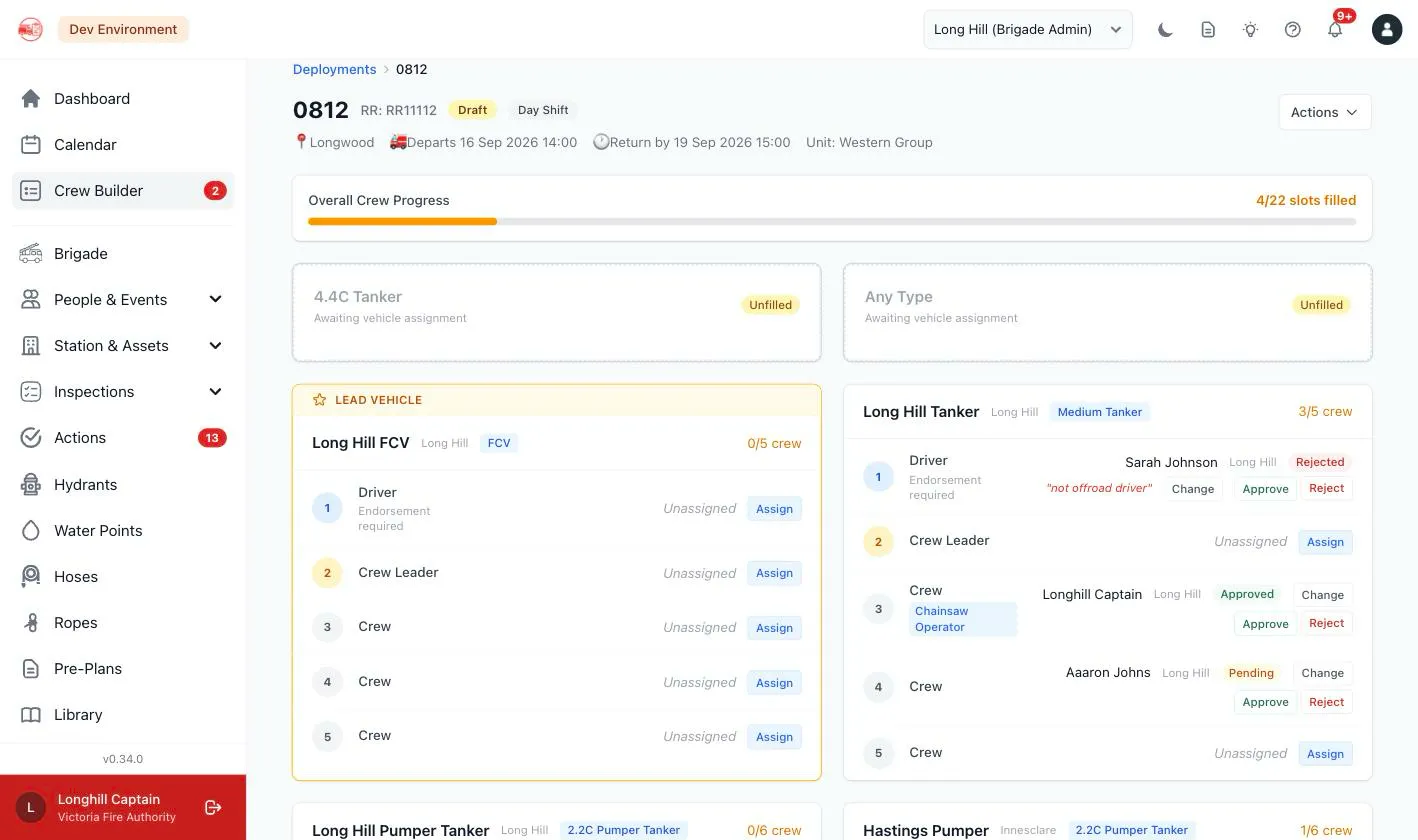
A deployment can only be marked Ready for Deployment once every requested vehicle is filled and every crew seat is approved — StationOne automatically reverts it back to Draft if a later change (a reassignment, a rejection, a removed vehicle) breaks that condition.
Vehicles & Crew Seats
Section titled “Vehicles & Crew Seats”Vehicles can be requested by type (creating a placeholder slot to fill later) or added directly from any in-service vehicle in the organising unit’s hierarchy. Adding a vehicle auto-generates its crew seats from its crew capacity: seat one is the Driver (requiring a driving endorsement for that vehicle), seat two is the Crew Leader, and the rest are Crew — each seat can carry required qualifications and a custom label.
Crew Builder deliberately ignores routine vehicle bookings when offering a vehicle — only decommissioned or out-of-service vehicles, vehicles a unit has marked not available for deployments, and vehicles committed to a unit’s local response crew are excluded — since a strike team need overrides a scheduled booking.
Standby Crews
Section titled “Standby Crews”Crew Builder is a permanent menu for units, not just something that appears once a deployment pulls from them. Its My Crews tab lets a unit assign members to its own vehicles for set periods (for example midnight to midday, then a second crew from midday), list extra standby members, and notify everyone involved. Each crew is either a deployment crew — copied into a deployment, already approved, if the vehicle is requested — or a local response crew, which keeps the brigade’s own emergency response covered and makes the vehicle unavailable to deployments for that period. If a vehicle, member or period later becomes unusable, the crew is flagged and the unit notified rather than silently changed. See Pre-Plan Standby Crews.
Approval Workflow
Section titled “Approval Workflow”Assigning a member who belongs to a different unit than the one running the deployment starts that seat as Pending, and emails the member’s own unit to approve or reject it (with an optional rejection note). A unit crewing its own vehicle with its own members is auto-approved — there’s nobody else to ask. Approval rights (and a brigade’s own assign rights on its own vehicles) are only available while the deployment is in Draft.
Member & Vehicle Availability
Section titled “Member & Vehicle Availability”Two cross-unit grids support crew picking: a weekly Member Availability grid (filterable by unit, qualification, and endorsement) and a read-only Vehicle Availability grid showing each vehicle’s daily status (Available, Booked, Unavailable, On Loan, Out of Service, Decommissioned). Both feed availability badges into the crew-assignment picker — but availability never blocks an assignment, it only informs it (members on a unit’s local response crew show as unavailable, and can still be assigned as an override). A deployment can also narrow which availability types count as “available” for its own crew picker.
Deployment Templates
Section titled “Deployment Templates”Organisations that repeatedly stand up the same strike-team composition can save it as a reusable template — an ST number plus a list of vehicle types and quantities — and spin up a pre-populated draft deployment from it in one click.
Rotations
Section titled “Rotations”A multi-shift deployment can spawn successive rotations that clone the same vehicles forward but start with empty, unapproved crew — since the roster changes shift to shift even when the appliances don’t.
Related Features
Section titled “Related Features”- Duty Crews — a separate, ongoing rostered on-call rotation, distinct from Crew Builder’s ad-hoc deployment crewing
- Availability — the underlying member availability data Crew Builder’s pickers read from
- Vehicles — fleet management, appliance types, and endorsements referenced throughout Crew Builder