Manage Training
This guide walks you through creating and managing brigade training sessions in StationOne.
Prerequisites
Section titled “Prerequisites”- Brigade admin or organisation admin role
- Access to your brigade’s StationOne instance
- Training details (date, time, location, type)
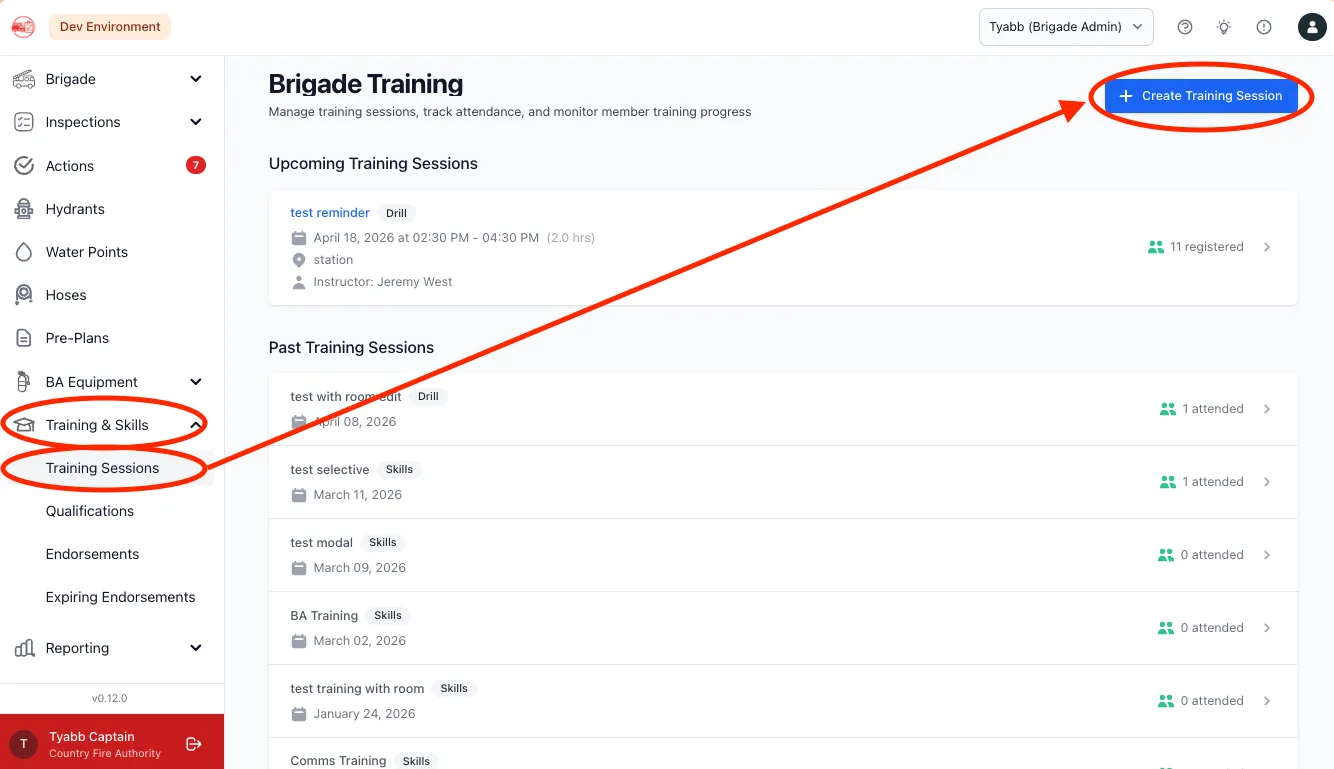
1. Navigate to Training
Section titled “1. Navigate to Training”- Log in to StationOne
- Select your organisation and unit (if applicable)
- Click Training in the main navigation
- Click the Create Training Session button
2. Enter Training Details
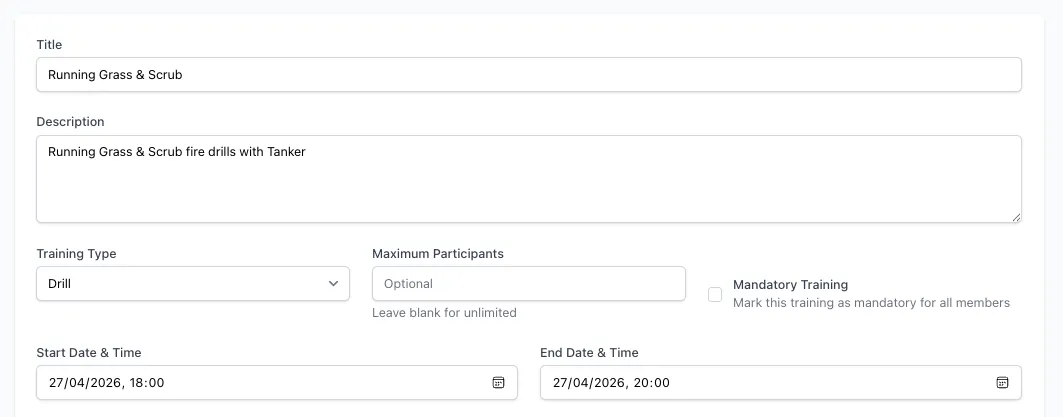
Section titled “2. Enter Training Details”Fill in the training session form:
Basic Information
Section titled “Basic Information”Title (required)
- Clear, descriptive training name
- Example: “Structural Firefighting Drill”, “First Aid Refresher”, “Annual Fitness Assessment”
Description (optional)
- Detailed training information
- Agenda, requirements, what to bring
- Any special instructions or prerequisites
Training Type (optional)
- Select the category that best fits:
- Drill — Practical exercises and rehearsals
- Skills — Skills development and competency
- Operational — Operational procedures
- Fitness — Physical fitness and conditioning
- Safety — Safety procedures and awareness
- Other — Any other category
Mandatory (optional)
- Tick this box if attendance is required for all members
- Displays a mandatory badge on the training listing
Maximum Participants (optional)
- Set a capacity limit for the session
- Leave blank for unlimited attendance
- Members cannot register once capacity is reached
Schedule
Section titled “Schedule”Start Date & Time (required)
- When the training session begins
End Date & Time (required)
- When the training session ends
- Must be after start date and time
Recurring Training
Section titled “Recurring Training”For sessions that repeat on a schedule, tick Make this a recurring training to expand the recurrence options (repeat pattern, end date, and member notification timing).
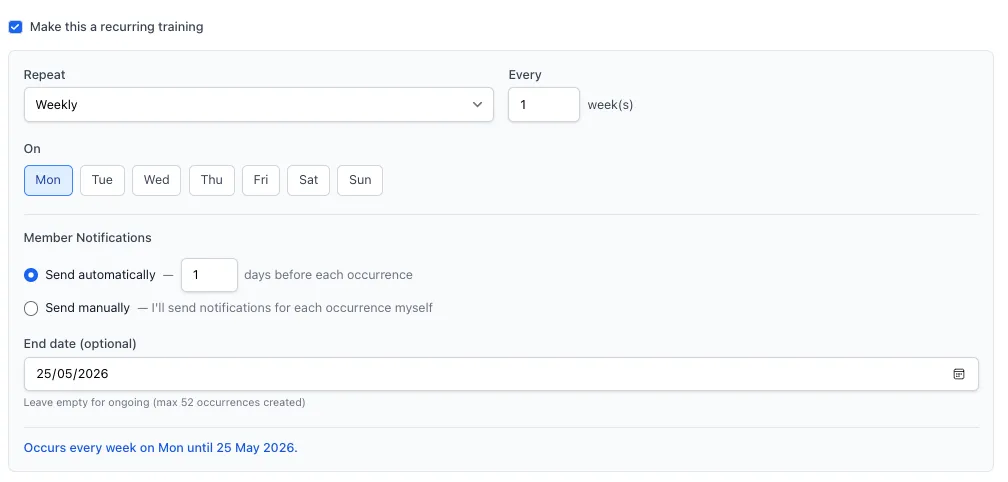
See Recurring Training for the full walkthrough of these options, how occurrences are generated, how “this session only” vs “entire series” edits differ, and how to turn automatic invitations or reminders on and off for an existing series.
Resources
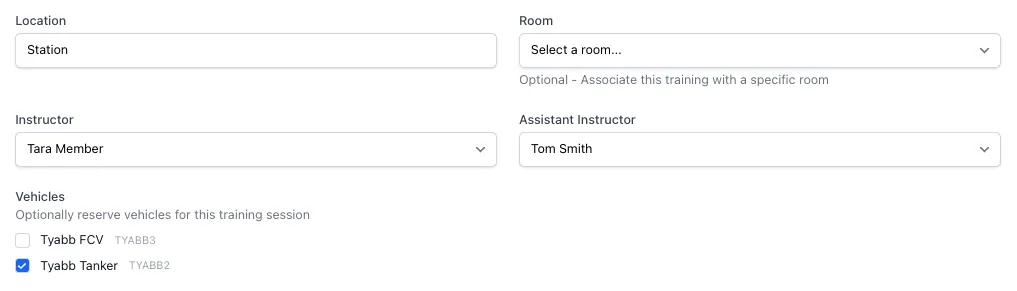
Section titled “Resources”Location (optional)
- Training venue or meeting point
- Example: “Station 1 Training Ground”, “Community Hall”
Instructor (optional)
- Select the session instructor from unit members
- Instructors can edit the training session
Assistant Instructor (optional)
- Select a second member to assist with the session
Room (optional)
- Select an available room for the session
- Only active, bookable rooms appear in the list
- A room booking is automatically created and approved
Vehicles (optional)
- Select one or more unit vehicles to reserve for the session
- Vehicle bookings are created automatically
- Vehicles with scheduling conflicts are excluded automatically
Notifications
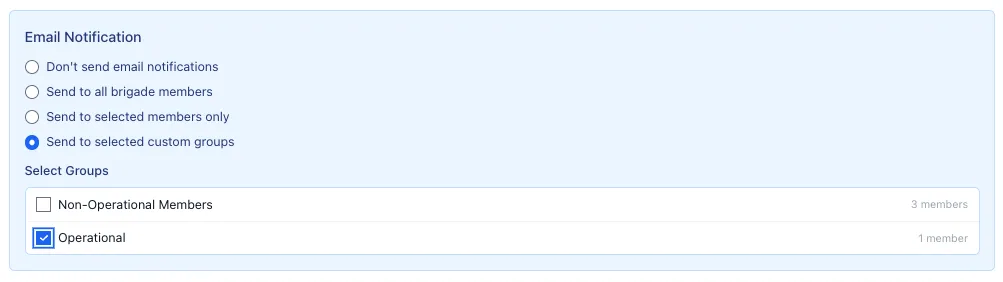
Section titled “Notifications”Email Notification (new training only)
Choose who receives an invitation email when the training is created:
- Don’t send — Training is created without any notifications
- All brigade members — All unit members with an email address receive an invitation with RSVP link
- Selected members only — Choose specific members from a searchable list
- Selected custom groups — Choose from your unit’s custom member groups
Settings
Section titled “Settings”Hide from public training page
- Tick to prevent this training from appearing on the public brigade training page
- Useful for internal or invite-only sessions
Send reminder (optional)
- Choose how long before the session start time an automatic reminder email goes out: 30 minutes, 1 hour, 2 hours, 4 hours, 12 hours, or 24 hours before
- Select Off to disable automatic reminders entirely
- Only members with status Registered or Confirmed receive the reminder (not absent or attended)
- Respects each member’s notification preferences — members who have disabled training day-of reminders will not receive the email
- Reminders send once per session. If the reminder has already gone out, changing the session’s start time or this reminder setting resets it so it can send again
- For recurring training, this is set per occurrence — it’s inherited from the series when instances are generated, but each occurrence can be changed independently afterwards

3. Save Training
Section titled “3. Save Training”Click Create Training Session to save.
Managing an Existing Training
Section titled “Managing an Existing Training”View Training Details and Attendance
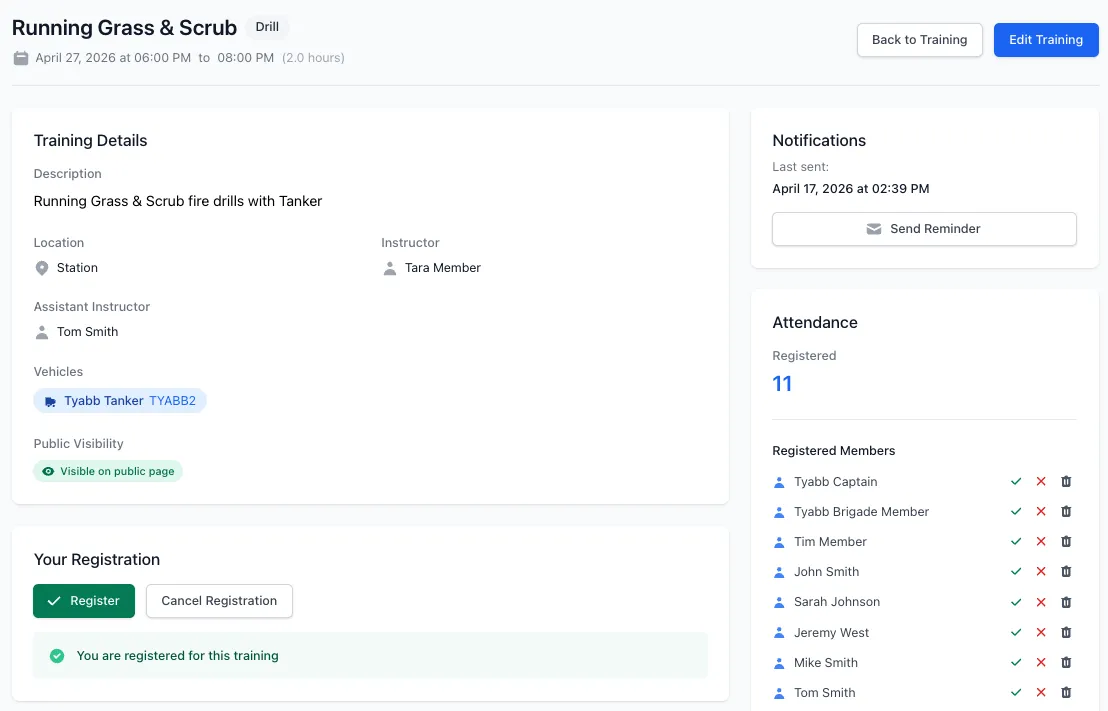
Section titled “View Training Details and Attendance”- Click on the training title from the training list
- View attendance summary:
- Registered count (and remaining capacity if set)
- Attended count (for past training)
- Absent count (for past training)
- See member lists grouped by status
- View training details including instructor, room, and vehicles
Register Yourself for Training
Section titled “Register Yourself for Training”- Open training details
- In the Your Registration section, click Register
- Your status is set to “Registered”
- Click Cancel Registration to remove your registration
Note: If the training is full, a “Training Full” warning is displayed and the register button is disabled.
Manually Register Members
Section titled “Manually Register Members”Add specific members to the training:
- Open training details
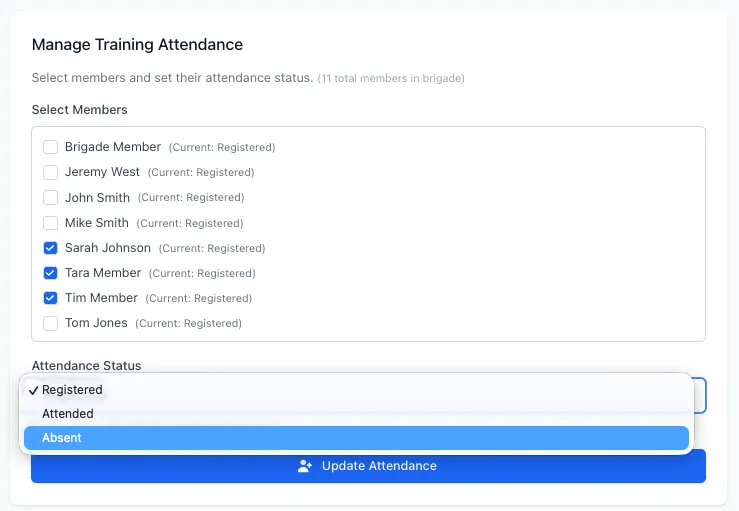
- Scroll to the Manage Training Attendance section
- Select members from the list using checkboxes
- Choose status from dropdown (Registered, Attended, or Absent)
- Click Register Selected Members
This is useful for:
- Registering members who missed the email notification
- Pre-registering members for mandatory training
- Recording attendance for members who did not register themselves
Mark Attendance After Training
Section titled “Mark Attendance After Training”Record who actually attended after the session:
- Open training details for a past training session
- In the attendance list, find each member
- Click Mark Attended or Mark Absent for each member
- Status updates immediately
Bulk Update Status
Section titled “Bulk Update Status”Update multiple members at once:
- Open training details
- In the Manage Training Attendance section, select multiple members using checkboxes
- Choose the new status (Registered, Attended, or Absent)
- Click Update Selected
Note: If the training has a capacity limit, bulk registration checks available spots.
Remove a Member’s Attendance
Section titled “Remove a Member’s Attendance”- Open training details
- Find the member in the attendance list
- Click the Remove button next to their name
Send a Reminder
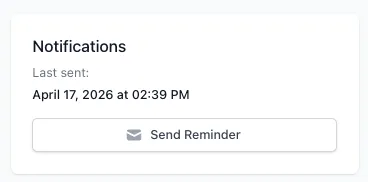
Section titled “Send a Reminder”Send a manual ad-hoc reminder to members at any time:
- Open training details
- Click Send Reminder
- Optionally add a custom message
- Choose recipients: all members, registered only, attended, absent, or those who haven’t responded
- Click Send
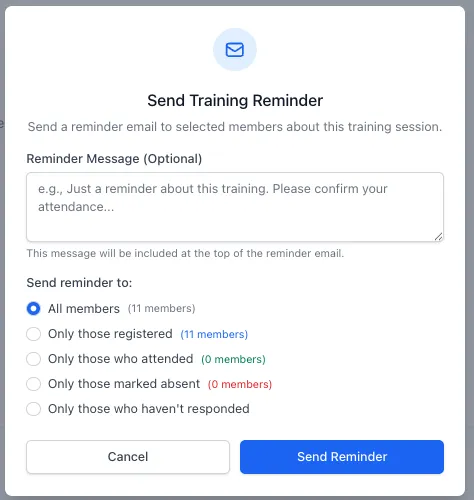
This is separate from the automatic day-of reminder and can be used at any time before or after the session.
Edit Training Details
Section titled “Edit Training Details”- Open training details
- Click the Edit button
- Update any fields including title, description, schedule, location, instructor, room, vehicles, and settings
- Click Update Training Session
Editing recurring training:
- Changes can be applied to this session only or this and all future sessions in the series
- Room assignments are kept in sync automatically
- See Recurring Training for what a series-wide edit does and doesn’t change
Cancel Training
Section titled “Cancel Training”- Open training details
- Click the Cancel Training button
- For a recurring session, choose this occurrence only or the entire series
- Cancelling the parent (first) session always cancels the entire series — see Recurring Training for why, and how skipped-date exceptions are handled
- Optionally provide a cancellation reason
- Confirm
When a training is cancelled:
- Registered attendees are notified by email, including the cancellation reason if provided
- Assigned vehicle and room bookings are released
- Cancelling a single occurrence of a series records it as an exception, so the date stays skipped
- The training is not deleted — it moves into a cancelled state and remains visible for record-keeping
Delete a Cancelled Training
Section titled “Delete a Cancelled Training”Once a training has been cancelled, an admin can permanently delete it:
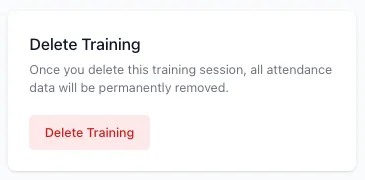
- Open the cancelled training
- Click Delete Training and confirm
Deletion is permanent and cannot be undone. No further notifications are sent — attendees were already notified when the training was cancelled. A training must be cancelled before it can be deleted.
Choosing When to Send Notifications
Section titled “Choosing When to Send Notifications”Send Immediately if:
- Training details are finalised
- You want members to register early
- The session has limited capacity
Don’t Send if:
- Details might still change
- You’re setting up training in advance and will notify separately
- The training is for a small group you’ll contact directly
Use Custom Groups if:
- The training is relevant to a specific subset of members
- You want to avoid notifying the whole brigade for specialist sessions
Using Recurring Training Effectively
Section titled “Using Recurring Training Effectively”Set up recurring training when you have regular weekly or monthly drills on a fixed schedule and want invitations sent automatically ahead of each session. See Recurring Training for how series generation, editing, and notifications work.
Using Training Types Effectively
Section titled “Using Training Types Effectively”Categorising training by type helps with:
- Filtering and finding specific sessions
- Tracking training variety across the brigade
- Identifying gaps in training programmes
- Reporting on training activities
Managing Capacity
Section titled “Managing Capacity”Set Capacity when:
- The venue has limited space
- Equipment is limited (e.g. BA sets for drill)
- Instructor-to-student ratio matters
- Safety requirements limit group size
Leave Unlimited when:
- The venue can accommodate all members
- No equipment constraints exist
- You want maximum participation
Mandatory Training Best Practices
Section titled “Mandatory Training Best Practices”Mark as Mandatory for:
- Regulatory compliance training
- Annual safety refreshers
- Critical operational procedures
- Certification requirements
Use the mandatory flag alongside attendance tracking to identify members who have not completed required training.
Recording Attendance
Section titled “Recording Attendance”Before the Session
- Review registered members
- Follow up with members who haven’t registered for mandatory training
- Check capacity and adjust if needed
After the Session
- Mark each registered member as attended or absent
- Use bulk status updates for efficiency
Reminder Timing
Section titled “Reminder Timing”Set Send reminder when you want an automated nudge sent before the session starts. This is most useful for:
- Sessions that are easy to forget (regular recurring drills)
- Mandatory training where participation is critical
- Sessions where last-minute attendance confirmation is helpful
Shorter windows (30 minutes–2 hours) work well for a same-day nudge; longer windows (12–24 hours) give members more notice to rearrange their schedule. Members can opt out of these reminders in their notification preferences without affecting other training notifications.
Common Issues
Section titled “Common Issues”Members Not Receiving Notifications
Section titled “Members Not Receiving Notifications”If members report not receiving training notifications:
- Verify the member has an email address in their profile
- Check spam/junk folders
- Confirm the notification option was selected when creating the training
- Check the member’s notification preferences — training notifications may be disabled
- Manually register the member if needed
Members Not Receiving Reminders
Section titled “Members Not Receiving Reminders”If a member did not receive a reminder:
- Confirm Send reminder is set to something other than Off on the training
- Verify the member’s status is Registered or Confirmed (reminders don’t go to absent or attended members)
- Check the member’s notification preferences — training day-of reminders can be disabled independently
- Confirm the member has an email address in their profile
- Check whether the reminder has already been sent — it only sends once, unless the start time or reminder setting was changed afterwards
Cannot Register — Training Full
Section titled “Cannot Register — Training Full”If a member cannot register:
- Check if the training has reached maximum capacity
- Consider increasing the max participants limit
- Administrators can force-register members beyond capacity
- Create an additional session if demand is high
Room Not Available
Section titled “Room Not Available”If the desired room doesn’t appear in the dropdown:
- Verify the room is marked as active
- Check the room is set as bookable
- Ensure the room is not already booked for the same time
- Edit room settings if needed
Recurring Instances Not Appearing
Section titled “Recurring Instances Not Appearing”Check the recurrence end date and confirm the parent training was saved with recurrence enabled — see how occurrences are generated for the generation limits.
RSVP Links Not Working
Section titled “RSVP Links Not Working”If members can’t register from the email link:
- Check if the training has been deleted
- Have the member log in and register manually from the training details page
- Contact support if the issue persists
Related Guides
Section titled “Related Guides”- Training — Feature overview
- Recurring Training — Repeating series, editing occurrences, and managing notifications
- Rooms — Room booking system
- Create and Manage Events — Similar guide for event management