Accessing and Using the Station Portal
The Station Portal gives unit members access to brigade information without needing to log in — check vehicle availability, upcoming events, hydrant locations, and more.
Getting the Link
Section titled “Getting the Link”Your brigade admin can share access via:
- Direct URL — a link that can be sent via email, messaging apps, or posted on your brigade website
- QR Code — printable code for display at the station, on noticeboards, or in vehicles
Contact your brigade admin if you don’t have the link or QR code.
What You’ll See
Section titled “What You’ll See”The Station Portal is divided into sections based on what your admin has enabled.
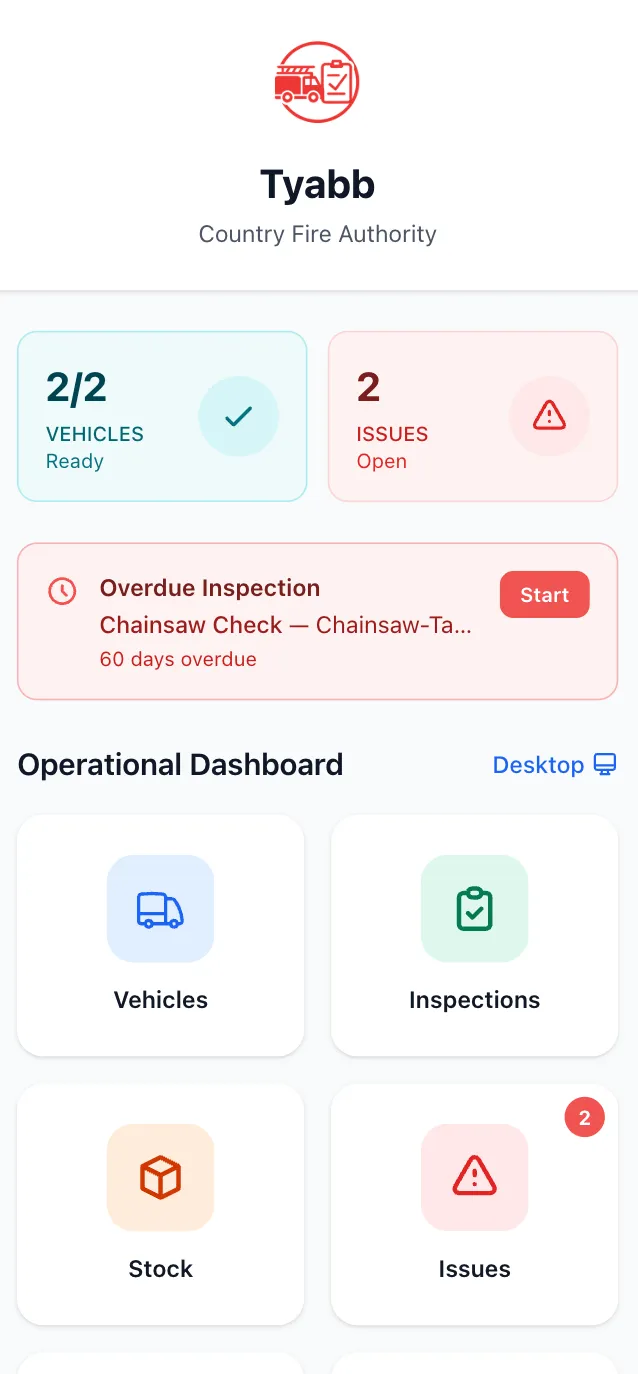
Brigade Information
Section titled “Brigade Information”The top of the page shows your brigade’s name and any description your admin has added. This is always visible when the portal is enabled.
Vehicles
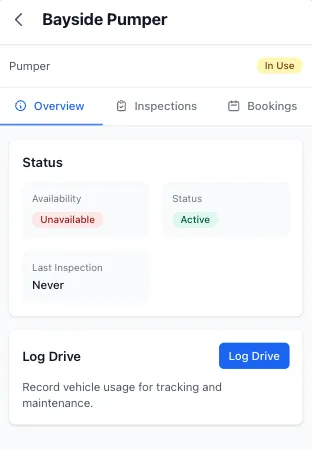
Section titled “Vehicles”If enabled, a list of public vehicles is displayed, including:
- Vehicle name and call sign
- Appliance type (e.g. pumper, tanker)
- Registration number
- A link to the vehicle’s public detail page (if that vehicle has public access)
Hydrants
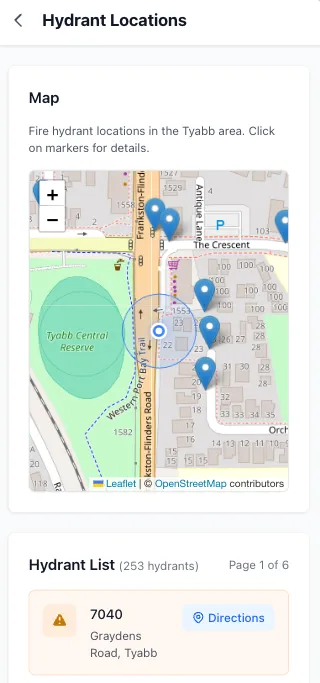
Section titled “Hydrants”If enabled, an interactive map shows hydrant locations within your brigade’s response area. Tap or click a hydrant to view its details.
Events
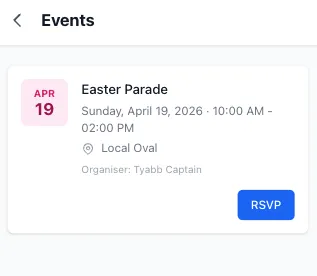
Section titled “Events”If enabled, upcoming public events are listed with the event name, date, and time.
Training
Section titled “Training”If enabled, upcoming public training sessions are listed.
Custom Links
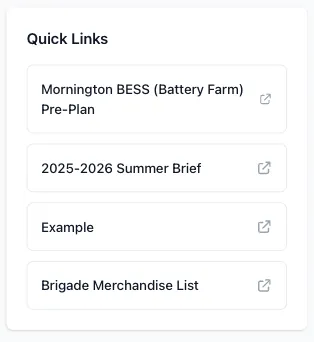
Section titled “Custom Links”Your admin may have added links to external resources such as your brigade website, social media pages, or other useful references. These appear as buttons on the page.
Conducting Inspections from the Station Portal
Section titled “Conducting Inspections from the Station Portal”If your admin has enabled public inspections for a vehicle, you’ll see an Inspect Now button on that vehicle’s public detail page. This lets you complete an inspection without a StationOne login.
See How to Enable Public Inspections for more information.
Tips for Members
Section titled “Tips for Members”- Bookmark the page on your phone’s browser for quick access
- Save it to your home screen for one-tap access — see Saving to Your Home Screen
- The portal is mobile-friendly and works on any device
- No account or password is needed — just the link