Appointments & Feature Permissions
This guide explains how to use appointments to assign functional roles to members and how feature permissions control what each member can access and be notified about within StationOne.
Prerequisites
Section titled “Prerequisites”- Organisation admin access to create appointment types
- Brigade admin or higher to assign appointments to members
- An understanding of the difference between a member’s role and their appointment
Understanding Roles vs Appointments
Section titled “Understanding Roles vs Appointments”StationOne separates two distinct concepts:
A member’s role determines their platform access level — what they can administer. Roles include brigade_user, brigade_admin, group_admin, and so on. Roles are set once when granting platform access and change infrequently.
Appointment
Section titled “Appointment”An appointment is a functional position held within the brigade for a defined period — for example, Senior Driver, Stores Officer, or Training Officer. A member can hold multiple appointments at once, and appointments have a start and optional end date.
Appointments do two things:
- Record the position officially against the member’s profile
- Optionally grant feature permissions while the appointment is active
This means a brigade_user with no special standing can be appointed as a Stores Officer and automatically gain access to manage stock — without needing a permanent admin role.
Understanding Feature Permissions
Section titled “Understanding Feature Permissions”Feature permissions are granular access grants that sit below the role level. They control which areas of StationOne a brigade_user can access, create, and manage.
Permissions are organised by feature area:
| Feature | Available Permissions |
|---|---|
| Vehicles | View vehicles & fleet; Create & edit vehicles |
| Events | View events; Create & edit events; Manage attendance |
| Bookings | View bookings; Create booking requests; Approve & reject bookings |
| Inspections | View inspections; Create & conduct inspections; Approve & review; Create & edit templates |
| Training & Skills | View training records; Create & edit records; Manage member skills |
| Breathing Apparatus | View BA equipment; Manage BA sets, cylinders & components |
| Hydrants | View hydrants; Create & edit hydrants |
| Hose Management | View hoses; Create & manage hoses; Manage testing, repairs & assignments |
| Pre-Plans | Create & edit pre-plans |
| Availability | View member availability; Manage own & others’ availability |
| Duty Crews | View duty crews; Manage duty crew assignments |
| Crew Builder | Crew vehicles and manage standby members for deployments |
| Water Points | View water points; Create & edit water points |
| Stock Management | Create, restock & manage stock items |
| Equipment | Create & manage equipment |
Feature permissions can be granted in two ways:
- Via appointment — permissions are active only while the appointment is current. When the appointment ends, access is automatically revoked.
- Directly on the member profile — permanent grants not tied to a specific appointment.
Members with admin roles (brigade_admin and above) always have full access and do not require feature permissions.
Setting Up Appointment Types
Section titled “Setting Up Appointment Types”Appointment types are defined at the organisation level. Once created, they are available to all brigades within the organisation.
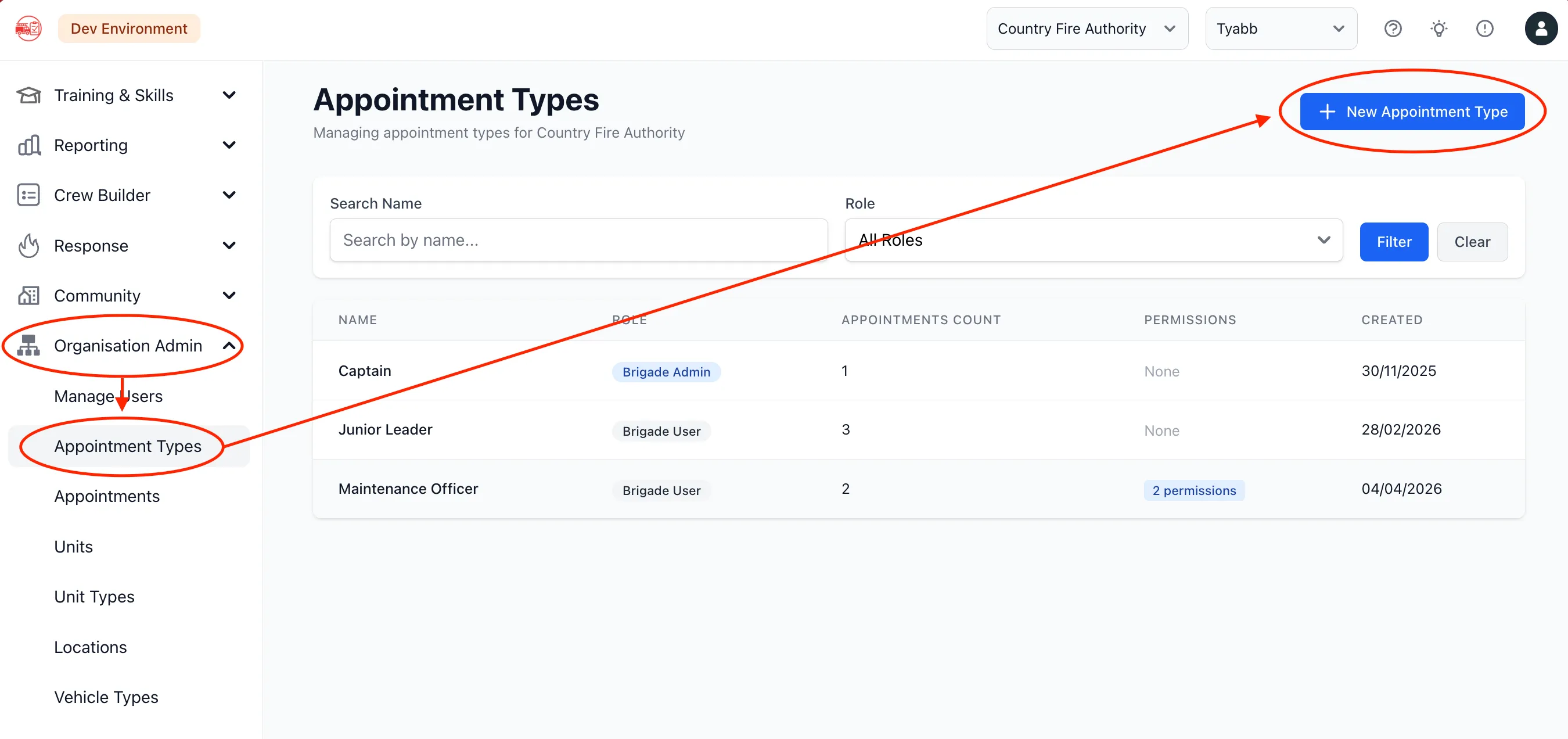
1. Navigate to Appointment Types
Section titled “1. Navigate to Appointment Types”- Log in as an organisation admin
- Go to Organisation Settings → Appointment Types
- Click New Appointment Type
2. Configure the Appointment Type
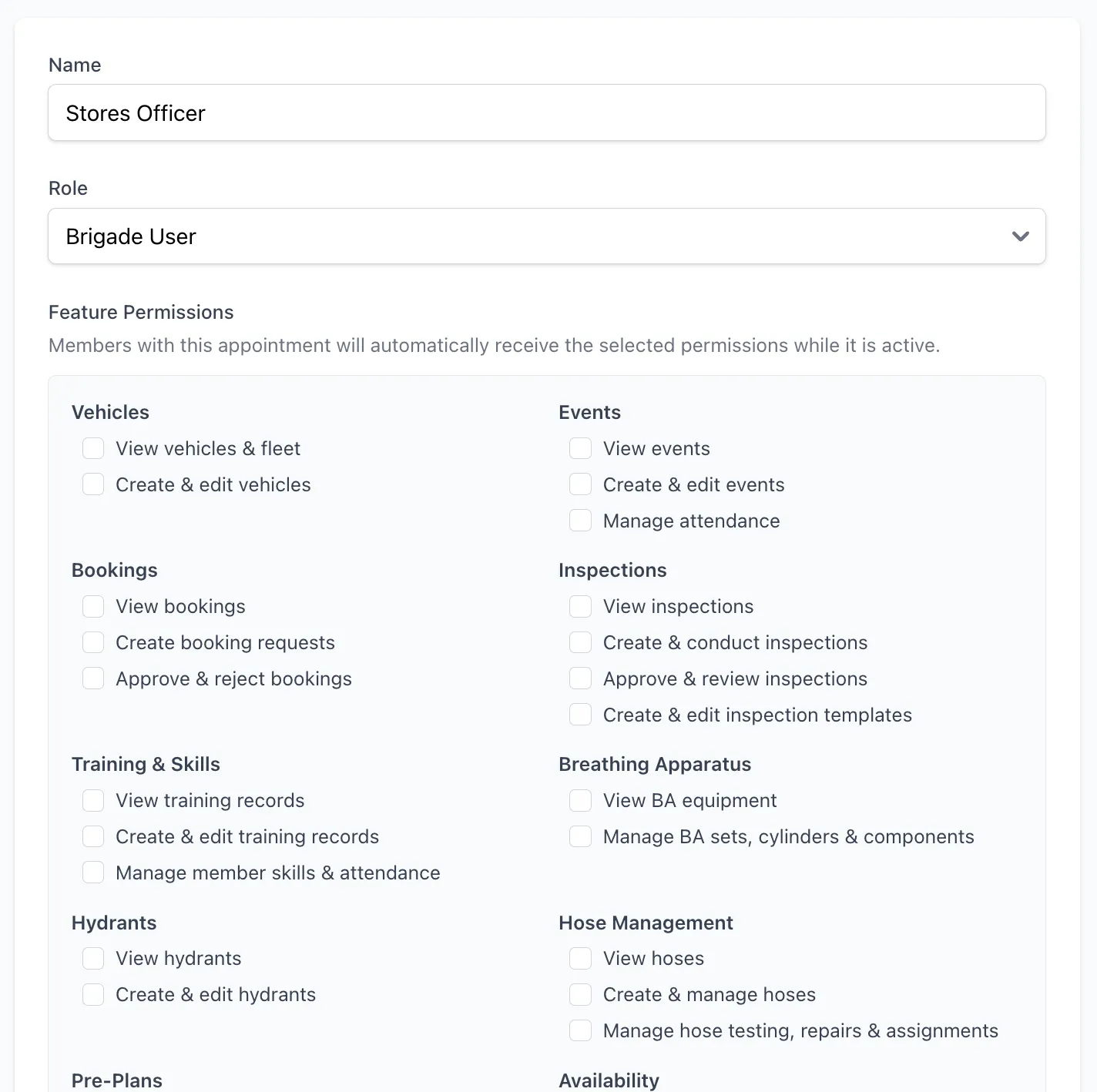
Section titled “2. Configure the Appointment Type”Name — The position title, e.g. Maintenance Officer, Stores Officer, Communications Officer.
Role — The platform role associated with this appointment. This determines whether feature permissions are relevant:
- Selecting a user-level role (
brigade_user,group_user, etc.) reveals the feature permissions panel - Selecting an admin-level role (
brigade_admin,group_admin, etc.) does not require feature permissions, as admins already have full access
Feature Permissions — Visible only for user-level roles. Select the permissions members holding this appointment should receive. For example, a Stores Officer appointment would typically include Stock Management: Create, restock & manage stock items.
3. Save the Appointment Type
Section titled “3. Save the Appointment Type”Click Create Appointment Type. The type is now available across all brigades when assigning appointments to members.
Assigning an Appointment to a Member
Section titled “Assigning an Appointment to a Member”Brigade admins can assign appointments directly from a member’s profile.
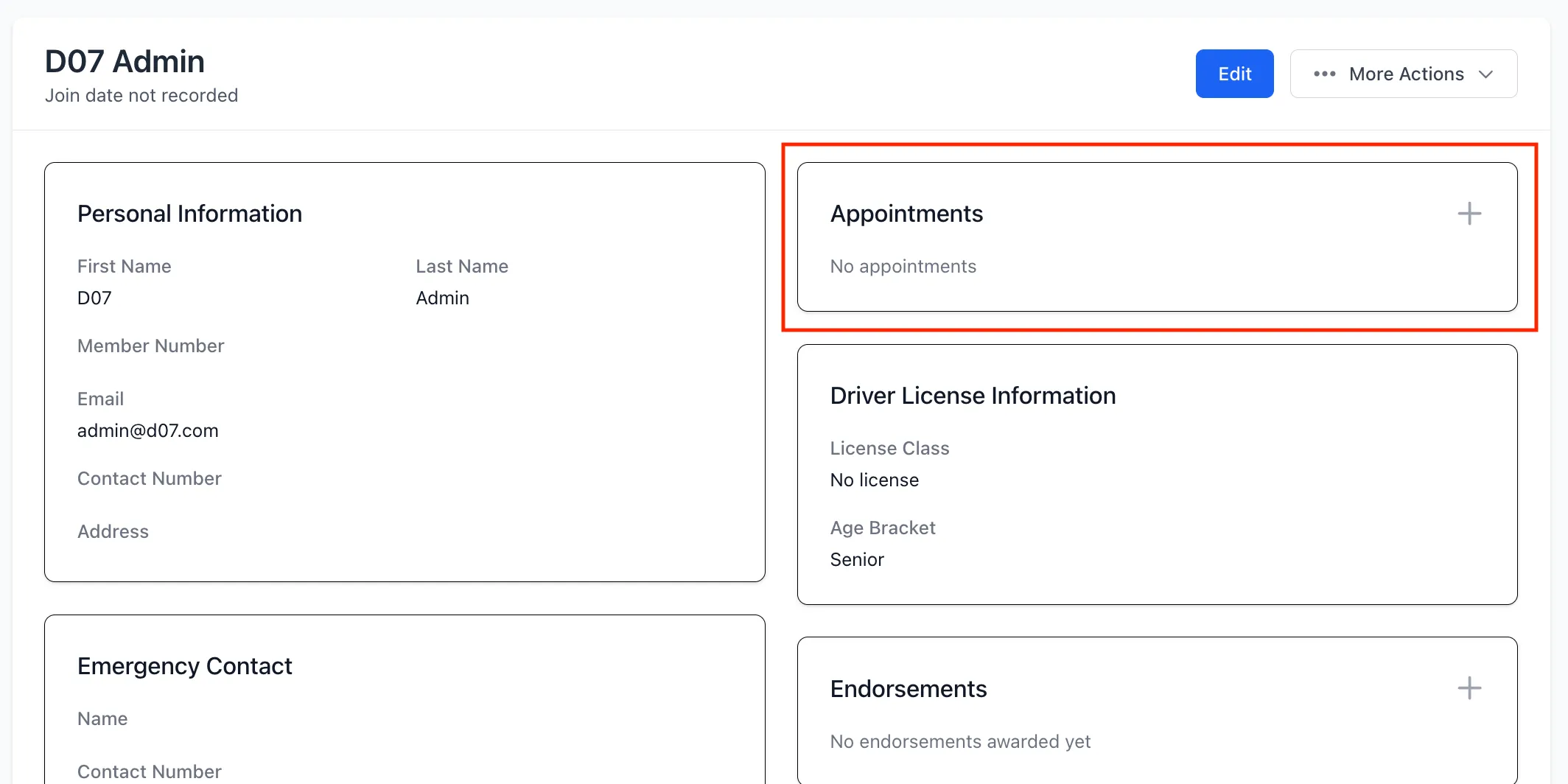
1. Open the Member Profile
Section titled “1. Open the Member Profile”- Navigate to Members in the sidebar
- Click on the member’s name to open their profile
- Scroll to the Appointments section
2. Add the Appointment
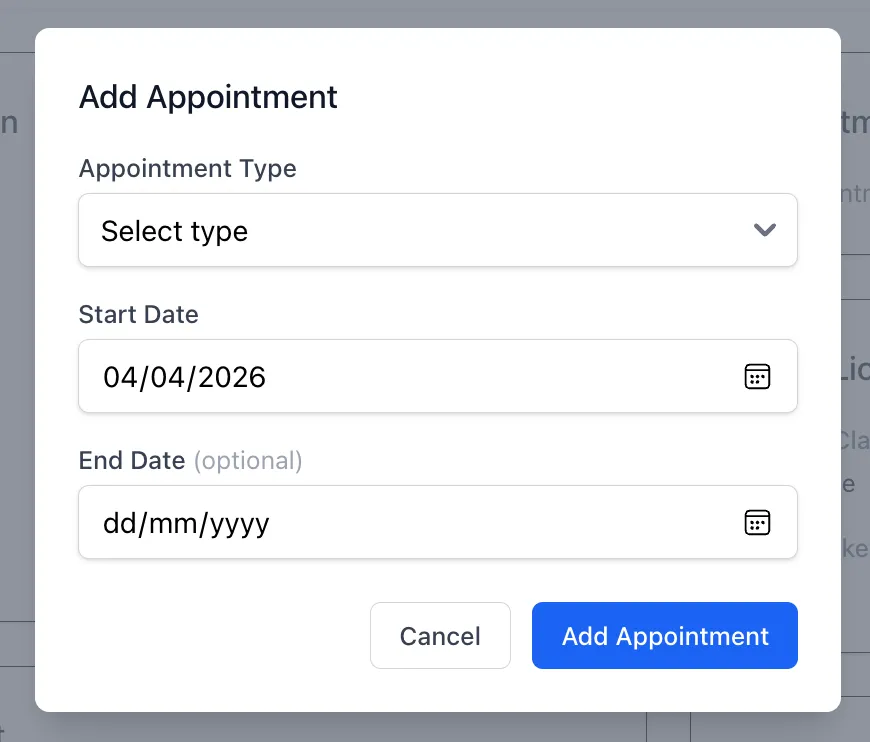
Section titled “2. Add the Appointment”- Click Add Appointment
- Select the Appointment Type from the dropdown
- Set the Start Date
- Optionally set an End Date — leave blank for open-ended appointments
- Click Save
The member immediately gains any feature permissions associated with the appointment type.
Automatic Platform Access
Section titled “Automatic Platform Access”If the appointment type carries feature permissions and the member does not yet have platform access (no role assigned), StationOne will automatically:
- Promote the member to
brigade_user - Send them a login invitation (if they have an email address on record)
This removes the need to manually grant access before assigning a functional role.
Ending an Appointment
Section titled “Ending an Appointment”When a member’s appointment concludes, their associated permissions should be removed.
To end an appointment
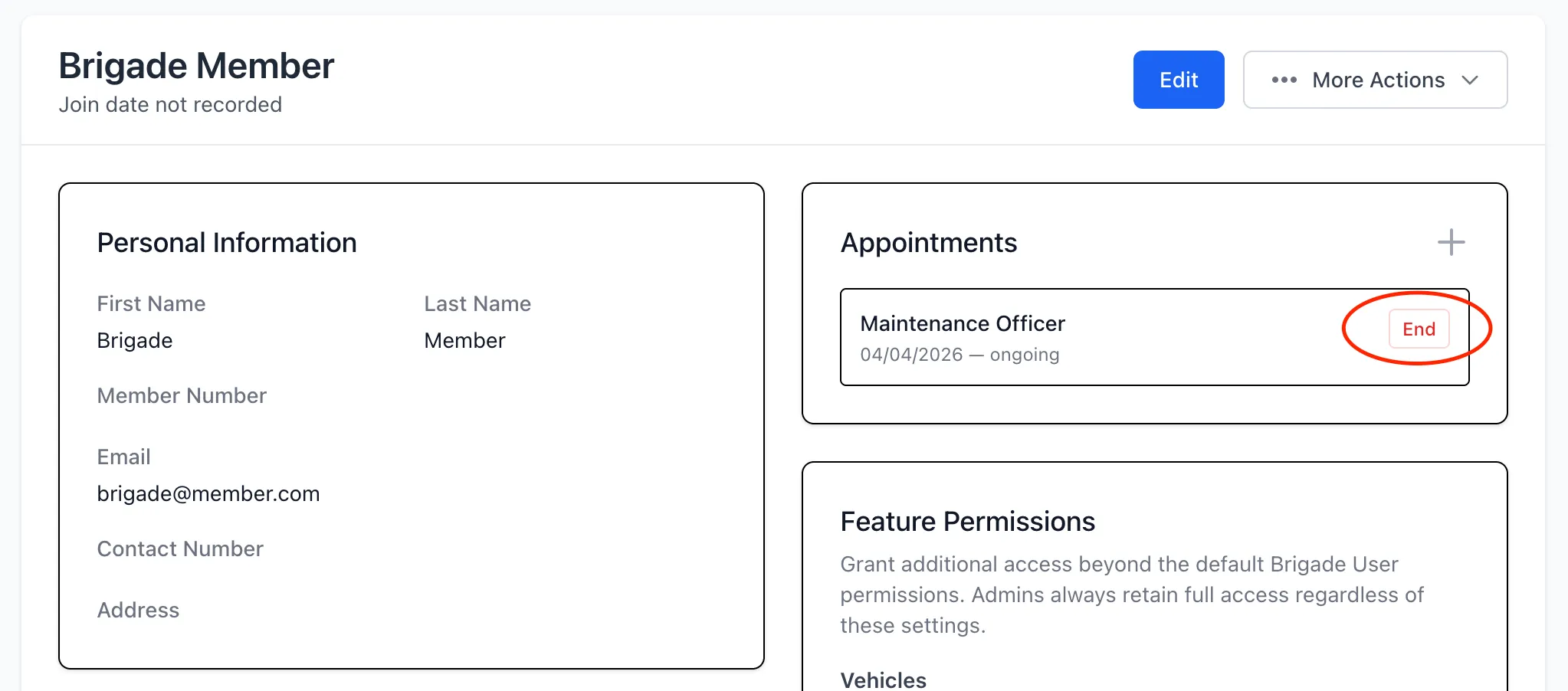
Section titled “To end an appointment”- Open the member’s profile
- Find the appointment in the Appointments section
- Click End
The end date is set to today. Any feature permissions granted solely through this appointment are immediately revoked. If the member holds another active appointment or has directly-granted permissions covering the same features, those remain in effect.
How Permissions Are Applied
Section titled “How Permissions Are Applied”Feature permissions from all of a member’s active appointments are combined. A member holding two concurrent appointments will have the union of permissions from both.
When an appointment ends:
- Permissions specific to that appointment are removed
- Permissions covered by another active appointment or a direct grant are retained
- If the member loses all feature-gated access, they remain a
brigade_userwith no feature access (they will not be automatically demoted)
If a member’s role is later promoted to an admin level (e.g. brigade_admin), any feature permissions they held are cleared automatically — they no longer need them.
Notification Scoping
Section titled “Notification Scoping”Email notifications follow the same feature permission boundaries. A brigade_user will only receive notifications relevant to the features they can access:
| Notification | Received when… |
|---|---|
| Overdue inspection schedules | Member has vehicles, BA, or equipment permissions |
| Expiring inspection items | Same as above |
| Action item assigned | Member is assigned the action and has the relevant feature access |
| Overdue action reminders | Member is assigned overdue actions |
| Training notifications | Member has training permissions |
| Event notifications | Member has events permissions |
| Vehicle booking updates | Member has vehicle or bookings permissions |
Members can further control which notifications they receive from their profile under Notification Preferences. Only categories relevant to their current permissions are shown.
Common Workflows
Section titled “Common Workflows”Appointing a Stores Officer
Section titled “Appointing a Stores Officer”A member is taking on responsibility for managing the brigade’s stock and PPE.
- Create an appointment type named Stores Officer with role
brigade_userand permissions: Stock Management: Create, restock & manage stock items - Open the member’s profile and add the appointment
- The member now sees the Stock section in the sidebar and can create and manage stock items
- If they did not previously have platform access, they are automatically invited to log in
Appointing a Training Officer
Section titled “Appointing a Training Officer”A member is coordinating training sessions and managing member skills.
- Create an appointment type Training Officer with role
brigade_userand permissions: Training & Skills: Create & edit training records and Manage member skills & attendance - Assign the appointment to the member
- They can now create training sessions and mark member attendance
Rotating Role Holders
Section titled “Rotating Role Holders”When a member steps down from a position:
- End the outgoing member’s appointment
- Assign the appointment to the incoming member
- Permissions transfer immediately — the outgoing member loses access and the incoming member gains it
Tips and Best Practices
Section titled “Tips and Best Practices”- Name appointment types clearly — use position titles that brigade members will recognise from their organisation’s structure.
- Use end dates where known — if a term or rotation is fixed, set the end date upfront so access expires automatically.
- Review active appointments periodically — members who have left a position but whose appointment hasn’t been ended will retain those permissions.
- Prefer appointments over direct grants — tying permissions to an appointment makes it easy to revoke access by ending a single record rather than editing the member’s permissions directly.
- Admin appointments need no permissions — if you are appointing a member to a full admin position (e.g. Captain), assign them the
brigade_adminrole directly rather than using feature permissions.