Crew Availability Grid
The crew availability grid gives brigade admins a full picture of member availability. It includes a weekly grid showing all members’ day and night status, a crew status view for operational readiness, and tools to edit any member’s availability directly.
Prerequisites
Section titled “Prerequisites”- Brigade admin or organisation admin role
- Availability module enabled for your brigade
Navigate to the Grid
Section titled “Navigate to the Grid”- Log in to StationOne
- Click Availability in the main navigation
The page opens on the Weekly Grid tab.
Weekly Grid Tab
Section titled “Weekly Grid Tab”The weekly grid shows every member in your brigade as a row, with the seven days of the current week as columns. Each cell displays two status indicators — one for day and one for night.
Reading the Grid
Section titled “Reading the Grid”- Each cell shows coloured badges for the day and night periods
- Badge colours match your organisation’s availability type colours
- Empty cells mean the member has not recorded availability for that period
Edit a Member’s Availability
Section titled “Edit a Member’s Availability”Admins can update any member’s availability directly from the grid:
- Click on a cell in the grid for the member and day you want to update
- A dropdown appears with all available status options plus a Clear option
- Select the new status — it saves immediately
Bulk Update Multiple Members
Section titled “Bulk Update Multiple Members”To set availability for several members at once — for example, marking the whole brigade available for a training weekend:
- Check the checkbox next to each member you want to update. Use the checkbox in the column header to select or deselect all members at once.
- The Bulk Update button above the grid becomes active and shows how many members are selected (e.g., Bulk Update (5 selected)).
- Click Bulk Update to open the bulk update dialog.
- Under Days, check each day of the current week you want to apply the change to. Click Select all to check every day at once.
- Under Period, choose whether to update Day shifts, Night shifts, or Day & Night together.
- Under Set Status, click the status you want to apply (e.g., Available, On Leave).
- Click Apply. The page reloads with the new availability saved for all selected members.
Clicking Cancel closes the dialog without making any changes. The selection is cleared when the dialog closes.
Navigate Weeks
Section titled “Navigate Weeks”Use the Previous and Next arrows above the grid to move between weeks.
Crew Status Tab
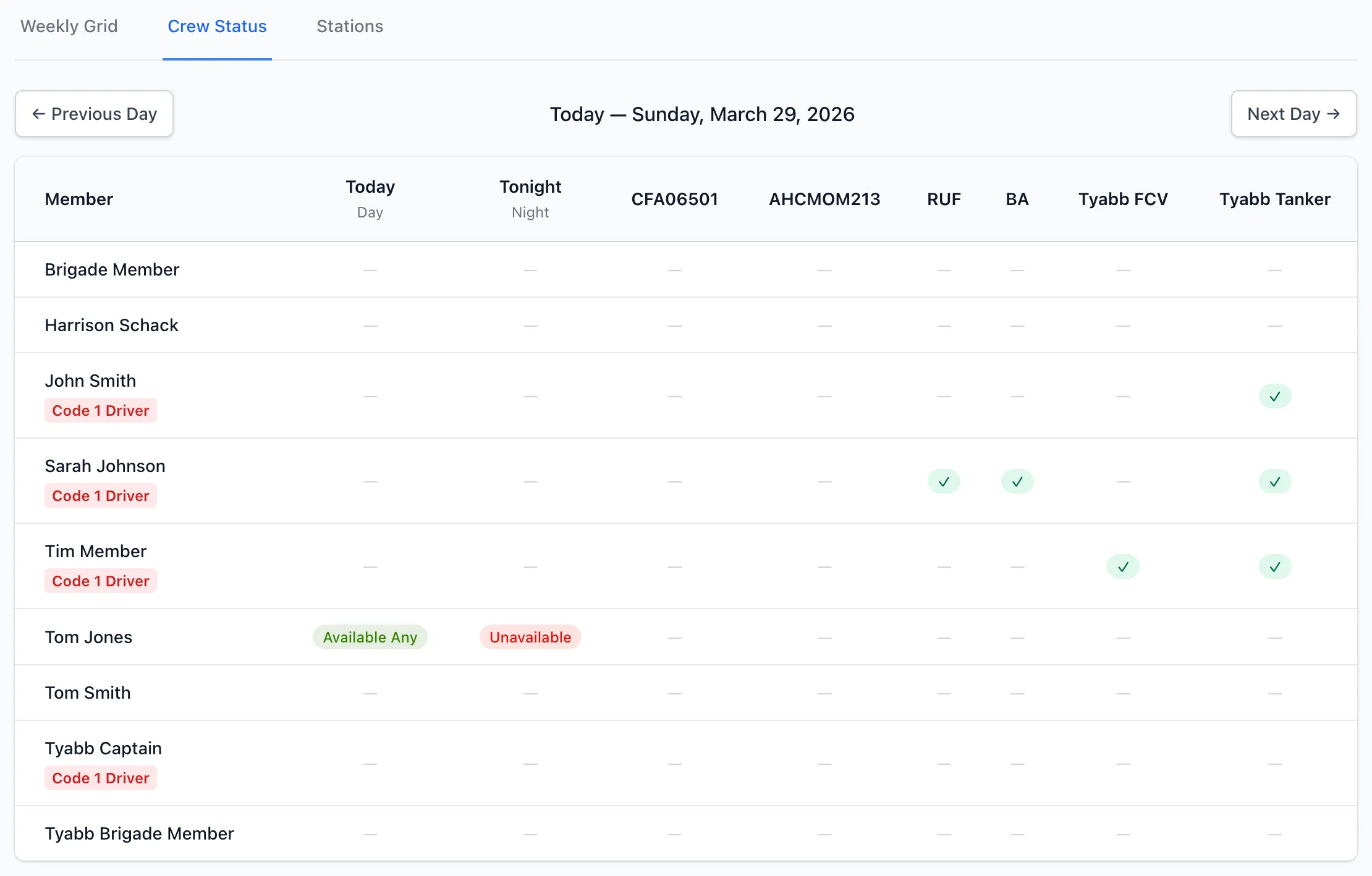
Section titled “Crew Status Tab”The crew status tab is an operational view designed for day-of planning. It shows all members’ availability for a single selected day alongside their qualifications and endorsements.
Reading Crew Status
Section titled “Reading Crew Status”Each row represents one member. Columns include:
- Member — Name, station badges for today’s assignments, and code endorsement badges (Code 1 or Code 3)
- Day — Day shift availability status
- Night — Night shift availability status
- Additional columns for qualifications and endorsements (configured per brigade — see below)
Endorsement and qualification columns show a checkmark if current, or Expired if the credential has lapsed.
Navigate Days
Section titled “Navigate Days”Use the Previous and Next day arrows to move between dates and see who is available on any given day.
Filter by Station
Section titled “Filter by Station”If your brigade has station locations configured, a Station filter dropdown appears above the crew status table. Select a station to show only members assigned to that location for the selected day.
Configure Crew Status Columns
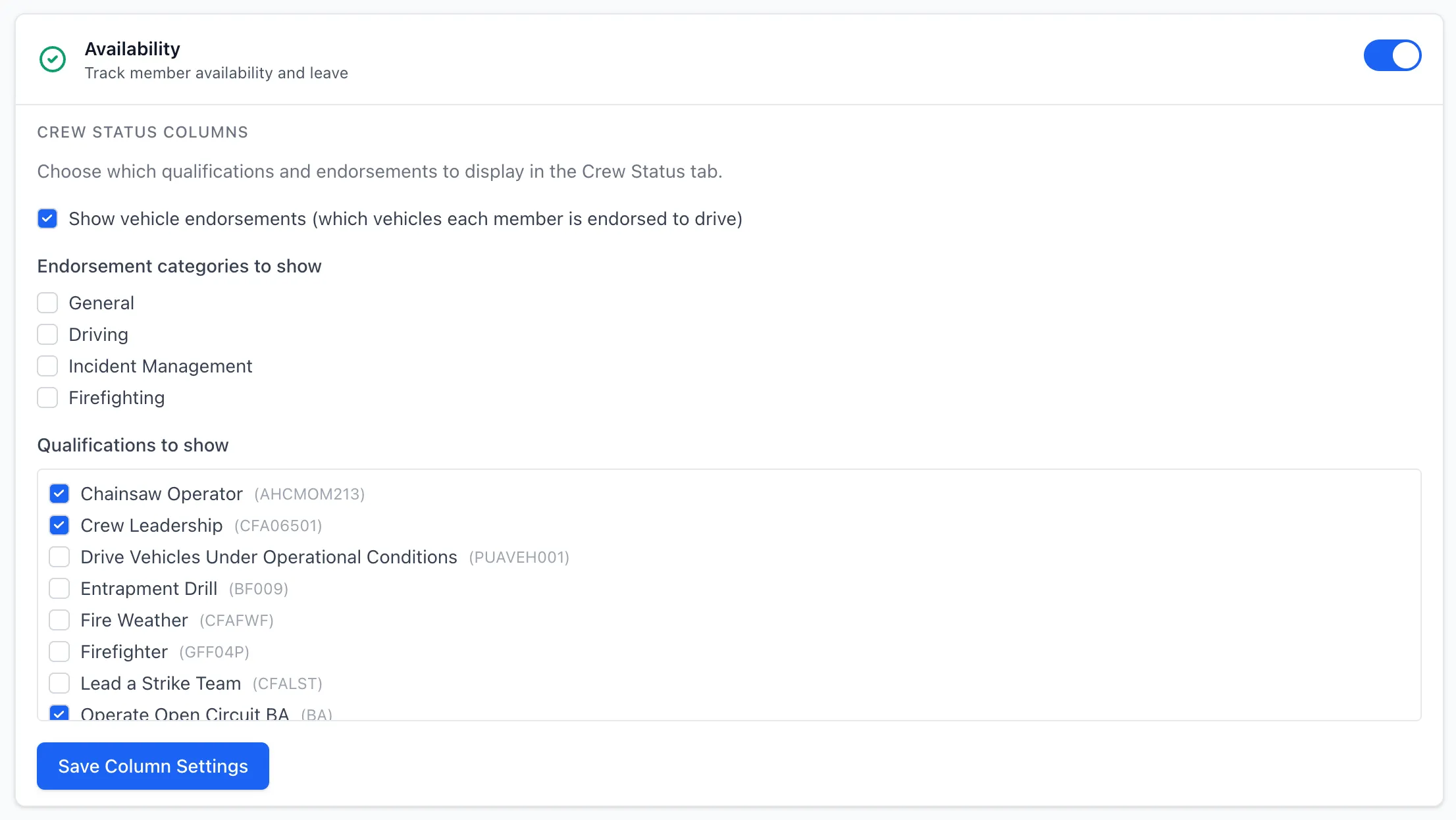
Section titled “Configure Crew Status Columns”You can choose which qualifications and endorsements appear as columns in the crew status view. This is configured in brigade settings.
1. Open Column Settings
Section titled “1. Open Column Settings”From the crew status tab, click Configure Columns (or go to Brigade Settings → Availability).
2. Choose What to Display
Section titled “2. Choose What to Display”Vehicle Endorsements
- Toggle on to add a column for each vehicle in your fleet
- A checkmark appears for members who hold an endorsement for that vehicle
Endorsement Categories
- Select from the endorsement categories defined in your organisation (e.g., Driver, Incident Controller, First Aid)
- Each selected category appears as a column
Qualifications
- Scroll through the list of qualifications and check those you want displayed
- Qualifications with expiry dates show their current status (current, expiring, expired, in progress)
3. Save
Section titled “3. Save”Click Save to apply. The crew status view updates immediately.
Stations Tab
Section titled “Stations Tab”The Stations tab is where you manage the station locations available for your brigade. See Station Locations for full instructions.
Configure Availability Types
Section titled “Configure Availability Types”Availability type labels and colours are set at the organisation level, not the brigade level. If you need to add, rename, or recolour availability types (e.g., add a “Standby” status), contact your organisation admin. Organisation admins can manage availability types in Organisation Settings.
Use Crew Status on the Day
Section titled “Use Crew Status on the Day”The crew status tab is most useful on the day itself — navigate to today’s date and you can instantly see who is available, where they’re stationed, and whether they hold the qualifications you need.
Configure Columns for Your Needs
Section titled “Configure Columns for Your Needs”Tailor the crew status columns to match what matters for your brigade. A crew that relies heavily on BA-qualified members might add Breathing Apparatus as a column; a brigade with multiple driver categories might add all vehicle endorsements.