Member Check-In QR Codes
Every member in StationOne has a unique, personal QR code. Scanned at a station’s Check-In Kiosk, it checks the member in or out in one tap — no searching a member list required. This guide covers where members find their code and how admins export or reset them.
Prerequisites
Section titled “Prerequisites”- QR badge check-in must be enabled on at least one kiosk for your unit — see Check-In Kiosk
- Member profiles are created automatically with a check-in code; no setup is required per member
Viewing Your Own QR Code
Section titled “Viewing Your Own QR Code”There are two places a member can view their personal check-in badge, depending on whether they have platform login access.
Platform Users — Dashboard Profile
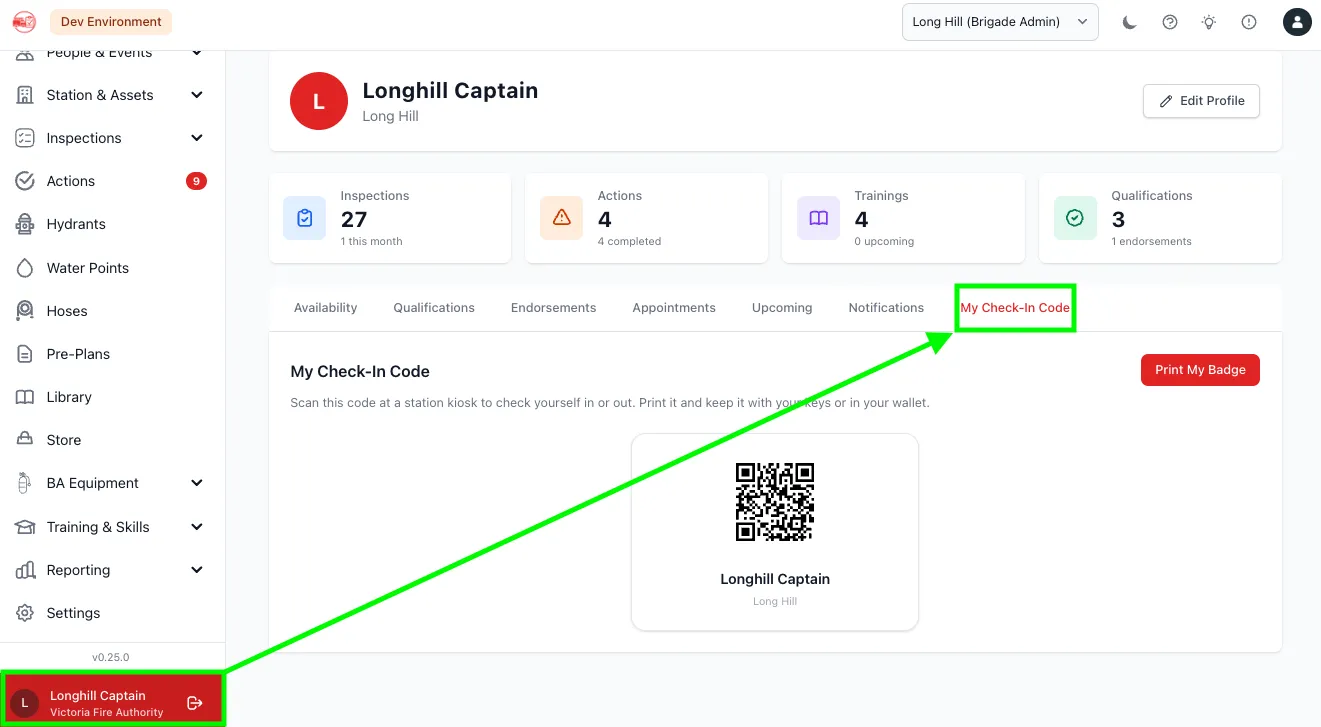
Section titled “Platform Users — Dashboard Profile”- Log in to StationOne
- Go to Dashboard → Profile
- Open the My Check-In Code tab
This shows a QR code alongside the member’s name and member number. Click Print My Badge to print just the badge card (the rest of the page is hidden automatically for printing) — handy for laminating and keeping with keys or in a wallet.
Station Portal / Native App (No Login Required)
Section titled “Station Portal / Native App (No Login Required)”Members without platform access — or anyone using the Station Portal on their phone — can view their code from the public Station Portal:
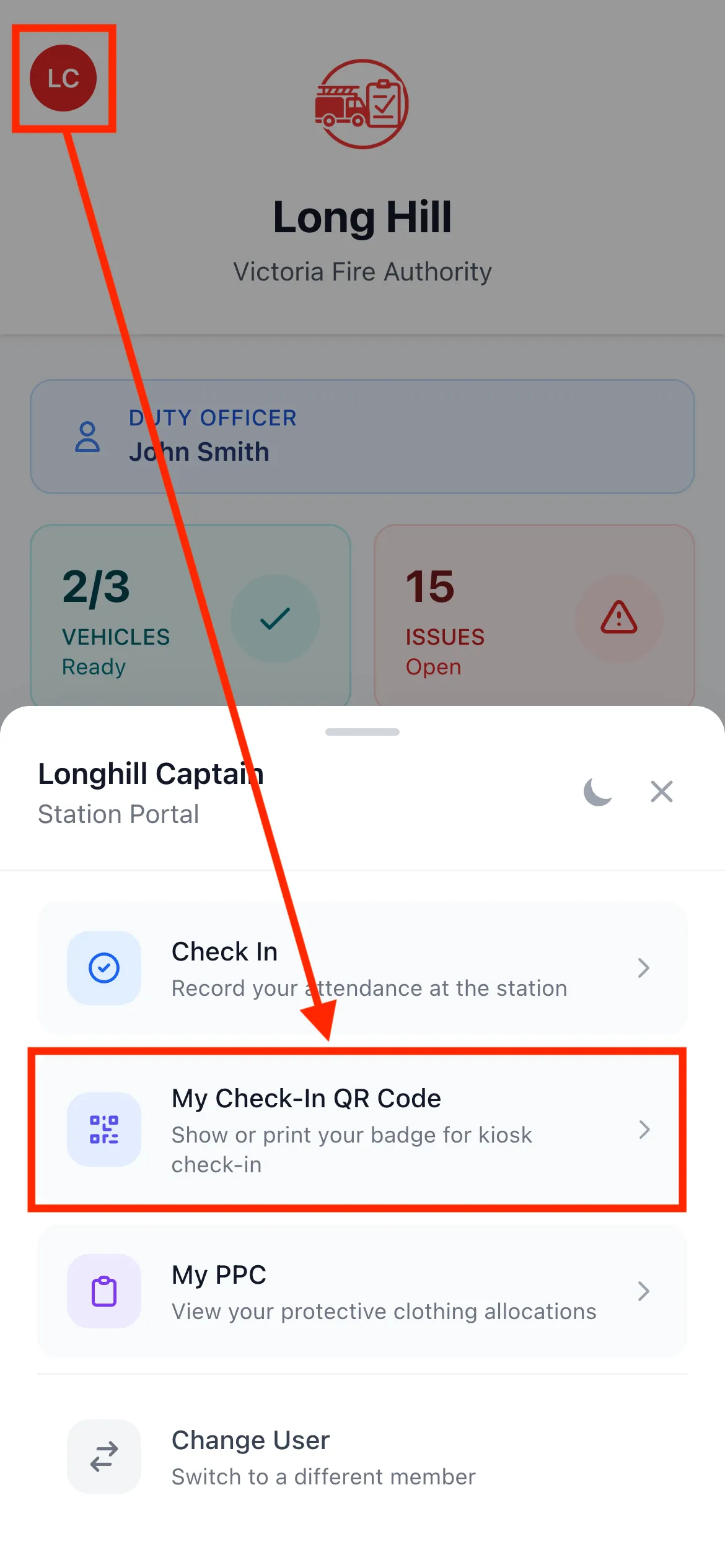
- Open the brigade’s Station Portal link (or the native StationOne app’s Station Portal screen)
- Identify yourself if you haven’t already (Set User / Change User)
- Tap the profile icon → My Check-In QR Code
This option only appears once the member is identified and the unit has QR badge check-in enabled on at least one kiosk.
Scanning Your Code
Section titled “Scanning Your Code”Take your printed badge, phone screen, or the native app’s QR screen to the kiosk device and hold it up to the camera, or tap/scan it against a connected barcode/card reader. See Check-In Kiosk — QR Badge Check-In for what happens next.
Admin: Exporting QR Codes for Printing
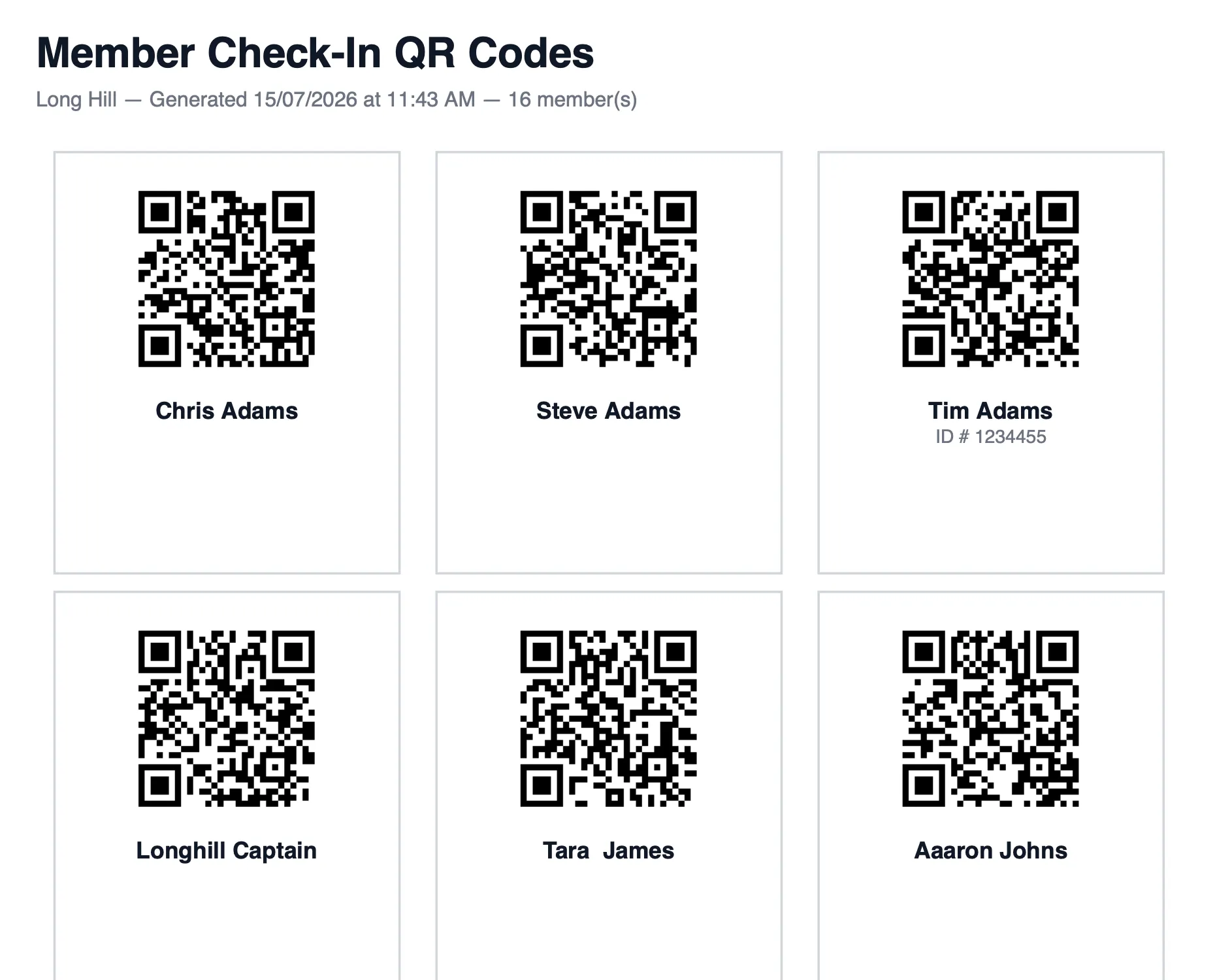
Section titled “Admin: Exporting QR Codes for Printing”Brigade admins and organisation admins can generate a printable PDF sheet of check-in QR badges for a whole unit or the whole organisation — useful for printing sticker sheets or laminated cards in bulk for members who don’t want to use their phone.
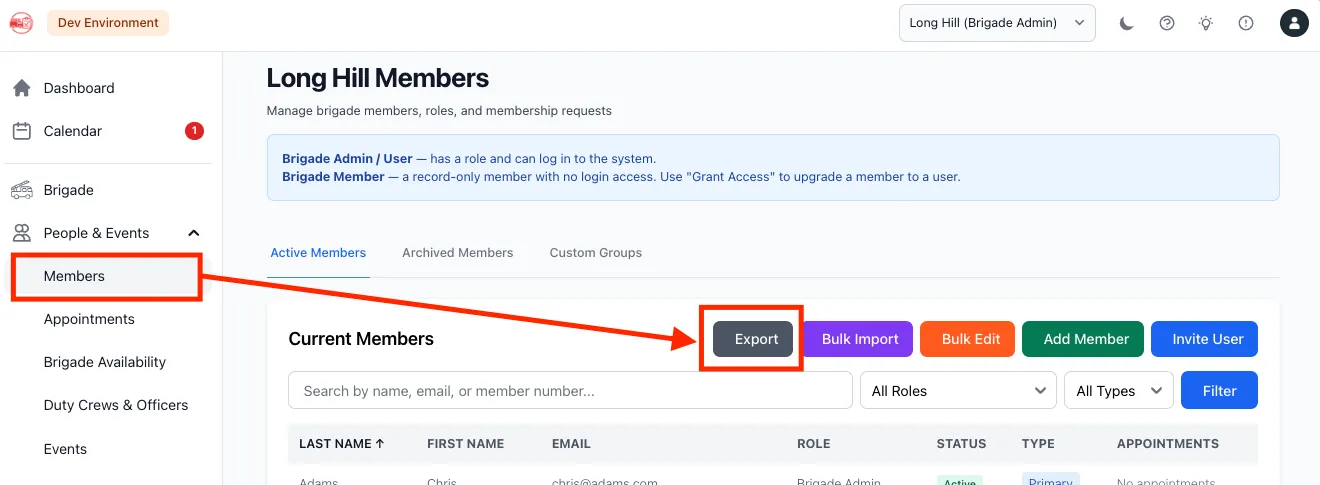
- Navigate to Members
- Click Export (or the export/actions menu, depending on your view)
- Click Check-In QR Codes (PDF)
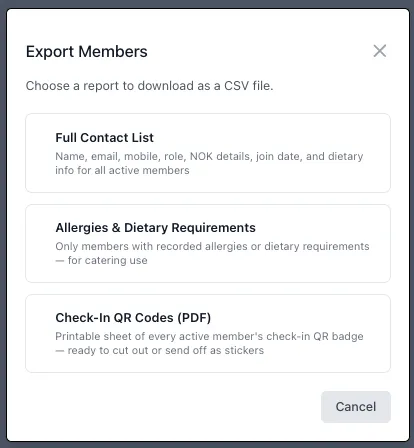
The PDF contains a grid of badges (three per row), each with the member’s QR code, full name, and member number, for every active member currently in view (the current unit, or the whole organisation if viewed at that level).
Admin: Regenerating a Member’s QR Code
Section titled “Admin: Regenerating a Member’s QR Code”If a member’s printed badge is lost, shared unintentionally, or you simply want to invalidate an old code:
- Navigate to Members and open the member’s profile
- Open the actions menu (kebab / ⋮ icon)
- Click Regenerate Check-In Code
- Confirm when prompted
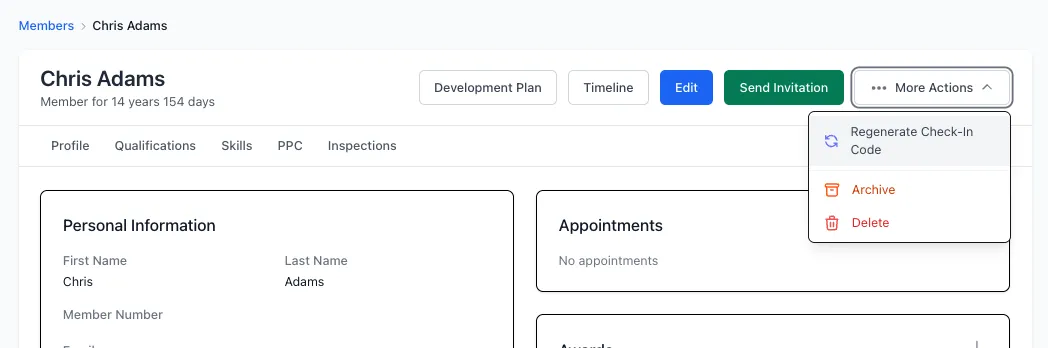
The member’s old QR badge stops working immediately. They’ll need to view or print their new code again from their Dashboard profile or the Station Portal.
Related Guides
Section titled “Related Guides”- Check-In Kiosk — enabling and running the kiosk itself
- Station Portal (Public)
- Add Members