Link Equipment to Vehicle Inspections
Overview
Section titled “Overview”The equipment linking feature allows you to associate specific equipment (like chainsaws, defibrillators, or other tools) with questions in your vehicle inspection templates. When conducting a vehicle inspection, inspectors can see the current inspection status of linked equipment and quickly perform overdue equipment inspections without interrupting their workflow.
Benefits
Section titled “Benefits”- Contextual awareness: See equipment inspection status while conducting vehicle inspections
- Proactive maintenance: Identify overdue equipment inspections before they become critical
- Streamlined workflow: Jump directly to equipment inspections from vehicle checks
- Automatic tracking: Equipment inspection schedules update automatically when inspections are completed
- Return flow: After completing equipment inspection, automatically return to the vehicle inspection
How It Works
Section titled “How It Works”Template Setup
Section titled “Template Setup”When creating or editing a vehicle inspection template:
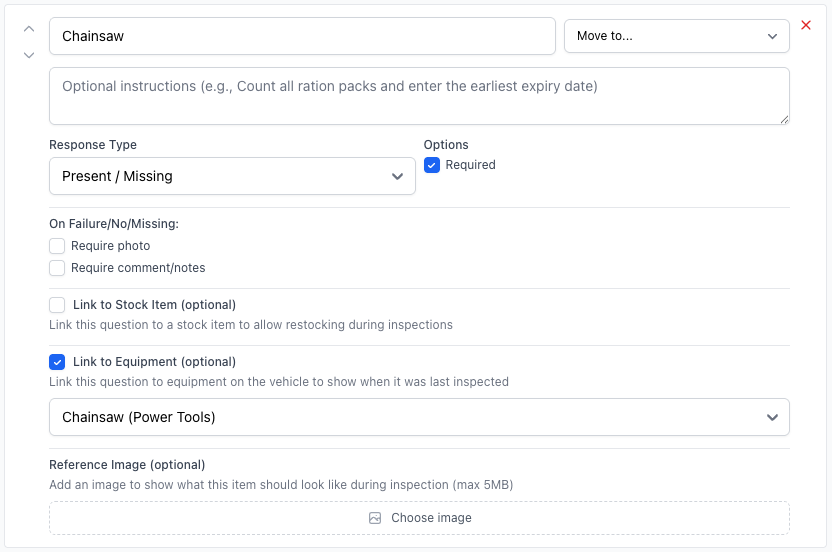
- Navigate to Templates from the main menu
- Create a new template or edit an existing vehicle inspection template
- Add or edit an inspection item where you want to link equipment
- Check the “Link to Equipment” checkbox
- Select the specific equipment from the dropdown (filtered to equipment in your unit)
- Save the template
During Vehicle Inspections
Section titled “During Vehicle Inspections”When conducting a vehicle inspection with linked equipment:
Equipment Status Display
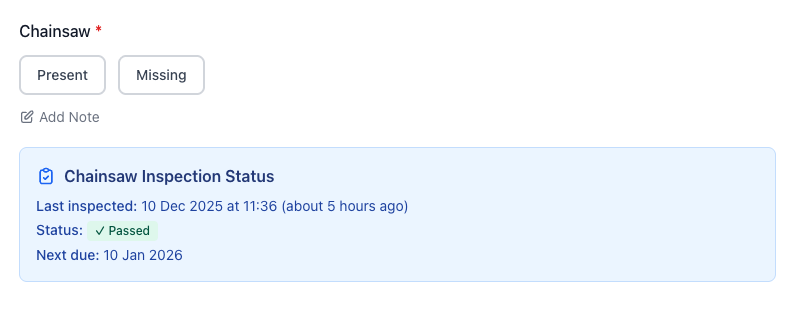
Section titled “Equipment Status Display”For each question with linked equipment, inspectors will see:
- Equipment name and inspection status
- Last inspected: Date, time, and how long ago
- Status badge: Pass/Fail indicator with color coding
- Next due date: When the next inspection is scheduled
- Overdue warning: Red highlight if inspection is past due
Taking Action
Section titled “Taking Action”For Authenticated Users:
-
Inspect Now button (red for overdue, blue for never inspected):
- Automatically starts equipment inspection with correct template
- Pre-selects the equipment
- Stores return path to vehicle inspection
-
View Details button (for up-to-date equipment):
- Opens the last inspection in a new tab for reference
For Public Inspections:
-
Inspect Now button appears ONLY if:
- Equipment inspection is overdue or never completed, AND
- Equipment template has public access enabled
-
Clicking takes user to public inspection form:
- Equipment is pre-selected
- User enters their name
- Starts inspection immediately
- Returns to vehicle inspection when complete
Equipment Inspection Flow
Section titled “Equipment Inspection Flow”Authenticated Flow
Section titled “Authenticated Flow”- Conducting vehicle inspection on Truck 24
- See “Chainsaw” is overdue (last inspected 45 days ago, due monthly)
- Click “Inspect Now”
- Immediately start chainsaw inspection (no form to fill)
- Complete chainsaw checklist
- Click “Complete Inspection”
- Automatically return to Truck 24 inspection
- Chainsaw status now shows: “Last inspected: Today” with new due date
Public Flow
Section titled “Public Flow”- Scanning QR code on Truck 24, conducting public inspection
- See “Defibrillator” is overdue
- “Inspect Now” button appears (only if defibrillator template has public access)
- Click button → redirected to public inspection form
- Enter name and start defibrillator inspection
- Complete inspection
- Return to Truck 24 inspection
- Defibrillator status updated
Configuration Requirements
Section titled “Configuration Requirements”Equipment Template Setup
Section titled “Equipment Template Setup”For equipment to be linkable to vehicle inspections:
- Equipment must exist in the system (Equipment > Add Equipment)
- Inspection schedule must be created for the equipment:
- Navigate to the equipment details page
- Create an inspection schedule with desired frequency (daily, weekly, monthly, etc.)
- Associate with an equipment inspection template
- Equipment template must be active and assigned to the correct equipment category
Public Access (Optional)
Section titled “Public Access (Optional)”To allow public inspections of equipment from public vehicle inspections:
- Navigate to the equipment template (e.g., “Chainsaw Inspection”)
- Enable “Allow Public Access”
- Generate or note the public token
- Equipment “Inspect Now” buttons will appear in public vehicle inspections
Best Practices
Section titled “Best Practices”Which Equipment to Link
Section titled “Which Equipment to Link”Link equipment that:
- Is permanently assigned to specific vehicles
- Requires regular inspection
- Is critical for vehicle operations
- Has scheduled maintenance requirements
Examples:
- Chainsaws on wildfire trucks
- Defibrillators on ambulances
- Ladder inspection on ladder trucks
- SCBA equipment on pumpers
- Hydraulic rescue tools on rescue vehicles
Template Organization
Section titled “Template Organization”-
Group related checks: Place equipment links near related vehicle inspection items
- Example: Link chainsaw inspection near “Check chainsaw mounting brackets”
-
Clear question text: Make it obvious why equipment is linked
- Good: “Verify chainsaw is operational and inspected”
- Avoid: “Check equipment”
-
One equipment per question: Don’t try to link multiple equipment to a single question
Inspection Frequency Alignment
Section titled “Inspection Frequency Alignment”Consider aligning frequencies:
- Daily vehicle checks → Link to equipment needing daily inspection
- Weekly truck checks → Link to equipment with weekly/monthly schedules
- Monthly apparatus inspections → Link to all permanently mounted equipment
Troubleshooting
Section titled “Troubleshooting””Inspect Now” button not appearing
Section titled “”Inspect Now” button not appearing”Authenticated view:
- Check that equipment has an inspection schedule
- Verify equipment template is active
- Ensure equipment is linked correctly in template
Public view:
- All above checks, PLUS:
- Verify equipment template has
public_enabled: true - Check that public token exists on equipment template
Next due date not updating
Section titled “Next due date not updating”- Ensure inspection was completed (not just saved as draft)
- Check that inspection schedule exists for the equipment
- Verify template matches the one in equipment’s inspection schedule
Equipment not showing in template dropdown
Section titled “Equipment not showing in template dropdown”- Confirm equipment is active
- Check equipment belongs to same unit as template
- Verify equipment category matches if template has category filter
Return flow not working
Section titled “Return flow not working”- This uses session storage - ensure cookies are enabled
- Check that “return_to” parameter is being passed in URL
- For public inspections, verify session persistence
Related Features
Section titled “Related Features”- Create Inspection Templates
- Add Equipment
- Create Inspection Schedules
- Manage Equipment
- Enable Public Inspections
Technical Details
Section titled “Technical Details”Data Structure
Section titled “Data Structure”Equipment links are stored in the template JSON structure:
{ "text": "Check chainsaw operation", "response_type": "pass_fail", "equipment_id": 123, "stock_item_id": null}Schedule Updates
Section titled “Schedule Updates”When an inspection is completed, the system:
- Updates inspection
statusto “completed” - Sets
completed_attimestamp - Finds matching inspection schedules
- Calls
mark_completed!on each schedule - Recalculates
next_due_datebased on frequency - Updates
last_completed_at
Frequency Calculations
Section titled “Frequency Calculations”Next due dates are calculated from completion date:
- Daily: +1 day
- Weekly: +7 days (or next specified day of week)
- Fortnightly: +14 days
- Monthly: +1 month (or next specified day of month)
- Quarterly: +3 months
- Semi-annual: +6 months
- Annual: +1 year