Rooms
The Rooms system allows brigades to manage facility spaces, coordinate bookings, and enable public room reservations.
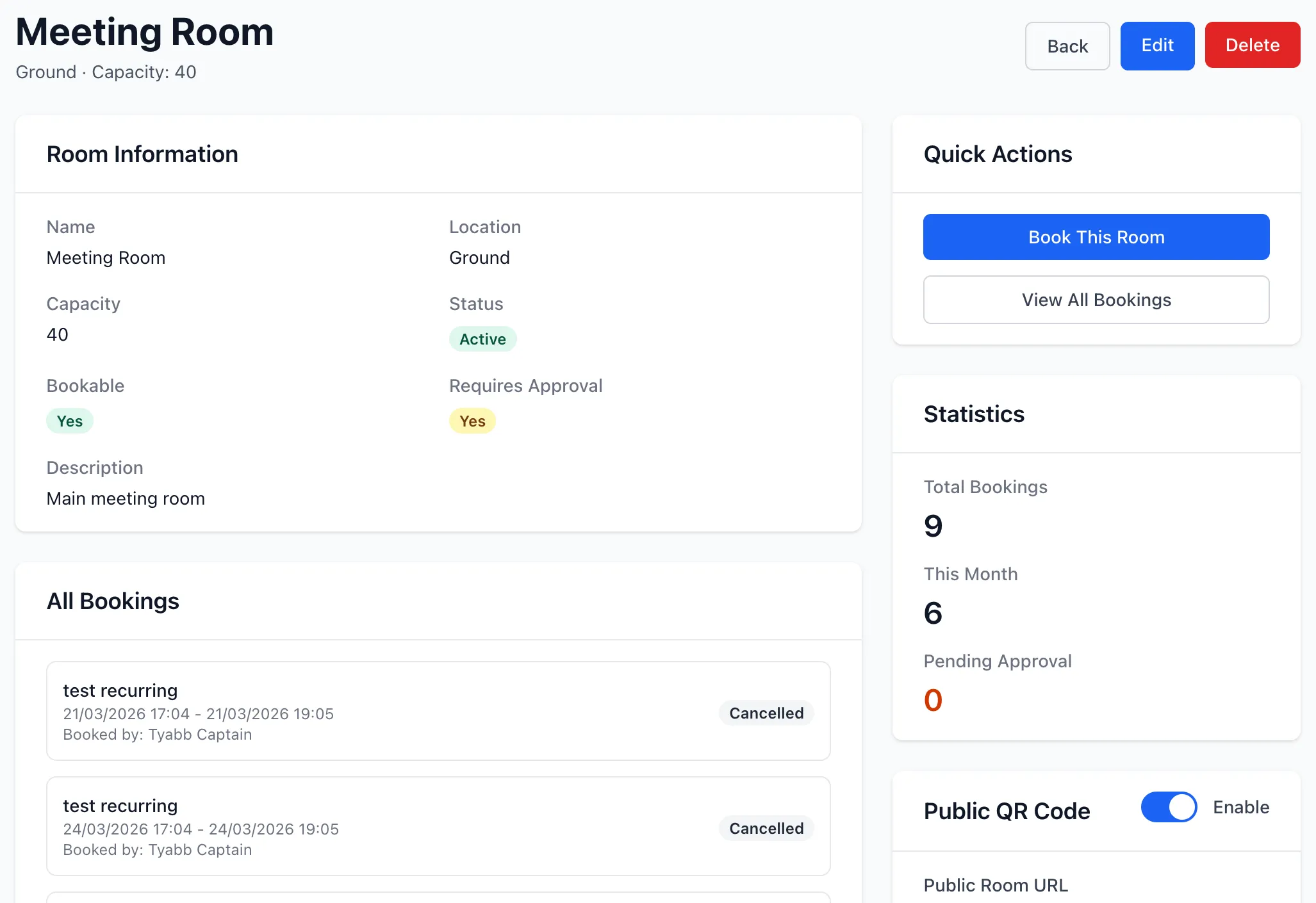
Overview
Section titled “Overview”Rooms in StationOne provide:
- Room creation with capacity, location, and description
- Internal member booking coordination
- Approval workflow for booking requests
- Public room booking capability
- Integration with events and training
- Automatic conflict prevention
- Email notifications for bookings
Room Properties
Section titled “Room Properties”Each room includes:
- Basic Information: Name, description, location
- Capacity: Maximum occupancy (optional)
- Status Flags: Active, bookable
- Approval Settings: Whether bookings require approval
- Public Access: Public viewing and booking toggle
- Secure Token: Unique URL for public access
- Organisation & Unit: Room ownership and scope
Room Status
Section titled “Room Status”Active
Section titled “Active”Rooms can be marked as active or inactive:
Active Rooms
- Visible in room lists
- Available for booking (if also bookable)
- Appear in calendar views
- Can receive new bookings
Inactive Rooms
- Hidden from standard views
- Cannot receive new bookings
- Existing bookings remain valid
- Used for temporarily unavailable or retired spaces
Bookable
Section titled “Bookable”Rooms marked as bookable:
- Appear in booking selection
- Accept new booking requests
- Show in availability checks
- Can be assigned to events and training
Non-bookable rooms:
- For reference only
- Cannot receive bookings
- May represent external spaces
Room Bookings
Section titled “Room Bookings”Booking Properties
Section titled “Booking Properties”Each booking includes:
- Time: Start and end date/time
- Purpose: Reason for booking
- Notes: Additional details (optional)
- Booker: User or name/email for public bookings
- Status: Pending, approved, rejected, or cancelled
- Approval: Approver and timestamp (if applicable)
- Linked Events: Associated event or training (optional)
Booking Status
Section titled “Booking Status”Pending
- Awaiting administrator approval
- Not yet confirmed
- Can be approved or rejected
- Notification sent to administrators
Approved
- Confirmed booking
- Room reserved for time period
- Prevents overlapping bookings
- Notification sent to booker
Rejected
- Booking request denied
- Room not reserved
- Optional rejection reason provided
- Notification sent to booker
Cancelled
- Previously approved booking cancelled
- Room becomes available again
- Can be cancelled by booker or administrator
- No notification sent
Booking Approval
Section titled “Booking Approval”The approval system provides flexibility for different use cases:
Rooms Requiring Approval
Section titled “Rooms Requiring Approval”When a room is marked as requiring approval:
- Standard member bookings need administrator approval
- Administrator bookings are auto-approved
- Public bookings always need approval
- Event and training bookings are auto-approved
Rooms Not Requiring Approval
Section titled “Rooms Not Requiring Approval”When approval is not required:
- All member bookings are immediately approved
- No administrator action needed
- Public bookings still need approval if public booking is enabled
- Event and training bookings are auto-approved
Who Can Approve
Section titled “Who Can Approve”Booking approval permissions:
- Brigade administrators
- Organisation administrators
- Super administrators
Booking Notifications
Section titled “Booking Notifications”The system sends email notifications for:
Approval Requested (to administrators)
- New booking awaits approval
- Includes booking details
- Links to approval actions
Booking Approved (to booker)
- Booking has been confirmed
- Includes room and time details
- Calendar integration
Booking Rejected (to booker)
- Booking was not approved
- Includes rejection reason if provided
- Suggests contacting administrator
Booking Confirmation (to public bookers)
- Booking request received
- Confirmation of submitted details
- Next steps for approval
Conflict Prevention
Section titled “Conflict Prevention”The system prevents booking conflicts:
- Checks for overlapping bookings
- Compares time ranges
- Only considers active bookings (pending or approved)
- Validation occurs on creation and update
- Clear error messages for conflicts
Booking Duration
Section titled “Booking Duration”Bookings can span:
- Any time range (minutes to days)
- Calculated duration in hours
- Cross-day bookings supported
- Past bookings remain for records
Public Room Access
Section titled “Public Room Access”Rooms can be made publicly accessible for viewing and booking.
Public Room Viewing
Section titled “Public Room Viewing”When public access is enabled:
- Room becomes viewable via unique URL
- Shows room details and capacity
- Displays upcoming approved bookings
- No login required for viewing
- Secure token prevents guessing
Public Room Booking
Section titled “Public Room Booking”When both public access and public booking are enabled:
- Anyone can submit booking requests
- Requires name and email address
- Optional user account linking
- Always requires administrator approval
- Confirmation email sent to booker
- Approval notification sent to administrators
Public Token Security
Section titled “Public Token Security”Each public room has:
- Unique secure token (URL-safe Base64)
- Token generated on public access enable
- Regeneration option for security
- Previous URLs become invalid after regeneration
- Token required in URL path
Enabling Public Access
Section titled “Enabling Public Access”Public access can be:
- Enabled per room
- Toggled on/off as needed
- Controlled by administrators
- Token generated automatically
- Public booking enabled separately
Integration with Events and Training
Section titled “Integration with Events and Training”Rooms integrate with events and training:
Event Room Assignment
Section titled “Event Room Assignment”When rooms are assigned to events:
- Automatic booking created
- Booking is pre-approved
- Covers event start to end time
- Purpose includes event title
- Location matches room location
Training Room Assignment
Section titled “Training Room Assignment”Training sessions can be assigned rooms:
- Same automatic booking process
- Pre-approved bookings
- Synchronized with training times
- Purpose includes training details
Booking Synchronization
Section titled “Booking Synchronization”Room assignments stay synchronized:
- Adding room creates booking
- Removing room deletes booking
- Time changes update booking times
- Cancelling event/training releases booking
Auto-Approval
Section titled “Auto-Approval”Event and training bookings:
- Automatically approved
- Bypass approval workflow
- Created by system, not user
- Managed through event/training interface
- Cannot be manually rejected
Room Calendar Integration
Section titled “Room Calendar Integration”Rooms appear in the calendar system:
- Show all room bookings
- Filter by room
- Visual conflict detection
- Time block representation
- Link to booking details
Permissions
Section titled “Permissions”Room management operates with role-based permissions:
Room Management
Section titled “Room Management”- View Rooms: All unit members
- Create Rooms: Brigade administrators and above
- Edit Rooms: Brigade administrators and above
- Delete Rooms: Brigade administrators and above
- Toggle Public Access: Brigade administrators and above
- Regenerate Token: Brigade administrators and above
Booking Management
Section titled “Booking Management”- View Own Bookings: All users
- View All Bookings: All unit members (for their unit’s rooms)
- Create Booking: All unit members (for bookable rooms)
- Edit Own Booking: Booking creator
- Cancel Own Booking: Booking creator
- Approve Bookings: Brigade administrators and above
- Reject Bookings: Brigade administrators and above
- Cancel Any Booking: Brigade administrators and above
Public Booking Permissions
Section titled “Public Booking Permissions”- Submit Public Booking: Anyone (no login required)
- Approve Public Booking: Brigade administrators and above
- View Public Room: Anyone with token
Room Management Features
Section titled “Room Management Features”Room Listing
Section titled “Room Listing”Rooms can be:
- Listed by unit
- Filtered by active status
- Filtered by bookable status
- Sorted alphabetically
- Viewed with booking counts
Room Details
Section titled “Room Details”Room detail view shows:
- Room information and capacity
- Upcoming bookings (next 10)
- Pending bookings requiring approval
- Public access status and URL
- Edit and management actions
Availability Checking
Section titled “Availability Checking”The system checks room availability:
- Time range comparison
- Excludes cancelled and rejected bookings
- Accounts for pending and approved bookings
- Returns boolean availability status
- Used in booking validation
Common Use Cases
Section titled “Common Use Cases”Internal Member Booking
Section titled “Internal Member Booking”- Member selects bookable room
- Specifies time and purpose
- Booking created with user as booker
- If approval required, awaits administrator action
- If approved, confirmation sent
- Room reserved for time period
Administrator Booking
Section titled “Administrator Booking”- Administrator selects room
- Can optionally book for another user
- Booking auto-approved
- Room immediately reserved
- Booker notified if email provided
Public Booking
Section titled “Public Booking”- Public visitor accesses room URL
- Views room details and availability
- Submits booking with name/email
- Confirmation email sent
- Administrator receives approval request
- Administrator approves or rejects
- Booker notified of decision
Event Room Assignment
Section titled “Event Room Assignment”- Event creator assigns room
- System creates booking automatically
- Booking pre-approved
- Room shows as booked in calendar
- If event cancelled, booking released
Room Unavailability
Section titled “Room Unavailability”- Administrator marks room inactive or non-bookable
- Existing bookings remain valid
- New bookings prevented
- Room hidden from selection lists
- Can be reactivated later
Related Features
Section titled “Related Features”- Events - Event room assignment
- Public Access - Public room viewing