Set Member Availability
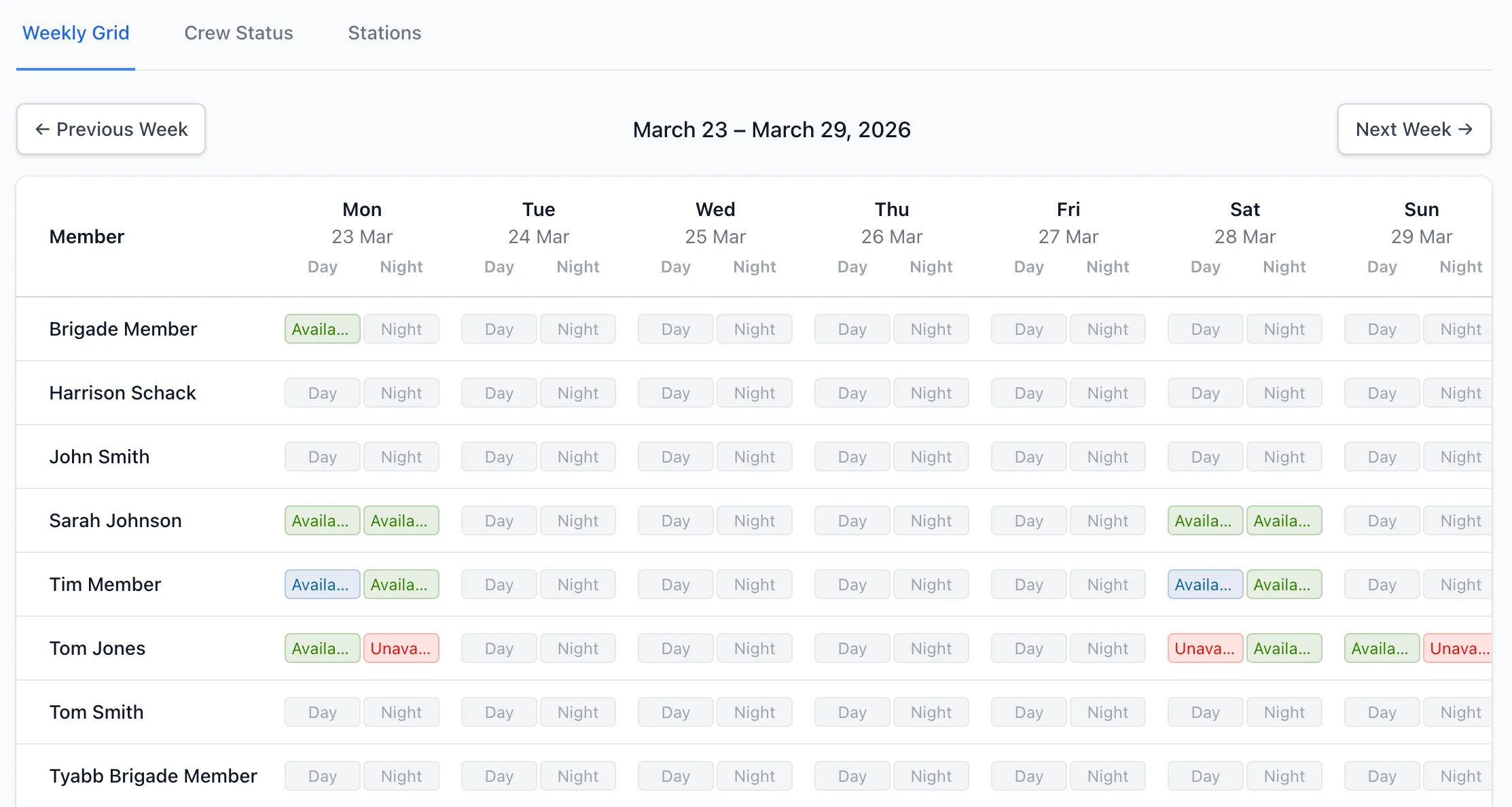
Members use the availability page to record whether they’re available, unavailable, on leave, or any other status your organisation has configured — separately for day and night shifts — across a rolling two-week window.
Prerequisites
Section titled “Prerequisites”- Any member role (brigade user or above)
- Availability module enabled for your brigade
Navigate to Your Availability
Section titled “Navigate to Your Availability”- Log in to StationOne
- Click Availability in the main navigation
Your personal availability page shows the current week and the following week.
Understanding the Grid
Section titled “Understanding the Grid”The availability grid displays one row per day. Each day is split into two periods:
- Day — the daytime shift
- Night — the overnight shift
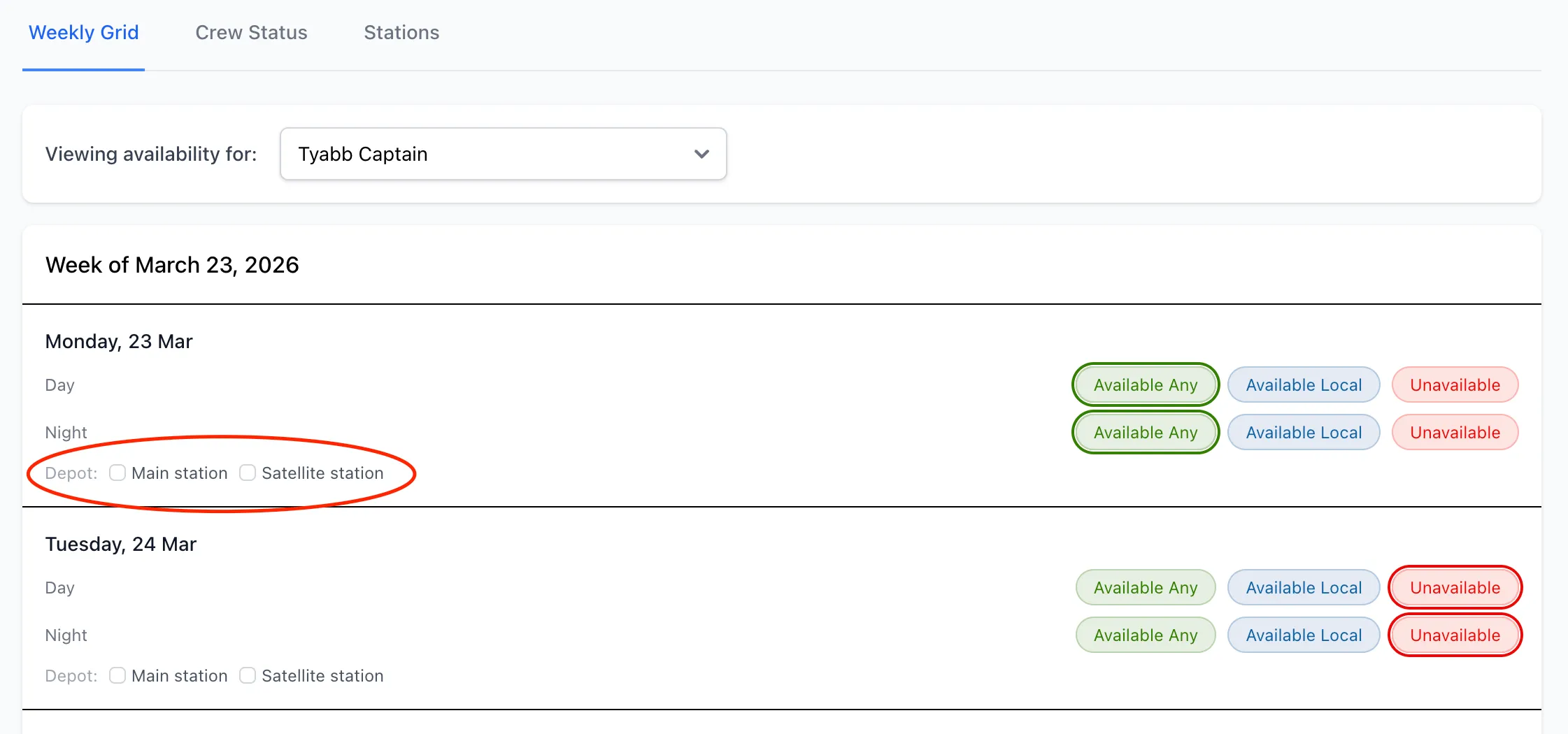
Each period shows a row of coloured buttons, one for each availability type your organisation has defined (for example: Available, Unavailable, On Leave). The currently selected status is highlighted.
Set Your Availability
Section titled “Set Your Availability”Update a Single Period
Section titled “Update a Single Period”- Find the day you want to update
- Click the button for the status you want to set (e.g., Available)
- The button highlights immediately — your status is saved automatically
To clear a period (remove any status), click the currently selected status button again to deselect it.
Set Day and Night Separately
Section titled “Set Day and Night Separately”Each day has independent day and night rows. Click the appropriate status for each period. You can be available for day but unavailable for night, or any combination.
Assign a Station
Section titled “Assign a Station”If your brigade has configured station locations, a Stations section appears for each day. To indicate which station you’ll be working from:
- Find the day you’re setting availability for
- Check one or more station checkboxes below the availability buttons
- Your station assignment saves automatically
You can be assigned to multiple stations on the same day if needed.
Switch Between Units
Section titled “Switch Between Units”If you are a member of more than one brigade, a Unit dropdown appears at the top of the page. Select the unit you want to update availability for. Each unit maintains its own availability records independently.
Set Availability Weekly
Section titled “Set Availability Weekly”Availability is most useful to your brigade when updated regularly. Aim to record your availability for the upcoming week at the start of each week.
Two-Week Window
Section titled “Two-Week Window”You can set availability for the current week and the next week. Dates outside this window are not available for editing.
Colours Match Your Organisation’s Settings
Section titled “Colours Match Your Organisation’s Settings”The button colours and labels are configured by your organisation admin. If you’re unsure what a status means, check with your brigade admin.
Bulk Update (Brigade Admins)
Section titled “Bulk Update (Brigade Admins)”Brigade admins and organisation admins can set availability for multiple members at the same time directly from the Weekly Grid in the brigade availability view. This is useful for recording attendance at training weekends, planned events, or any scenario where many members share the same schedule.
How to Bulk Update
Section titled “How to Bulk Update”- Navigate to Availability and make sure the Weekly Grid tab is active.
- Check the checkbox next to each member row you want to update. The checkbox in the column header selects or deselects all members at once.
- Click the Bulk Update button that appears in the top-right of the grid (it shows the number of selected members).
- In the dialog that opens:
- Days — check each day of the week to include. Use Select all to check every day.
- Period — choose Day, Night, or Day & Night.
- Set Status — click the status to apply (e.g., Available, On Leave).
- Click Apply. Availability is saved for all selected members and the page refreshes.
Clicking Cancel closes the dialog without any changes.
Common Issues
Section titled “Common Issues”Buttons Are Not Clickable
Section titled “Buttons Are Not Clickable”If the availability buttons are greyed out or unresponsive, the availability module may not be enabled for your brigade. Contact your brigade admin to enable it under Feature Modules in brigade settings.
My Unit Is Not in the Dropdown
Section titled “My Unit Is Not in the Dropdown”Only units you have an active appointment in will appear. If you’ve recently joined a new brigade but can’t see it, ask your admin to confirm your appointment is active.